How to calculate scores for each section in Google Forms?
"How can I calculate section-wise scores and total scores for a quiz with multiple sections"- Google Docs Editors Community
This is a common question from Google Workspace users who run quizzes with more than one section. For example, your form might cover sedentary behaviour, sports and recreational activities and everyday physical activities. One total cannot show that someone plays a lot of sport but sits all day. Google Forms only totals the whole quiz. You can work out each section in a Google Sheet, but it takes a formula for every section and people still do not see their scores when they submit. With Formfacade, you can calculate the individual scores for each section. Each person will see where they are strong and where they are weak. Even better, the form will have your own branding instead of Google's, but the responses will be collected on your Google Forms.
Let's start. Create your form and follow the steps below.
How to calculate individual scores for each section?
- On the page that opens, name your form, click Create form and click Proceed.
- You will land on the form's "Edit" tab. The "Assign points" dialog opens about 15 seconds later, so wait for it.

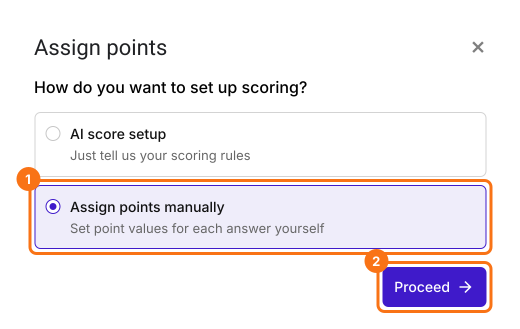
- It asks "How do you want to set up scoring?". Select "Assign points manually" and click Proceed.
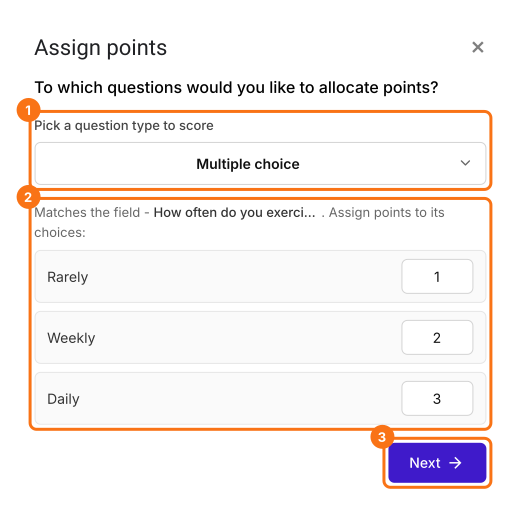
- Pick Multiple choice as the question type to score, assign points to its choices and click Next. The same points go to every multiple choice question in your form.
- It asks "How do you want to show the score?", with both options ticked. Click Next.
- You're all set message will be displayed. Click the × to go back to the "Edit" tab.
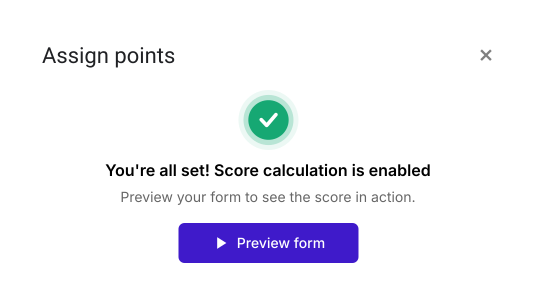
Assign points
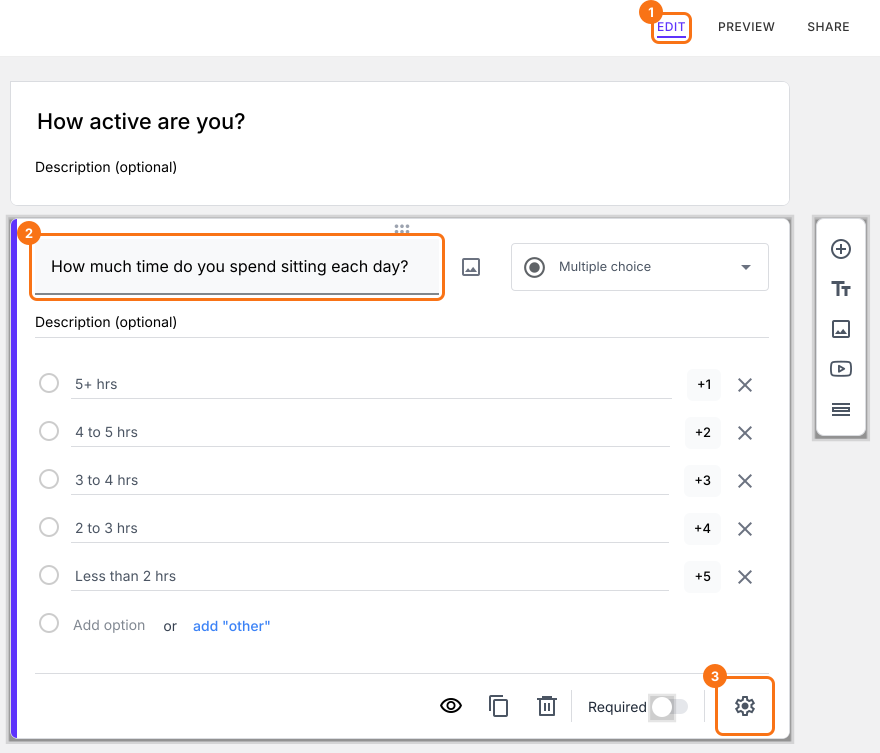
- In the Edit page, click on the question, then click on the gear icon.
- Question settings page will be displayed. Click Answer. Assign points for the different answer choices and click Save.
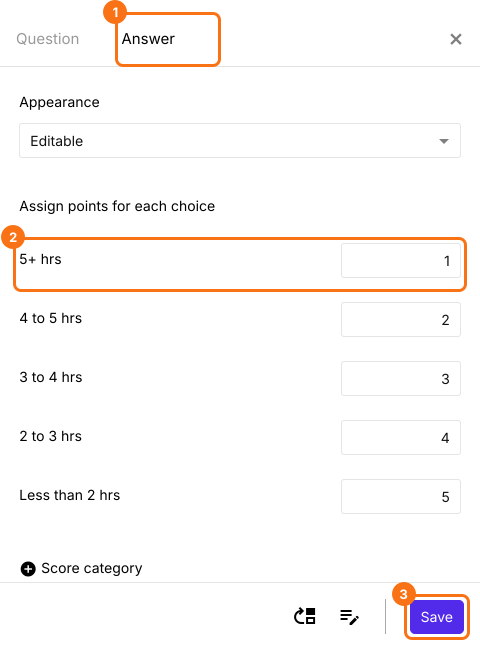
Add a score question in each section
- Click on the last question of a section, then click on the Add page icon on the right. The questions below it move to a new page. Type the name of the next section in the page title.
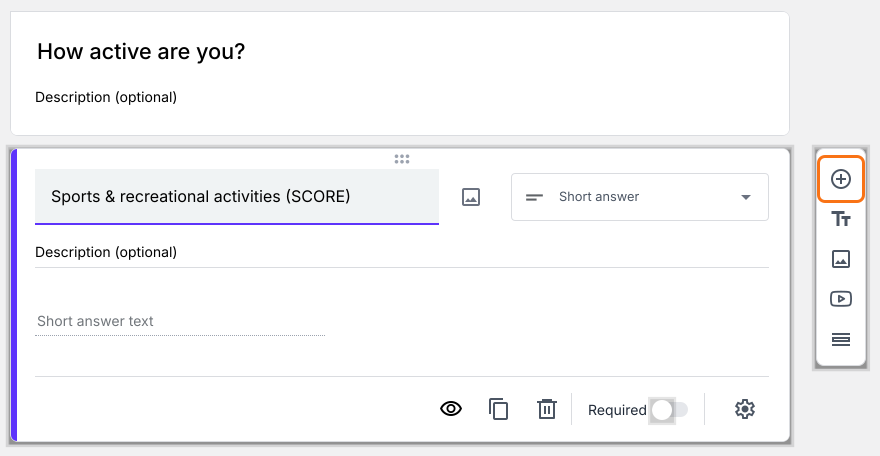
- Click on a question in each section, then click on the Add field icon on the right. It adds a Short answer question after it. Type the section's name as its title.
- Adding a page leaves your score message on the first page. Click on the gear icon on the last "After page" row. It says "Button not configured!" and asks you to reuse your configuration here. Click Yes.
Calculate section score
- Click on the section score question, then click on the gear icon.
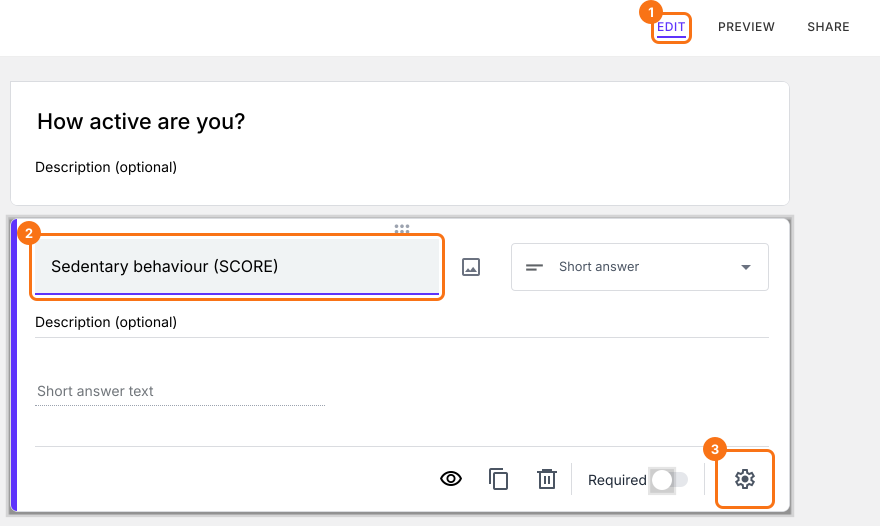
- Question settings page will be displayed. Click Answer, add the POINTS(SECTION) formula in the Calculate option and click Save.
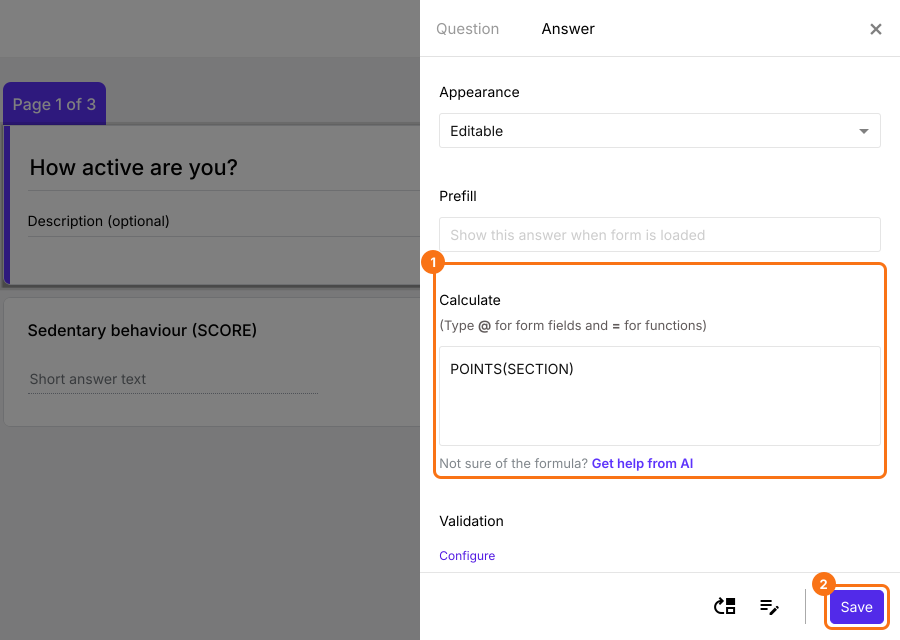
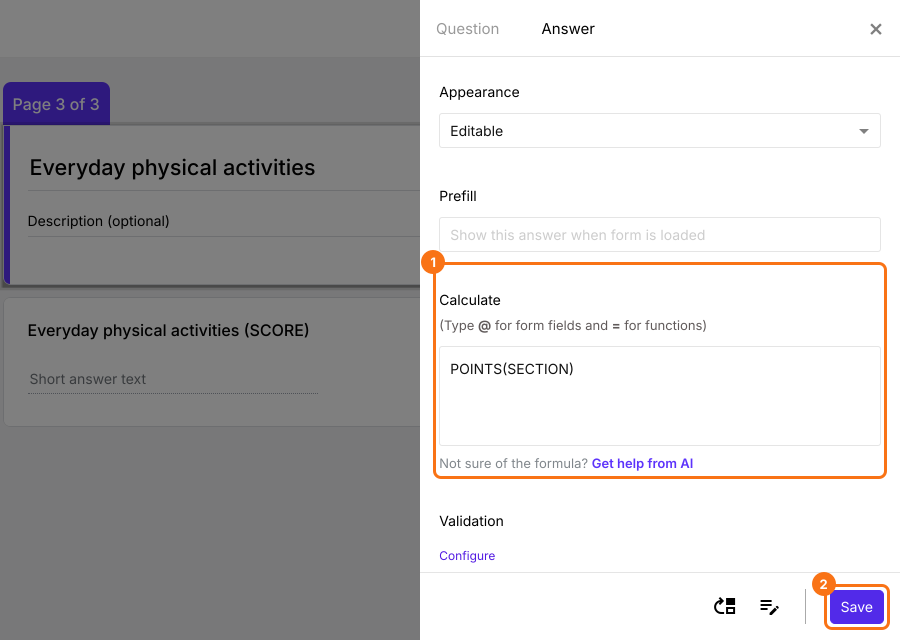
- Similarly, click on section score question in second section, then click on gear icon. Question settings page will be displayed. Click Answer, add the POINTS(SECTION) formula in the Calculate option and click Save.
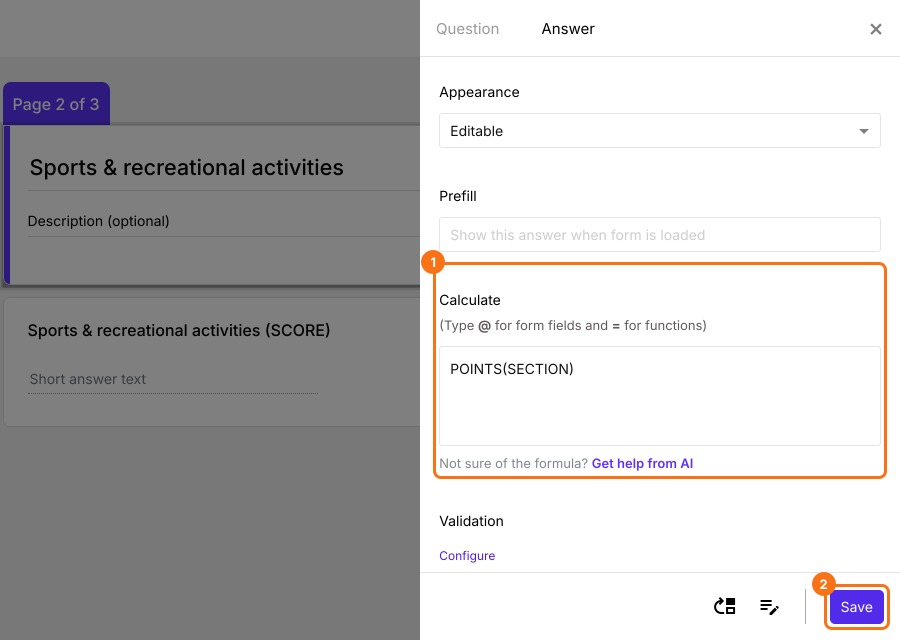
- Similarly, click on section score question in third section, then click on gear icon. Question settings page will be displayed. Click Answer, add the POINTS(SECTION) formula in the Calculate option and click Save.
Overall score
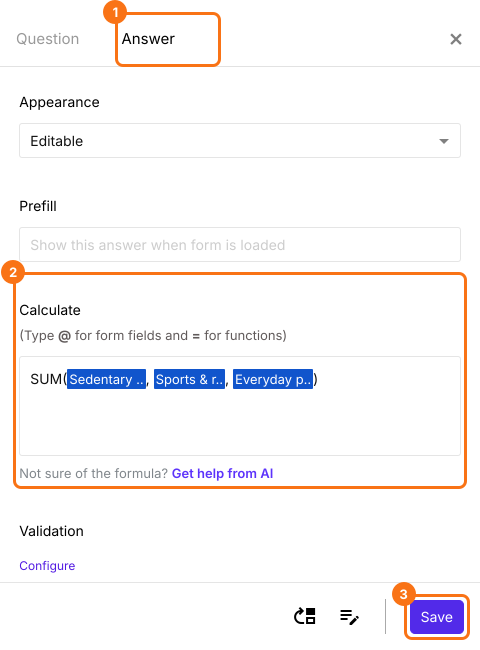
- Click on the Score question in the last section, then click on gear icon. Question settings page will be displayed. Click Answer, delete POINTS() in the Calculate option, add the SUM formula (as shown below) and click Save. To add each section score to the formula, type @ and select it from the list.
Summary
Last updated: