How to display the score only after submit?
This is a common question from people who run scored forms and don't want answers changed for a better score. For example, if your form calculates a score, people can see it change as they answer and they may go back and pick other answers. A quiz in Google Forms can hold back the score, but it cannot show the score in the confirmation message after submit. With Formfacade, you can change the appearance for the score question to hidden and add a custom message for the submit button to display the score only after form submission. People will fill the form with no score in sight and see it when they submit. Even better, you can write that message yourself, so it also says what the score means.
Let's start. Create your form and follow the steps below.
How to assign points?
- On the page that opens, name your form, click Create form and click Proceed.
- You will land on the form's "Edit" tab. The "Assign points" dialog opens about 15 seconds later, so wait for it.

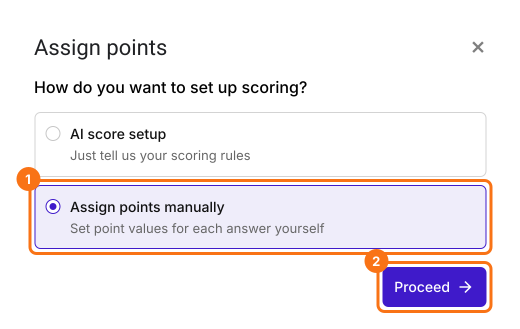
- It asks "How do you want to set up scoring?". Select "Assign points manually" and click Proceed.
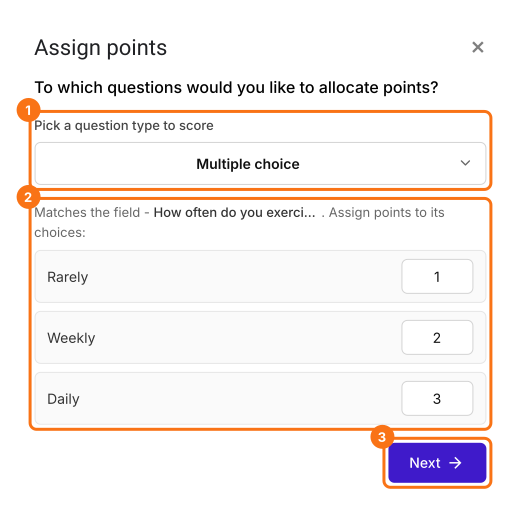
- Pick Multiple choice as the question type to score, assign points to its choices and click Next. The same points go to every multiple choice question in your form.
- It asks "How do you want to show the score?", with both options ticked. Click Next.
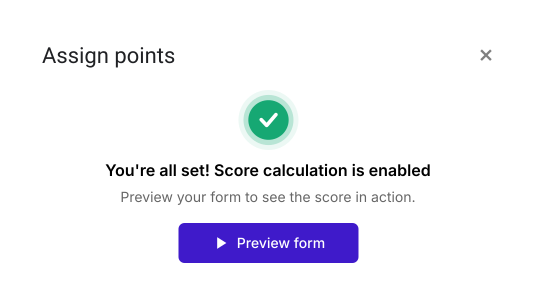
- You're all set message will be displayed. Click the × to go back to the "Edit" tab.
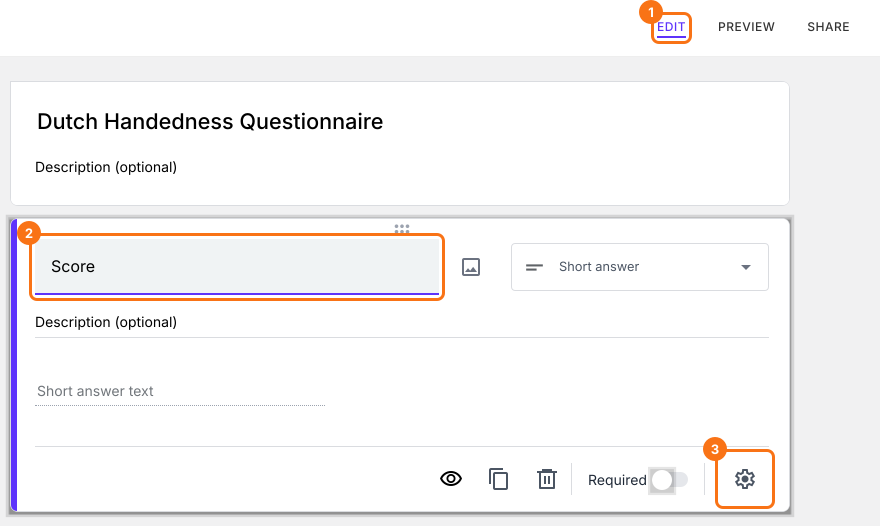
- Click on the question, then click on the gear icon
- Question settings page will be displayed. Click Answer. Assign points for the different answer choices and click Save.
- Do this for all the questions in your form
How to hide the score in the form?
- In the Edit page, click on the Score question, then click on the gear icon.
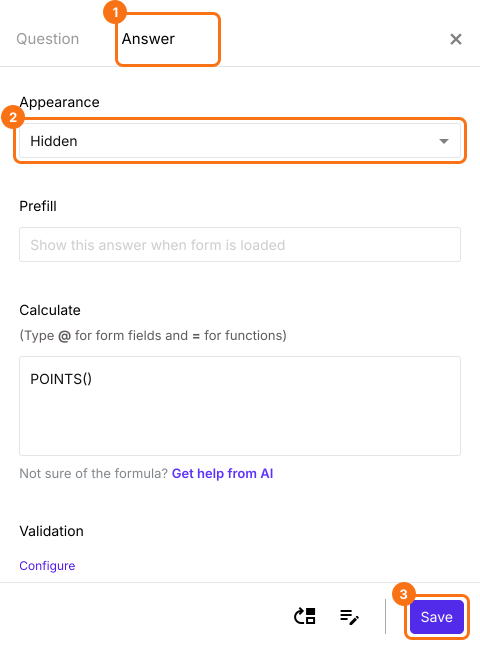
- Question settings page will be displayed. Click Answer, change the Appearance to hidden and click Save.
How to customize confirmation message?
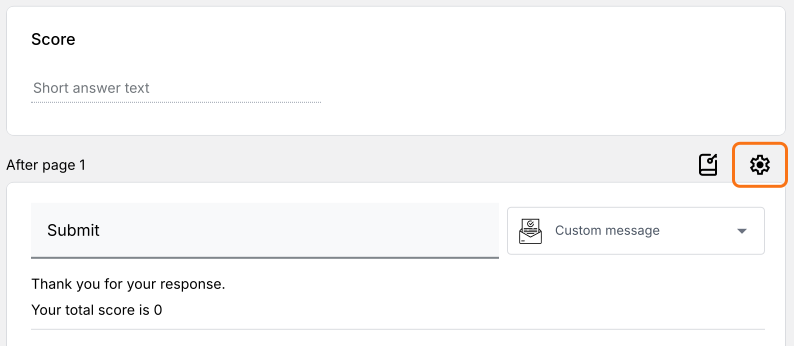
- Scroll down to the end of the form and click on the gear icon on the last "After page" row, above the Submit button. It says "After page 1" on a form with one page. The panel can take a few seconds to open, so click once.
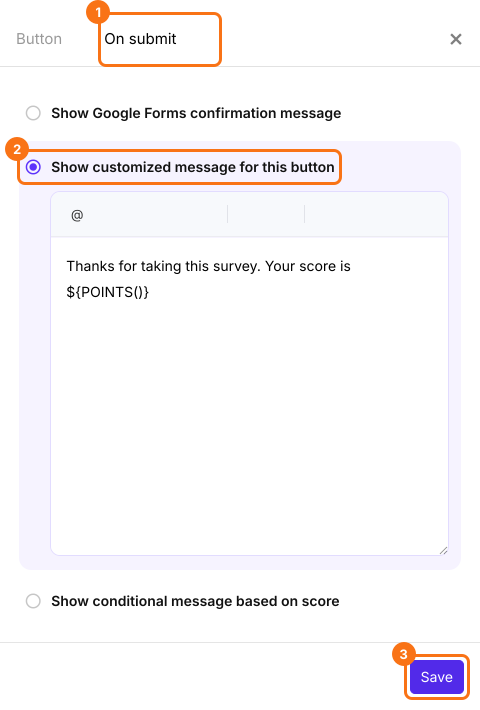
- Button settings page will be displayed. Click On submit. Select Show customized message for this button. Update the message and click Save.

Summary
Last updated: