How to track the status of each Google Forms response?

"owners cannot track which individual entries they have already checked"- Google Docs Editors Community

This is a common question from Google Workspace users once responses pile up. For example, you might collect payment screenshots through a Google Form and more than 1,000 responses have come in. Each one has to be checked before that person is confirmed and your team shares the work. Google's Responses tab doesn't show which ones you've checked. You can add a status column in the Sheet, but it only works if everyone remembers it. With Formfacade, you can give every response a status on a board. Your team will see what is checked and what is waiting. Even better, you can still sync the responses to Google Sheets and share them with anyone on your team who is comfortable with Sheets.

Let's start. Create your form and follow the steps below.

1. Create your form
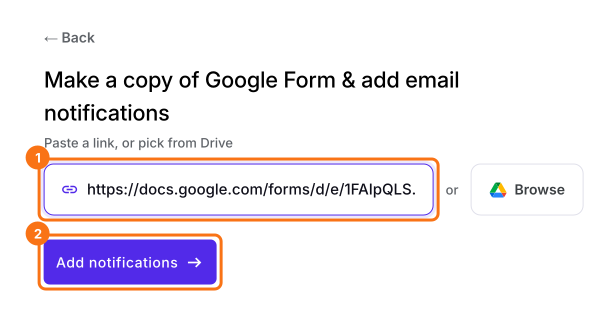
On the page that opens, name your form, click Create form and click Proceed. When it asks "Do you want to setup email notification for this form?", click Yes. A new tab will open. To use your payment form from Google Forms instead, click Import Google Form, paste its link and click Add notifications.
The Make a copy of Google Form and add email notifications screen, with the payment form's link pasted in and the Add notifications button marked

2. Add a Checked status

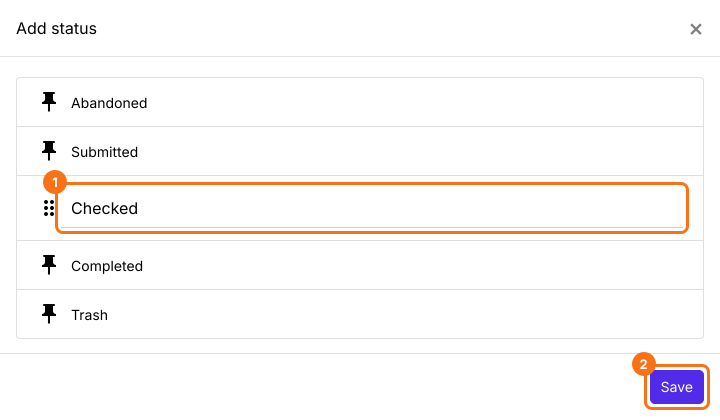
You land on the Kanban board under RESPONSES. Close the Email respondent box if it opens. Click + STATUS, type Checked and click Save.
The Add status panel with Abandoned, Submitted, Completed and Trash, the new status typed as Checked and the Save button marked

3. Check a payment and move it

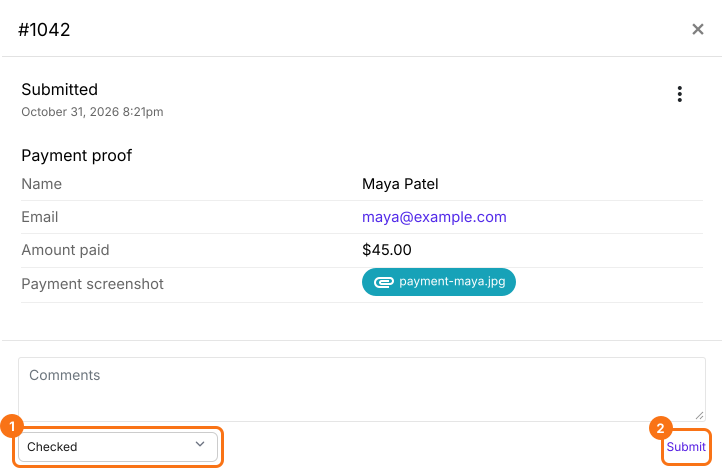
Your form has no responses yet, so open SHARE, click Copy and open the link to fill it and submit it. Back on the board, click the card and check the response. Pick Checked under - Move to - and click Submit.
Response 1042 from Maya Patel with her payment-maya.jpg file link, Checked chosen in the Move to list and the Submit link marked

4. Share the work with your team

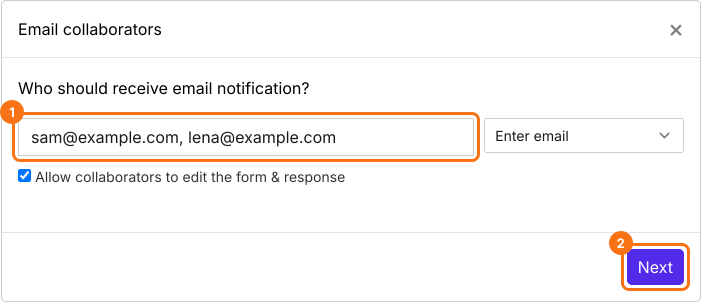
Click the three dots on the Submitted column, then Notify collaborators, type your team's emails and click Next on the subject and on the message. Click on "Click here" to open your form in a new tab, fill it and submit it. If you receive the email, click YES. Each new response reaches them by email.
The Email collaborators box with sam@example.com and lena@example.com typed in, Allow collaborators to edit the form and response ticked and the Next button marked

5. See what is checked and what is waiting
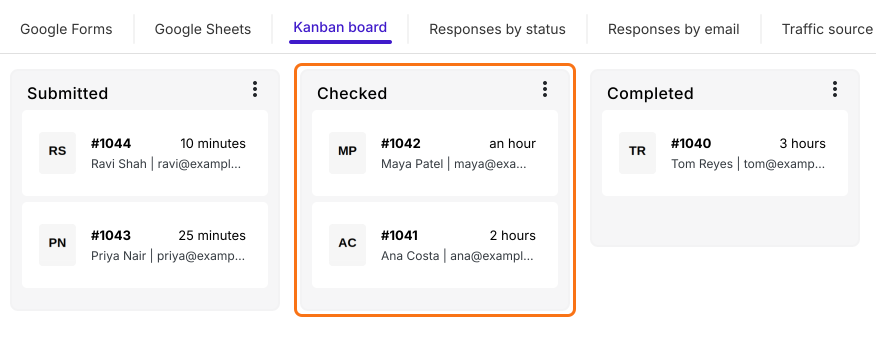
Every payment sits under its status, so nobody checks the same one twice. The ones under Submitted are still waiting.
The Kanban board with Ravi Shah and Priya Nair under Submitted, Maya Patel and Ana Costa under Checked, which is marked, and Tom Reyes under Completed

Summary

If more than 1,000 responses need checking and your team shares the work, Google Forms can't show which ones are done and a status column only works if everyone remembers it. With Formfacade, every response sits on a board with a status, so anyone can see what is checked and what is waiting. Create your form and complete the steps above. If you have any questions, write to support.

Last updated: