How to Embed Google Forms in Wix?
"I tried to build a form and embed the HTML into my wix website"- Google Docs Editors Community
This is a common question from Google Workspace users with a website on Wix. The form you embed keeps the Google look and the note at the bottom about who created it. You can change its width and height, but you cannot make it match your website. With Formfacade, you can paste one embed code in an Embed HTML element and your form shows on your page. Your visitors will see your form without Google's look or its note. Even better, the responses will still be collected on your Google Forms, so you can sync them to Google Sheets and share them with your team.
Let's start. Create your form and follow the steps below.
How to make your forms look professional and match your website theme?
- On the page that opens, name your form, click Embed form and click Proceed. It can take about a minute.
- You will land on the form's "Share" tab, on Embed. The top bar may say "Blank Formfacade form" until you reload the page.
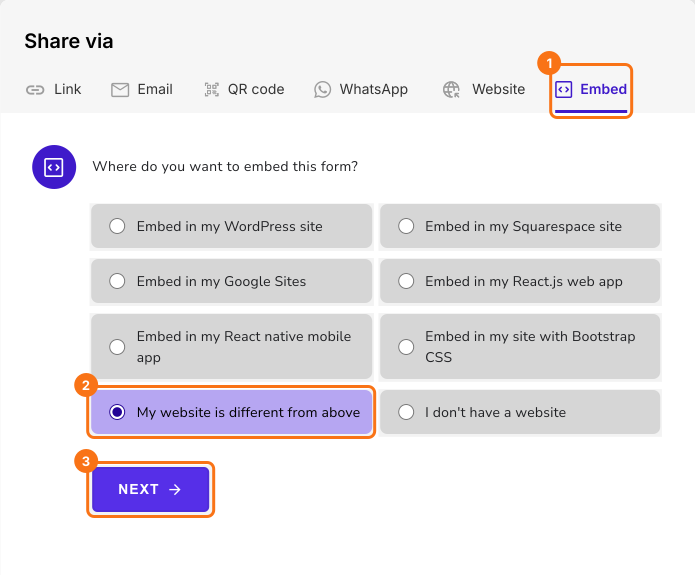
- After a few seconds, "Where do you want to embed this form?" will be displayed
- Select "My website is different from above" and click on the Next button.
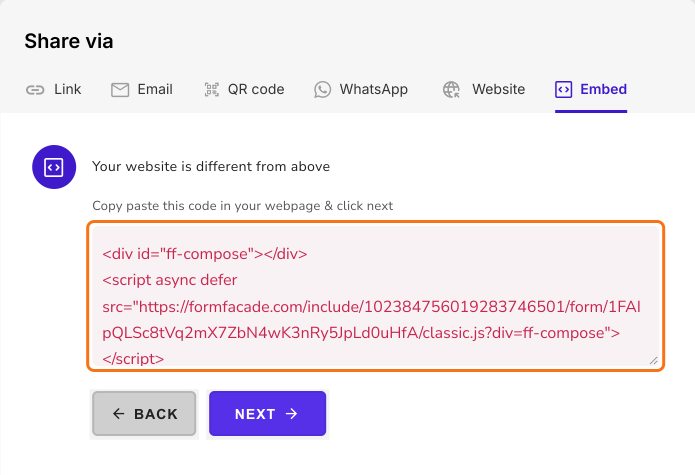
- Copy this embed code. Open your Wix editor for the page where you want to embed the form, add an Embed HTML element and paste this embed code. Save and publish the page to make your form live. Formfacade will automatically apply your website theme to your form.
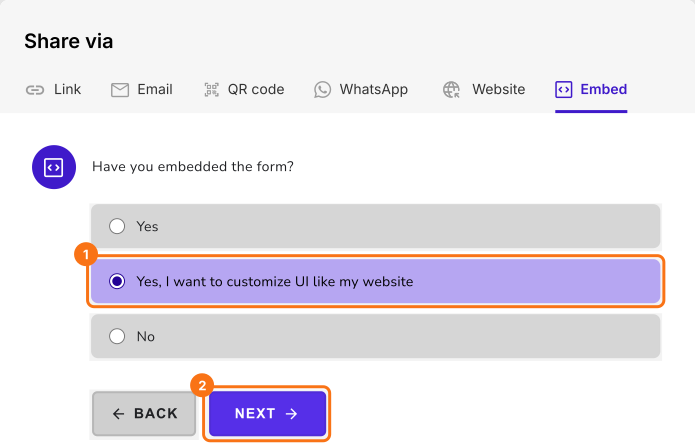
Your form will show on your page. If you need more customization options, click on the Next button.
You can select "Yes, I want to customize UI like my website" to change the form layout, colors, fonts & more. If you need any help, tell us if you have embedded the form by selecting the appropriate option and click on the Next button.
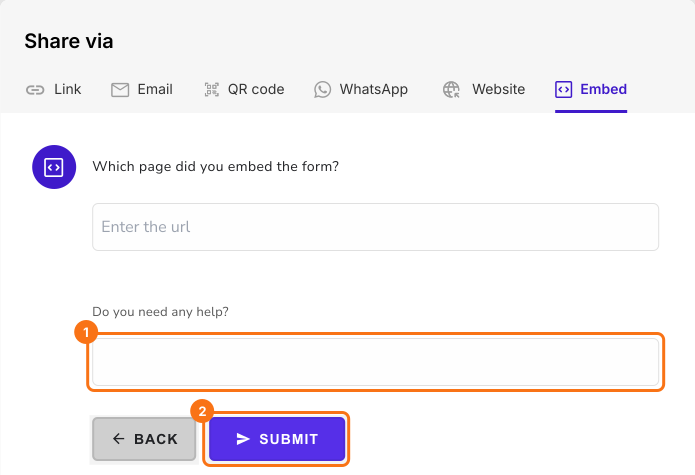
If you selected Yes, "Customize UI like my website" will be displayed. Click on the Next button. Then enter the url of your page and your message and click on Submit. Our team will reach out to you and help you with your request.
What about the Google Forms embed code?
Open your Google Form and click on the ⋮ More icon at the top right corner. Select Embed HTML. Embed HTML popup screen will be displayed. Copy the HTML code. Open your Wix editor for the page where you want to embed the form, add an Embed HTML element and paste this HTML code. Save and publish the page to make your form live.
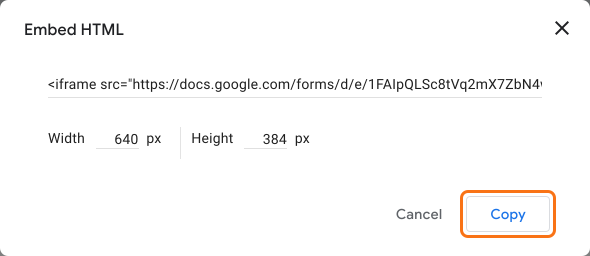
When you embed your Google Form using this default option, you can only make limited customization such as changing the width and height of the form. This form will have the Google branding along with the disclaimer note at the bottom. If you would like to make your forms look more professional and match your website theme, follow the instructions above.
Summary
If you embed a Google Form in Wix using the default option, it keeps the Google branding and does not match your website. With Formfacade, you paste one embed code in an Embed HTML element and you can customize the layout, colors and fonts to match your website. Create your form and complete the steps above. If you have any questions, write to support.
Last updated: