3 ways to embed your Google Forms

This is a common question from Google Workspace users who have built a form and need people to reach it. A Google Form does nothing until they can. Google Forms lets you embed it on your site, send it by email or share a link for free, but each of these keeps Google's look and the iframe does not match your website. With Formfacade, you can embed it without an iframe, matching your website's theme. Your visitors will see a form that feels like part of your site. Even better, you can have a file upload question and prefill answers on the embedded form, which Google's embed can't do. The responses still reach Google Forms and Google Sheets.
Let's start. Use one of the three ways below or create your form with Formfacade and follow the steps in the Bonus section.
Before you start
Method 1: How to embed a Google Form on your website?
- Open your form in Google Forms and click the More menu (the three-dot icon) in the top right corner.
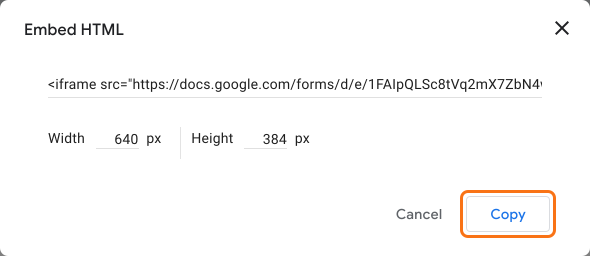
- Select <> Embed HTML.
- The Embed HTML settings page will be displayed. Adjust the width and height as needed, then click Copy. Paste the iframe embed code on the page where you want the form to appear.
Limitations
- Iframe with internal scroll on longer multi-page forms. The iframe is a fixed size, so a long form scrolls inside its own box instead of expanding with the page.
- Not mobile-friendly or responsive. The form doesn't adapt to screen size and can get cut off or look cramped on phones.
- File upload questions block embedding. Forms with a file upload question can't be embedded, you'll see "This form cannot be embedded because it makes use of File Upload fields."
- Google branding and terms visible. A "Google Forms" footer and terms stay on the form and can't be removed with the native embed.
- User analytics won't work. Because the form loads in a cross-origin iframe, session-recording and analytics tools like Hotjar or FullStory can't see inside it, so you can't track behavior or spot drop-off points within the form.
- Can't prefill answers. You can't automatically prefill the embedded form from URL query strings or pass values in dynamically with JavaScript, since the page can't reach into the cross-origin iframe.
Method 2: How to embed a Google Form in an email?
- Open your form in Google Forms and click the Share icon at the top right.
- Enter the names or email addresses of your responders.
- Enable the Notify people option.
- Optionally add a message, then click Send.
Limitations
- The embedded form only renders reliably in Gmail. In Outlook, Apple Mail and other clients, recipients usually get a link to open the form instead of inline fields.
- Some question types block embedding. Form will not be embedded inside the email if it contains a file upload question, a rating question, an image in a question or option or a secured quiz.
- Multi-page forms only embed the first page. Recipients see the first section in the email body and have to continue the rest of the form in their browser.
- Email collection breaks in-email submission. If "Collect email addresses" is on, the response can't be submitted from the inbox. Answers are carried over as a partial response and the respondent is sent to Google Forms to finish and Verified email collection can fail entirely.
Method 3: How to share a Google Form link?
- Open your form in Google Forms and click the Link icon at the top right.
- The "Copy responder link" settings will be displayed. Enable Shorten URL for a shorter link, then click Copy.
- You can also copy the link from Share or Preview.
- Posting on social media. Drop the link into a post on any platform to reach a wider audience.
- Sending from your own email. Google's built-in "Share via email" option always sends from drive-shares-noreply@google.com and that sender address can't be changed. If you'd rather email from your own Google account or email service, paste the link as a hyperlink in your own message so it comes from you instead.
- Linking on your website. When you don't want to embed the form inline, add the link on your site so visitors open it in a new tab.
Limitations
- Google-branded page, not yours. The link opens a Google-hosted page on a Google domain, so respondents leave your site for something that doesn't look like your brand. That can feel less trustworthy for lead capture and you lose your page's context.
- No control over the experience. Once someone clicks the link, they're on Google-hosted page with no related content, no navigation back to your site and no next step, so the form is a dead end rather than part of a journey.
- Generic link previews. When pasted into social media or chat, the link unfurls with Google Forms' own preview image and description from your form instead of your branding, which looks less polished in a public post.
- Link cannot be customized. You can't set a branded or custom URL, so the link, even the shortened forms.gle version, can't be typed from memory.
Bonus: How to embed a Google Form without the iframe?
- On the page that opens, name your form, click Embed form and click Proceed. It can take about a minute.
- You will land on the form's "Share" tab, on Embed. The top bar may say "Blank Formfacade form" until you reload the page.
- After a few seconds, "Where do you want to embed this form?" will be displayed
- Select your website platform, then click Next.
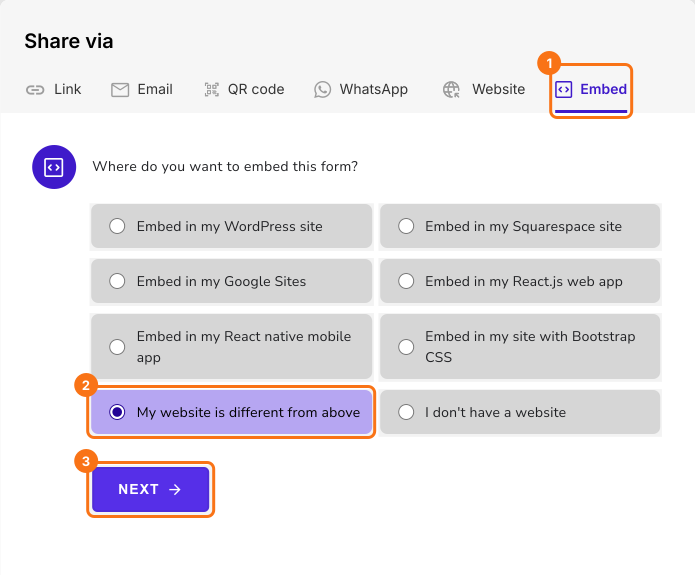
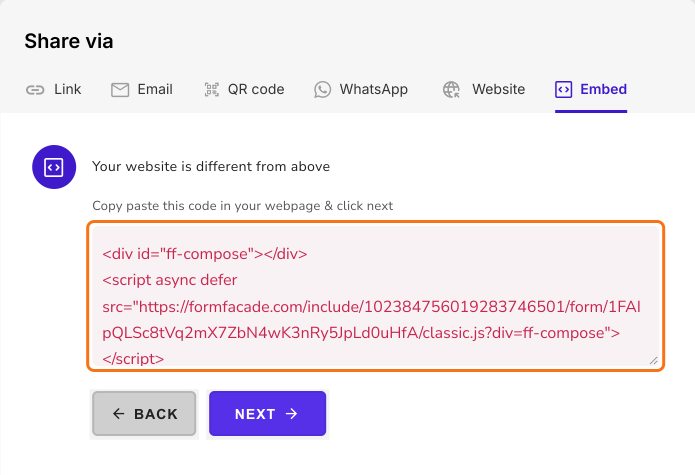
- Follow the prompts to embed the form. For most websites, you copy the embed code and paste it in your webpage.
Why Formfacade
- Matches your website theme. The form takes on your site's fonts, colors and layout for a professional, responsive look, without Google branding.
- Works with all major builders. Embeds on WordPress, Squarespace, Shopify, Google Sites, Wix, Webflow and more.
- Keeps your Google Workspace workflow. Responses still flow into Google Forms and can auto-sync to Google Sheets, so nothing changes about how you manage them.
- Prefills answers. Automatically prefill the embedded form from URL query strings or pass values in dynamically with JavaScript.
- Enables user analytics. Because the form isn't locked in a cross-origin iframe, you can track behavior and spot drop-off points with session-recording tools like Hotjar or FullStory.
- Supports file uploads. Unlike the native embed, Formfacade lets you embed a form with file upload questions (up to 10 MB per file). Larger files and syncing uploads to Google Drive are available on higher paid plans.
- Works beyond websites. You can also embed the form in a mobile app, with ReactJS, React Native and JavaScript integration for custom builds.
Limitations
- Some platforms allow iframe embed only. Google Sites and Wix don't support the script-based embed, so even with Formfacade the form is added as an iframe on those platforms.
- Formfacade branding on the free and lower plans. The free tier removes Google's branding but adds a small Formfacade attribution. Removing that, along with higher response volumes, requires a paid plan, so check the current pricing against what your form needs.
Comparison
| Google Forms Embed | Formfacade Embed | |
| Matches your website theme | No | Yes |
| Mobile responsive | No | Yes |
| File upload questions | Not Supported | Supported |
| Prefill answers | No | Yes, via URL or JS |
| Analyze using session recording tools | No | Yes |
| Mobile app and React support | No | Yes |
| Responses in Google Forms / Sheets | Yes | Yes |
| Pricing | Free | Requires subscription |
Frequently Asked Questions
Summary
Last updated: