How to add description to a question in Google Forms?
This is a common question from Google Forms users whose questions need more explaining. For example, you might need to say the format of an answer or why you are asking. Making the question title longer makes the form hard to read. Google Forms lets you show a description under a question from its ⋮ menu, but you cannot add line breaks to it. With Formfacade, you click on the question and enter the description right under it. Your users will see a small line of help under the question. Even better, you can format it in a text box with bold, italic, links and lists.
Let's start. Create your form and follow the steps below.
Add description to a question
- On the page that opens, name your form, click Embed form and click Proceed. It can take about a minute.
- You will land on the form's "Share" tab, on Embed. The top bar may say "Blank Formfacade form" until you reload the page.
- Click on "Edit" tab

- Click on the question
- Enter the description for the question in Description (optional)
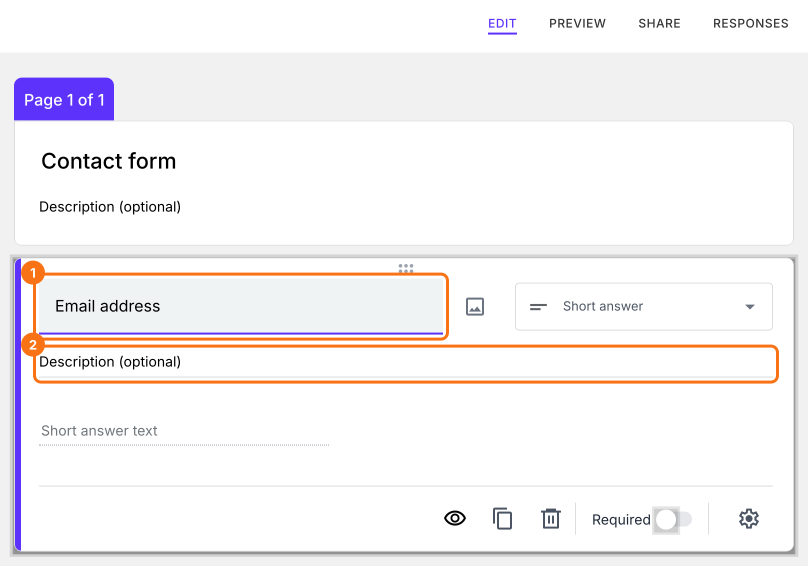
The description will show under the question on your form.
Format the description
You cannot add line breaks in Google Forms. In Formfacade, you can use a text box with bold, italic, links and lists.
- Click on the ⚙️ icon at the bottom of the question
- Click + Description
- Enter the description for the question
- Click Save
Summary
If a question needs more explaining, a long question title makes the form hard to read. With Formfacade, you click on the question and enter the description and you can use the ⚙️ icon if you need formatting. Create your form and complete the steps above. If you have any questions, write to support.
Last updated: