How to create a conditional dropdown in Google Forms?
This is a common question from Google Sheets users who keep categories and products in a sheet. For example, your second dropdown should show only the products in the category someone picked. Google Forms can't do it, as all dropdown options are static. Its Go to section workaround needs a section for each choice and Apps Script cannot filter the options while someone is filling the form. With Formfacade, you can create true conditional dropdowns without any code. Your respondents will see only the choices that fit. Even better, you can connect the same sheet to as many forms as you need and add more levels, such as Category, Sub-category and Product.
Let's start. Connect your Google Sheet to your form and follow the steps under Method 2 below.
What is a Conditional Dropdown?
Method 1: Use Go to Section Based on Answer
How to set it up?
- Open your form in Google Forms > add a dropdown question. For example, "Select a product category" with Hardware and Software as the two answer choices.
- Click the Add section icon to create a separate section for each option. For example, a Hardware section and a Software section. In each section, add a dropdown question with the relevant options. For example, the Hardware section has a dropdown of hardware issue types and the Software section has a dropdown of software issue types.
- Click on the "Select a product category" dropdown question to select it > click the ⋮ three dot more option > select Go to section based on answer. For each option, select the corresponding section. For example, set Hardware to go to the Hardware section and Software to go to the Software section.
Limitations
- This is a workaround, not a true conditional dropdown. Respondents navigate to a different section instead of the options filtering in real time.
- Not suitable for dropdowns with a large number of answer choices. Each option in the first dropdown requires its own section, making the form difficult to manage.
- The form becomes bloated quickly. Google Forms has a hard limit of 75 sections.
- If you have multiple forms with the same dropdown, you have to replicate and maintain the setup for each one.
Method 2: Formfacade - Sheets Lookup
How to set it up?
- Click on Connect your Google Sheet to your form
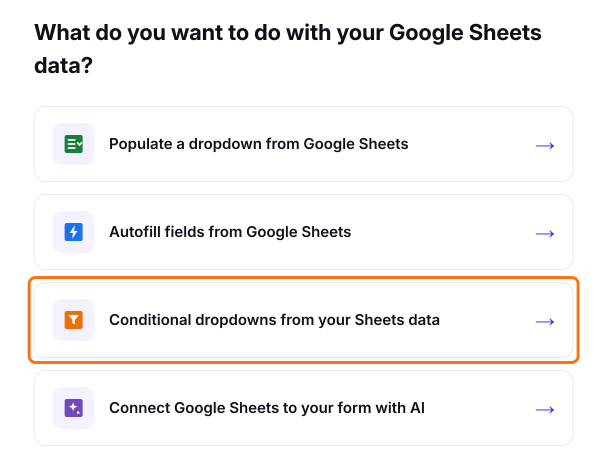
- Click on "Conditional dropdowns from your Sheets data" in the page that opens
- Paste your Google Form link and click Next. Formfacade will copy your questions
- Pick connected sheets page will be displayed. Select your sheet or click + Connect another sheet and click Next. If you have not connected a sheet yet, click Connect a Google Sheet and pick your sheet in Google's window
- "How do you want to connect?" will be displayed with an instruction written for you. Edit it to configure the conditional dropdown and click Proceed. For example: "Show product categories from the Products sheet in the Category dropdown. Based on the selected category, show only the matching products in the Products dropdown."
- "Your form is ready" will be displayed. Click Preview your form to see it
- Share the Formfacade link with your respondents.
Why this approach?
- True conditional dropdowns. Options in the second dropdown filter in real time based on the respondent's selection, not by navigating to a different section.
- No limit on answer choices. Supports dropdowns with hundreds or thousands of options with no performance limits.
- Your sheet is the single source of truth. Add a new product to the sheet and it appears in the form automatically.
- Scales across multiple forms. Connect the same sheet to as many forms as you need.
- Your sheet is never modified. Formfacade mirrors your data to serve forms fast and never uses write access to your sheet.
Limitations
- Requires a subscription to Formfacade - Sheets Lookup.
- Responses are recorded in Google Forms as normal, but you must use the Formfacade link instead of the native Google Forms URL to collect responses.
Comparison
| Go to section based on answer | Formfacade - Sheets Lookup | |
|---|---|---|
| True conditional dropdown | No | Yes |
| Required coding | No | No |
| Scales with large lists | No | Yes |
| Works with Google Sheets | No | Yes |
| One sheet, multiple forms | No, separate set up per form | Yes |
| Maintenance required | Yes | No |
| Cost | Free | Requires a subscription |
Frequently Asked Questions
Summary
Last updated: