How can I change the layout of my Google Forms?
This is a common question from Google Forms users with long forms. For example, if you use a form for a long order or registration, every question sits alone in one narrow column and people scroll a long way to finish it. Google Forms lets you change the theme, but not how the questions are laid out. When you embed it, you can only set its width and height. With Formfacade, you can choose Default, Comfortable or Compact layout and your users will see more questions at a glance. Even better, the responses are still collected on your Google Forms, so you can sync them to Google Sheets as you do today.
Let's start. Create your form and follow the steps below.
How to change the form layout?
- On the page that opens, name your form, click Build form and click Proceed. It can take about a minute.
- You will land on the form's "Preview" tab.

- Click on the LAYOUT tab
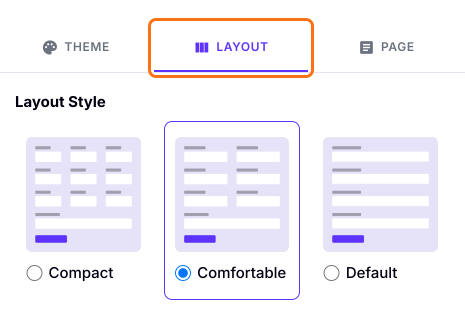
- Select the desired layout. A form built with AI opens as Comfortable.
- Click on the "Apply to this form" button. A layout applies only to this form.
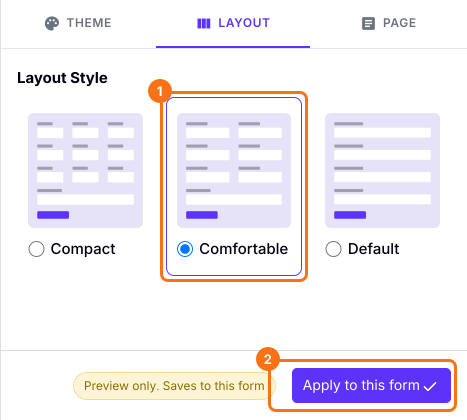
Customized form with a Comfortable layout
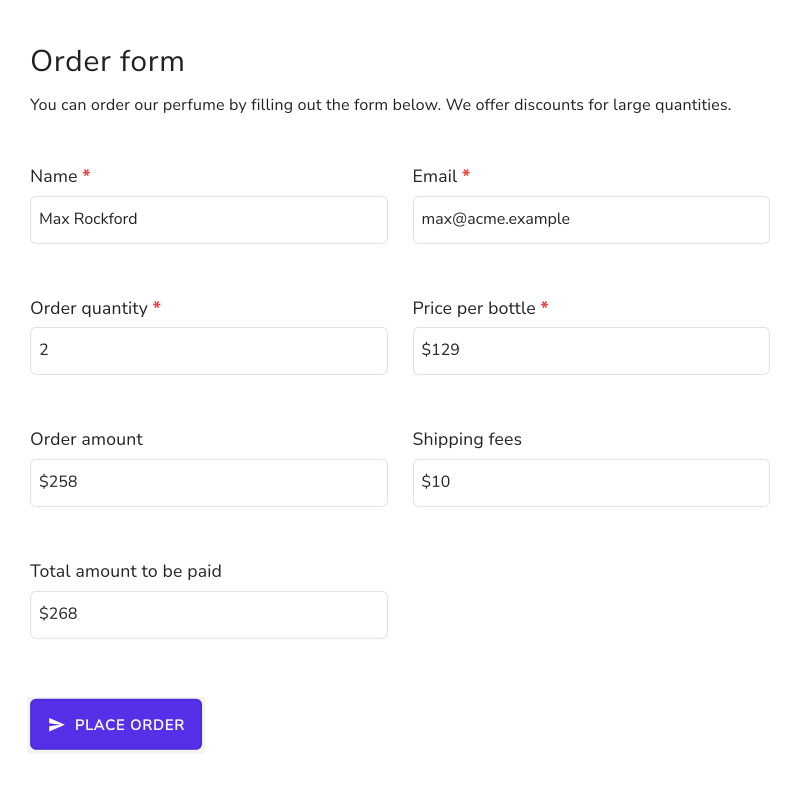
Summary
If your Google Form is too long in one narrow column, the Embed HTML option will not change its layout. With Formfacade, you can choose the Default, Comfortable or Compact layout and your form will look the way you want. Create your form and complete the steps above.
Last updated: