How to calculate the start and end date of a work week?
This is a common question from Google Forms users whose team plans its work every week. For example, someone has to fill in the start and end date of the next week on every form. Those dates change each week and people type them differently. Google Forms cannot fill them in, so you have to check them by hand. With Formfacade, you can use the getDay() function to find the day of the week and the ADD function to calculate the start and end date of next week, so your team sees them already filled in. Even better, the dates update by themselves, so you can use the same form every week.
Let's start. Create your form and follow the steps below.
Goals & objectives for next week
Let's create a form to capture the goals and objectives for next week. Instead of asking the users to enter the week start date and week end date, we will automatically update the start and end dates for next week. In this example, the week starts on a Sunday and ends on a Saturday. Please follow the instructions below to add the date calculations for automatically updating the dates.
- On the page that opens, name your form, click Build form and click Proceed. It can take about a minute.
- You will land on the form's "Preview" tab.
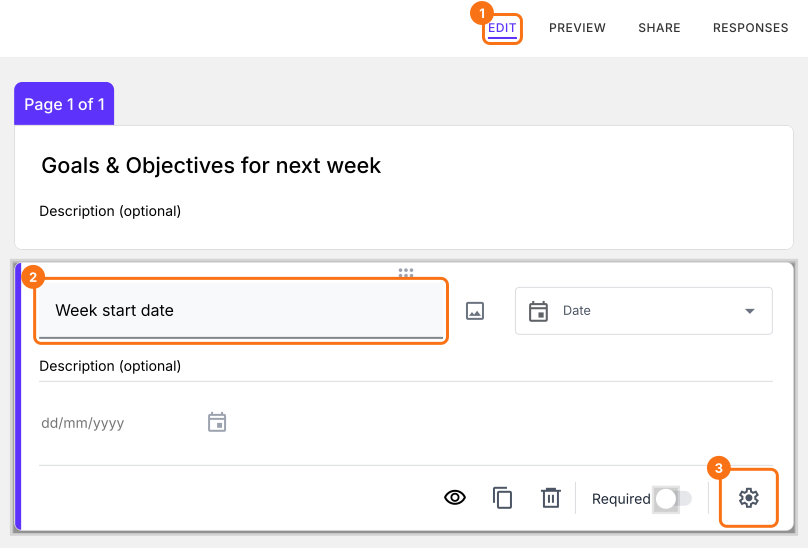
- Click on "Edit" tab

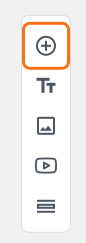
- Click on the + icon (Add field) in the toolbar on the right. A new question will be added.
- Enter "Week start date" as the question and select Date in the question type list
- Click on the + icon again
- Enter "Week end date" as the question and select Date in the question type list
Click on the Week start date question, then click on the ⚙️ icon.
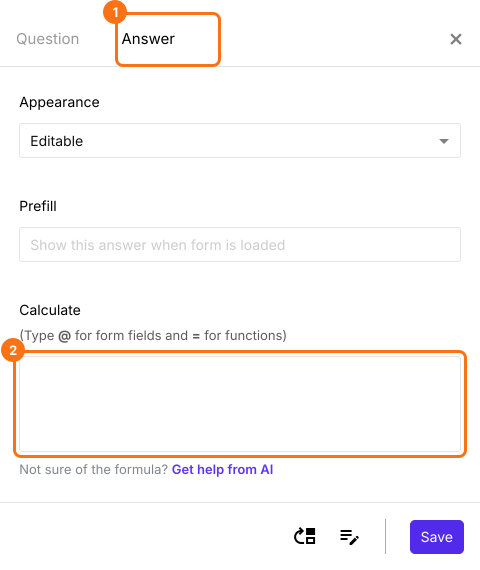
Field settings screen will be displayed. Select the "Answer" tab and write the formula to calculate the week start date.
Calculate week start date
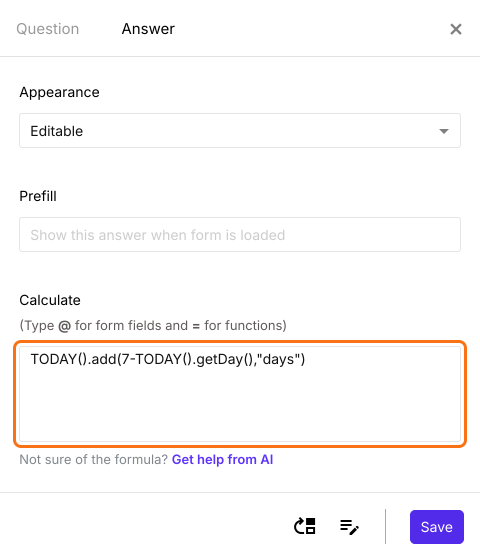
We can use the getDay() function to determine the day of the week and use the ADD function to calculate the next week start date as shown below.
TODAY().add(7-TODAY().getDay(),"days")
Write the formula in the Calculate option as shown below. Click Save.
Calculate week end date
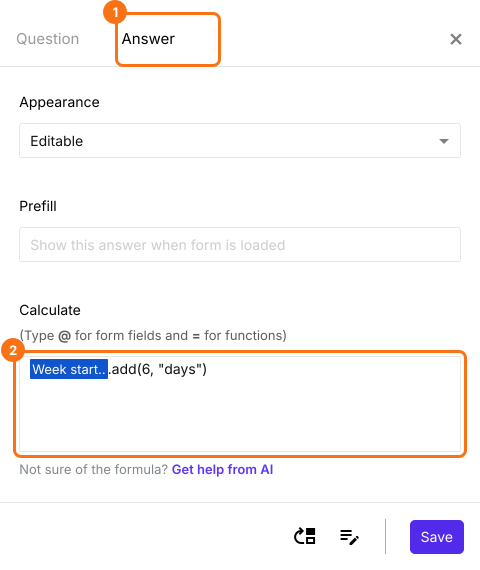
You can calculate the week end date by adding 6 days to the week start date. We will use the ADD function as detailed below.
week_start_date.add(6, "days")
Note: To enter week_start_date, type @ in the calculate option and select the Week start date question from the list. If no list appears on your form, make your form here instead: name it, click Create form and click Proceed, close the Assign points dialog and add these questions. The @ list opens on a form made there.
Click on the date question for week end date, then click on the ⚙️ icon. Field settings screen will be displayed. Select the "Answer" tab and write the formula to calculate the week end date as shown below. Click Save.
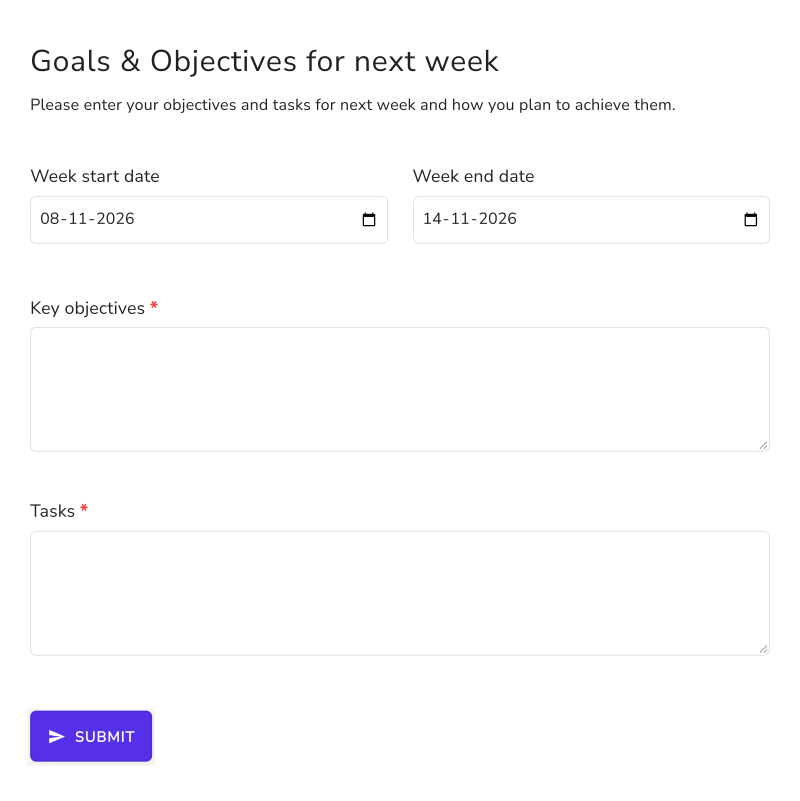
When the form opens, the start and end dates of next week are already filled in. For example, on Monday 2 November the week starts on 8 November and ends on 14 November.
Summary
If you want the start and end date of next week in your form, Google Forms cannot fill them in. With Formfacade, you can use the getDay() and ADD functions in the Calculate option and the dates will be updated automatically. Create your form and complete the steps above. If you have any questions, write to support.
Last updated: