Date
This is a common question from people who collect travel dates or book a consultation. People write dates in many different ways, such as 5/6, June 5 or next Monday. If you use a short answer question for this, you have to read each answer and work out what it means. Google Forms has a date question that fixes this, but it accepts any date and there is no option to limit it. With Formfacade, you can add a date question in the form's "Edit" tab and your users fill in the date the same way every time. Even better, you can allow only the dates you want, such as dates between two dates.
Let's start. Create your form and follow the steps below.
Date question allows users to fill any date. You can customize this question to collect just the day and month or include optional year and time.
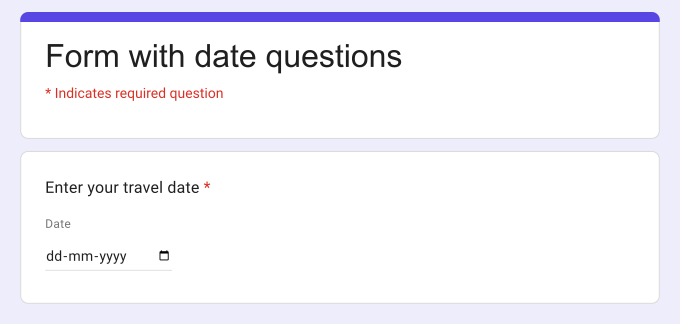
For example, you can use this date question to ask your users to enter a specific date such as travel date, date of birth etc; specify the date & time to log an activity; schedule an event such as hotel check-in, schedule interview, book a consultation etc.
How to add a date question?
- On the page that opens, name your form, click Build form and click Proceed. It can take about a minute.
- You will land on the form's "Preview" tab.
- Click on "Edit" tab

You can use the date question to ask the users to enter a specific date. For example, you can use this question to collect arrival and departure dates or date of birth etc.
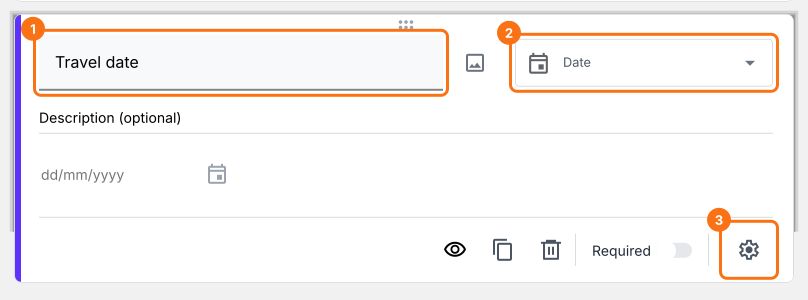
- Click on the + icon (Add field) in the toolbar on the right and enter your question
- Select Date in the question type list
- Enable the Required toggle button to make this a mandatory question
How to ask users to enter day & month, without year?
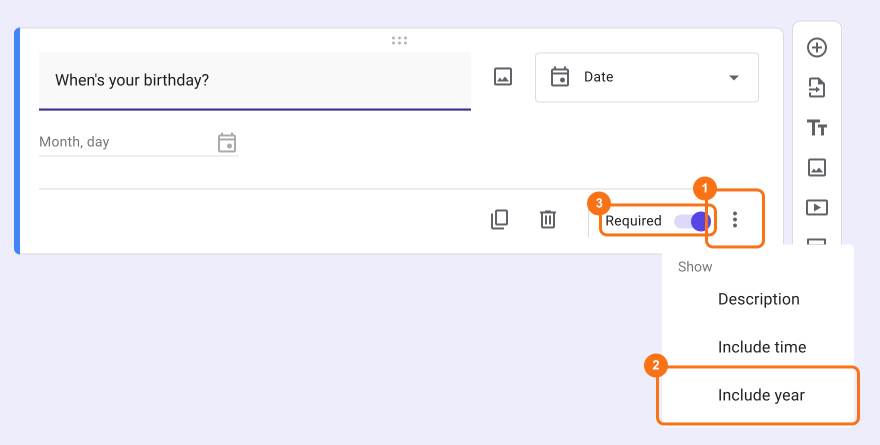
There are instances where you need only the day and month. For example, for the purposes of privacy, you want to ask your users about their birthday, instead of date of birth. You can exclude year using the advanced options for date question.
- Click on the + icon (Add field) in the toolbar on the right
- Select Date in the question type list
- This option is only in Google Forms. Click on the form's title, click on the ⚙️ icon, select the "Advanced" tab and click Launch next to "Edit this form with Google Forms". Google Forms will open in a new tab
- In Google Forms, click on the ⋮ icon on the question and deselect Include year
- Enable the Required toggle button to make this a mandatory question
- Open the form's "Edit" tab again, so that your form picks up the change. If you do not see it, wait a few seconds and reload the page.
How to capture date & time?
In addition to date, you can also accept time using the Include time option. This is useful for questions such as scheduling an event or an activity. For example, you can use the date question with time option for hotel check-in, scheduling an interview, booking a consultation etc.
- Click on the + icon (Add field) in the toolbar on the right
- Select Date in the question type list
- Click on the ⚙️ icon at the bottom right of the question and tick Include time on the Question tab. Click Save.
- Enable the Required toggle button to make this a mandatory question
Summary
If you need a date from your users, a short answer question will give you answers in many formats. With the date question in Formfacade, users fill in the date the same way every time and you can collect just the day and month or include the year and time. Create your form and complete the steps above.
Last updated: