How to personalize the message in email notifications sent to form respondents?

This is a common question from Google Forms users who email each person that fills their form. If every email reads the same, it feels like an automatic reply. For example, a customer expects to see their name and what they ordered. Google Forms can send a copy of the response, but you cannot add your own message or pick the answers to show. With Formfacade, you can personalize the email content by including required form fields in the message. You can also use the RESPONSE function to show all the answers submitted by the user and the BILL function to show the order summary. Your customer will see their own name and order in the email. Even better, the form will have your own branding instead of Google's, so the form and the email both sound like your business.

Let's start. Create your form and follow the steps below.

How to personalize the email content?

  • On the page that opens, name your form, click Create form and click Proceed.
  • You will land on the form's "Edit" tab, with the "Email notification" dialog open. It asks "Do you want to setup email notification for this form?". Click Yes.
  • A new tab will open on the Kanban board in the "Responses" tab, with the "Email respondent" box open.
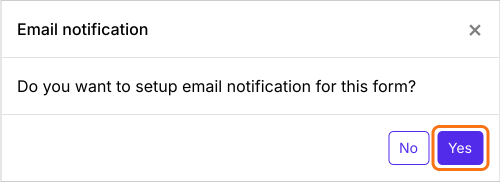
The Email notification dialog asking Do you want to setup email notification for this form?, with Yes marked
  • Check the email address of the respondent and click Next
  • Check the email subject and click Next
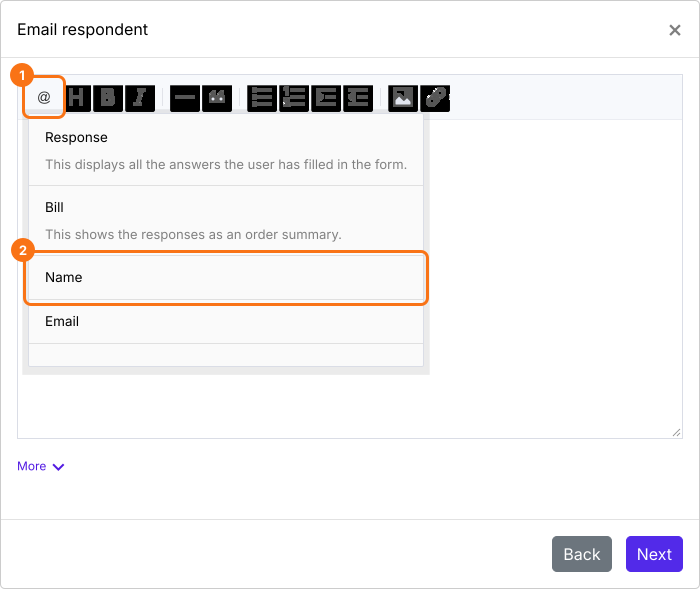
Click on the @ option in the message editor and select the required field. The entry#id of that field will be included in the message. This entry#id will be dynamically replaced with the response submitted by the user. For example, when you are sending a response receipt, you can add the name field to personalize the message as shown below.
The message editor with the @ list open, with @ and the Name field marked
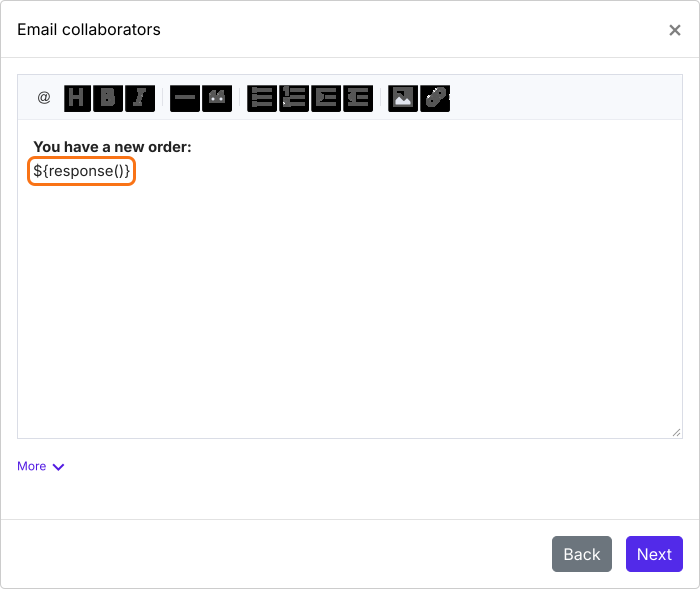
Instead of selecting a form field, you can select Response from the list. This will include the ${response()} formula in the message. This will automatically include all the answers filled by the user. For example, when you are sending a notification email to the collaborators, you can include all the answers in the email content as shown below.
The message editor with the response formula in the message, marked
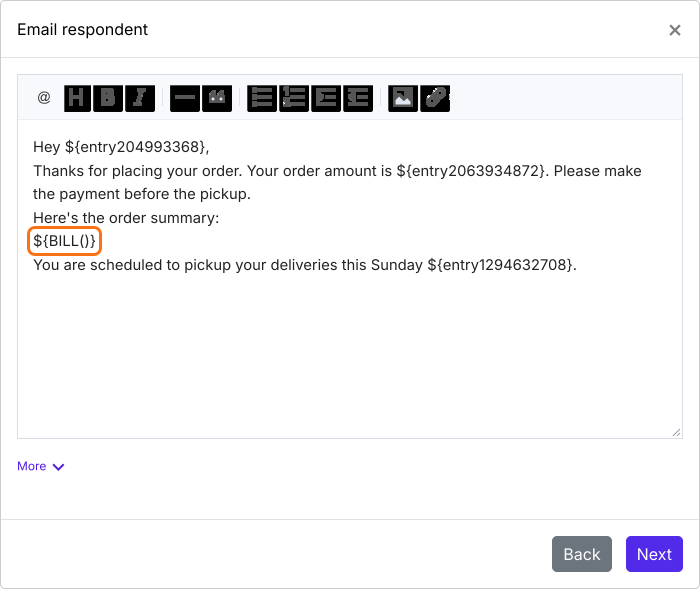
Formfacade/Neartail users can select Bill from the list to include an order summary in the email. For example, you can use form fields such as name, total amount, pickup time to personalize and add relevant instructions in the email and select Bill to include the products ordered by the user.
The message editor with form fields in the message and the BILL formula marked
  • Click Next
  • Click on "Click here" to open your form in a new tab. Fill it with your own email address and submit it. If you receive the email, click on the YES button to complete email notifications setup
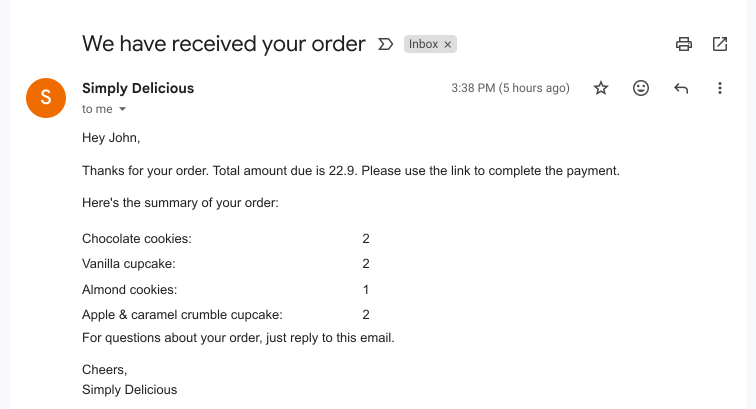
Each user gets the email with their own answers in it.
A personalized email in Gmail from Simply Delicious, with the customer's name, the amount due and a summary of the order

Summary

If you want your emails to read like a personal message, Google Forms cannot do it. With Formfacade, you include form fields in the message and select Response or Bill to show the answers or the order summary. Create your form and complete the steps above. If you have any questions, write to support.

Last updated: