How to send Google Forms email notifications to multiple collaborators?
"Google form response notifications going to incorrect email"- Google Docs Editors Community
This is a common question from Google Workspace users whose team shares one form. For example, you might run a repair request form and your whole facilities team needs to know about each new request right away. In Google Forms, each person has to turn on notifications for themselves, so the email reaches some of them and misses the others. Forwarding each one by hand only works while you are at your desk. With Formfacade, you can send notification emails to multiple collaborators. You enter the list once and they all get each new request at the same time. Even better, you can enter an email group, so the whole team is covered with one address.
Let's start. Create your form and follow the steps below.
How to notify multiple collaborators?
- On the page that opens, name your form, click Create form and click Proceed.
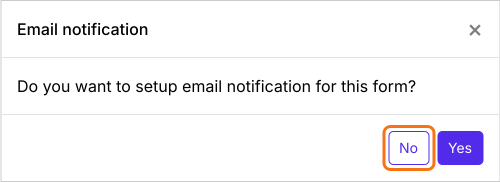
- You will land on the form's "Edit" tab, with the "Email notification" dialog open. It asks "Do you want to setup email notification for this form?". Click No.
- Click on "Responses" tab

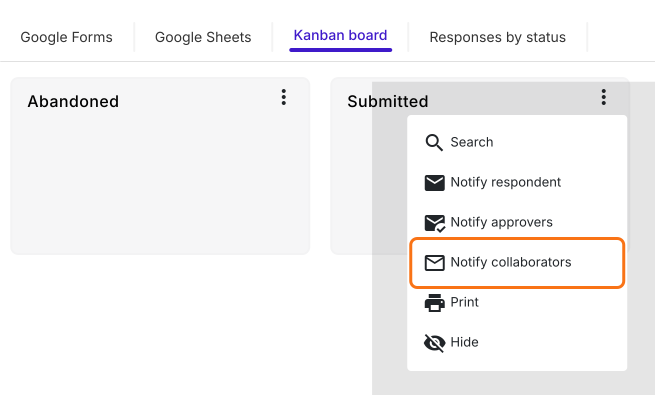
- Click Kanban board
- Click on the three dots ⋮ on Submitted
- Click Notify collaborators
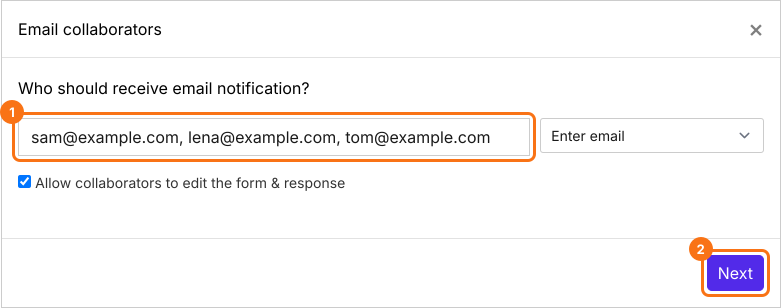
- Email notifications setup wizard will be displayed. To notify multiple users, you can enter a list of email addresses or an email group separated by commas. Allow collaborators to edit the form & response is ticked by default, so untick it if they should only read.
- Enter the email subject and click Next
- Enter the email content/message and click Next
- Click on "Click here" to open your form in a new tab. Fill it and submit it. If you receive the email, click on the YES button to complete email notifications setup
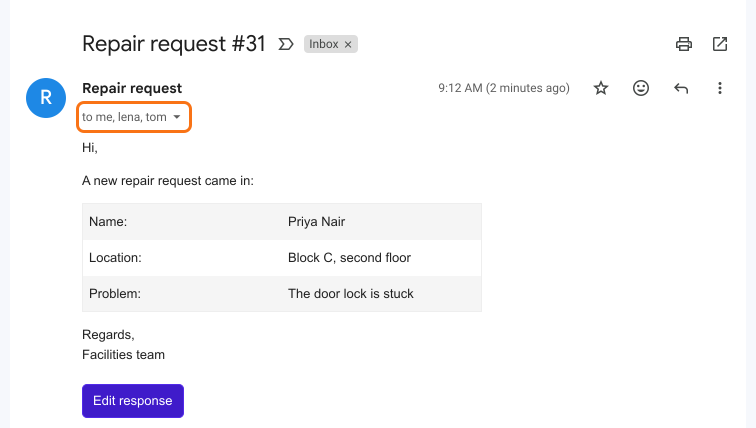
Each new response will go to everyone in the list at the same time. They do not have to turn on notifications themselves.
Summary
If your whole team needs to know about each new response, Google Forms falls short because each person has to turn on notifications themselves. With Formfacade, you enter a list of email addresses once and they all get each new response at the same time. Create your form and complete the steps above. If you have any questions, write to support.
Last updated: