How to get email notifications with the form response when a user submits the form?
"the links contained within the email block everyone but the form owner"- Google Docs Editors Community
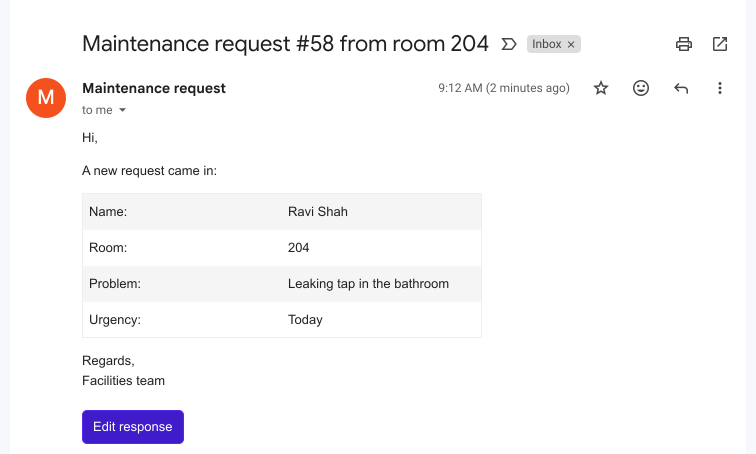
This is a common question from Google Workspace users whose team shares a form's responses. For example, you might run a maintenance request form and your team needs to read each request as soon as it comes in. You can enable "Get email notifications for new responses" in the Responses tab, but Google's notification only has a link and that link only opens for the form owner. Forwarding the email does not help. With Formfacade, you can send notification emails to multiple collaborators with the form response in the email. Anyone you send it to can read the whole request without opening the form. Even better, your team can move each request to a status on the Kanban board, so everyone sees what is done.
Let's start. Create your form and follow the steps below.
How to send notification emails to collaborators?
- On the page that opens, name your form, click Create form and click Proceed.
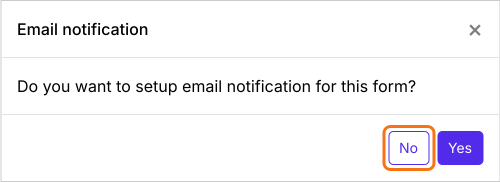
- You will land on the form's "Edit" tab, with the "Email notification" dialog open. It asks "Do you want to setup email notification for this form?". Click No.
- Click on "Responses" tab

- Click Kanban board
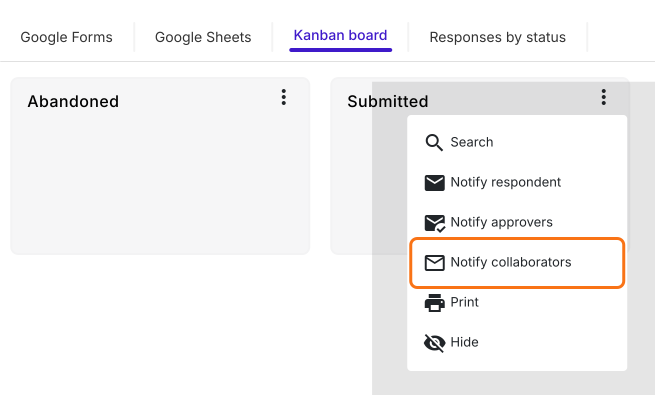
- Click on the three dots ⋮ on Submitted
- Click Notify collaborators
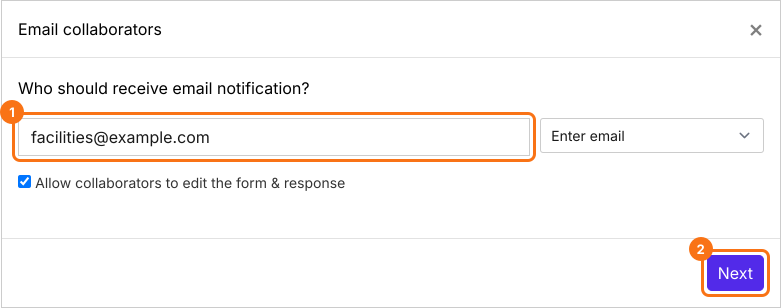
- Email notifications setup wizard will be displayed. Enter the collaborator's email address and then click on the Next button. To notify multiple users, you can enter a list of email addresses or an email group separated by commas. Allow collaborators to edit the form & response is ticked by default, so untick it if they should only read.
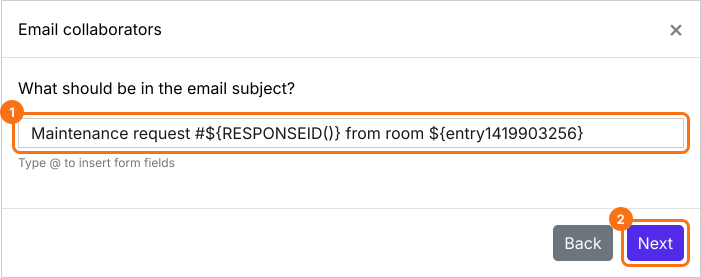
- Configure the subject line for this notification email. You can enter a simple static subject line or you can use the form fields to personalize the subject as shown in the screenshot below. Then click on the Next button.
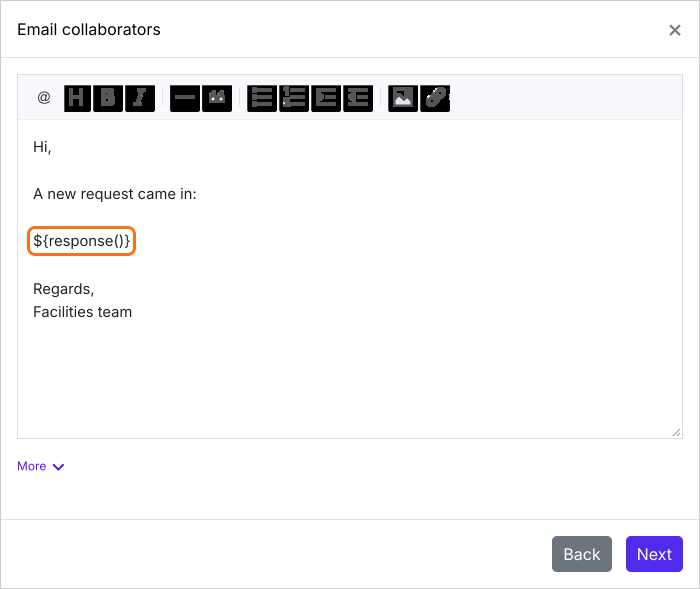
- By default, all the answers will be included in the email. You can customize this message as per your requirements as shown below.
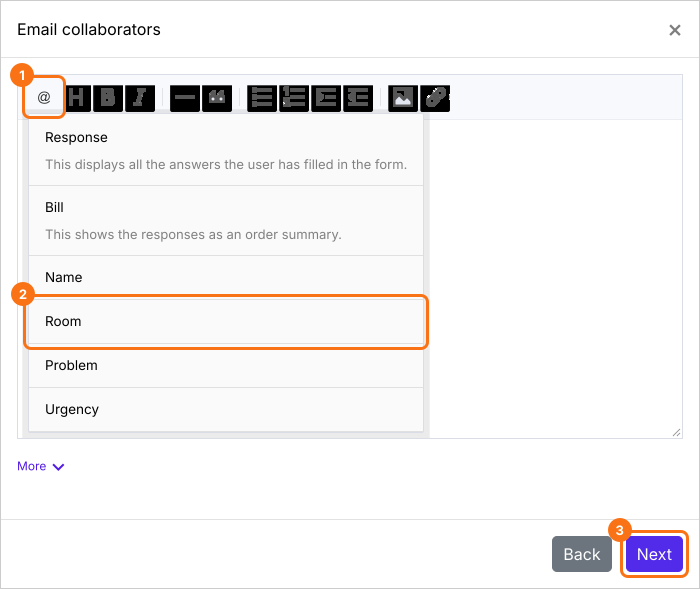
- To personalize the message using the form responses, you can click on the @ option and select the required field from the list to include it in the message. It shows as a code such as ${entry1280768093}. That is right: each email shows the answer in its place. Leave a space before it. Once you have customized the message, click on the Next button.
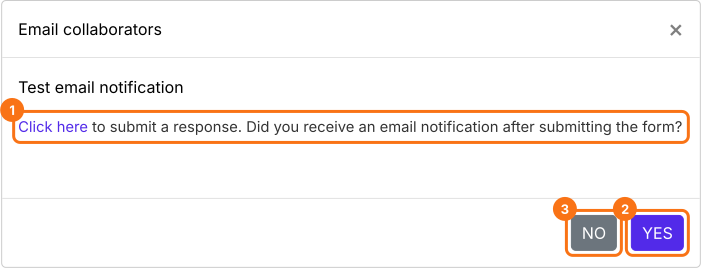
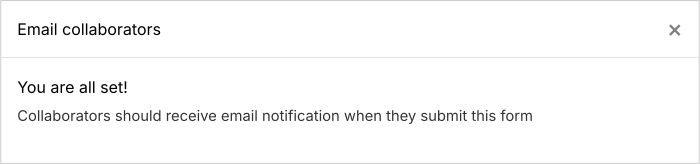
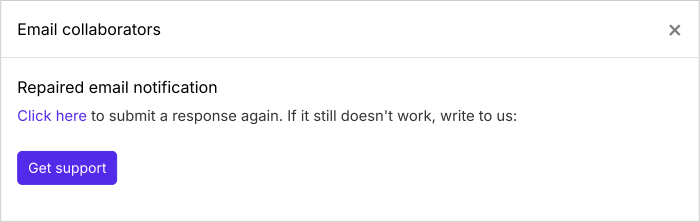
- Submit a test response to check if the email notifications are working. Click on "Click here" to open your form in a new tab, fill it and submit it. If it works, click on the YES button. Otherwise, click on the NO button.
Summary
Last updated: