How to shuffle answer choices in Google Forms?
This is a common question from people running surveys in Google Forms. People tend to pick the answers near the top of the list. When everyone sees the choices in the same order, this order bias makes your results less reliable. Google Forms has a Shuffle option order setting on each question, but it is tucked in the ⋮ menu, so you might make several copies of the form instead and then combine the results by hand. With Formfacade, you can open your form in Google Forms from the Edit tab and shuffle the answer choices there. Each person will see the choices in a different order. Even better, you can sync the results to Google Sheets and share them with your team.
Let's start. Create your form and follow the steps below.
How to open your form in Google Forms?
- On the page that opens, name your form, click Embed form and click Proceed. It can take about a minute.
- You will land on the form's "Share" tab, on Embed. The top bar may say "Blank Formfacade form" until you reload the page.
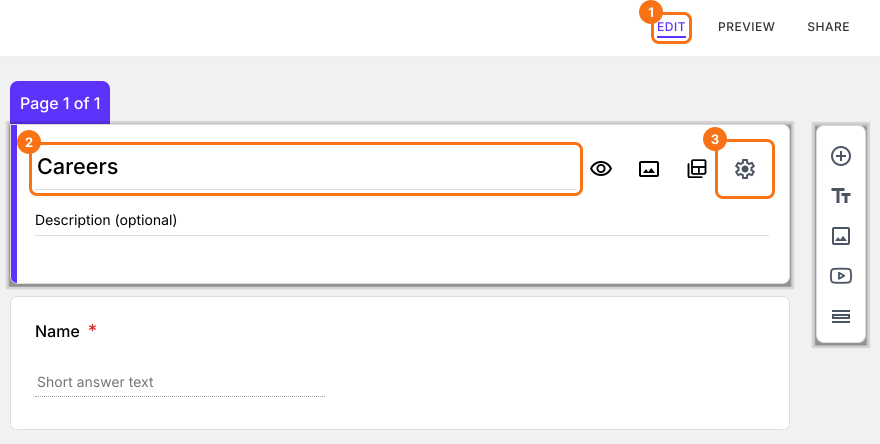
- Click on "Edit" tab

- Click on the form's title
- Click on the ⚙️ icon on the title card
- Click on the Advanced tab
- Click Launch next to "Edit this form with Google Forms"
- Your form will open in Google Forms in a new tab
Dropdown, multiple choice and checkboxes question type allows you to create a question with a pre-defined set of answer choices. You can shuffle the answer choices to eliminate the order bias and improve the quality of survey responses.
Randomize the answer choices
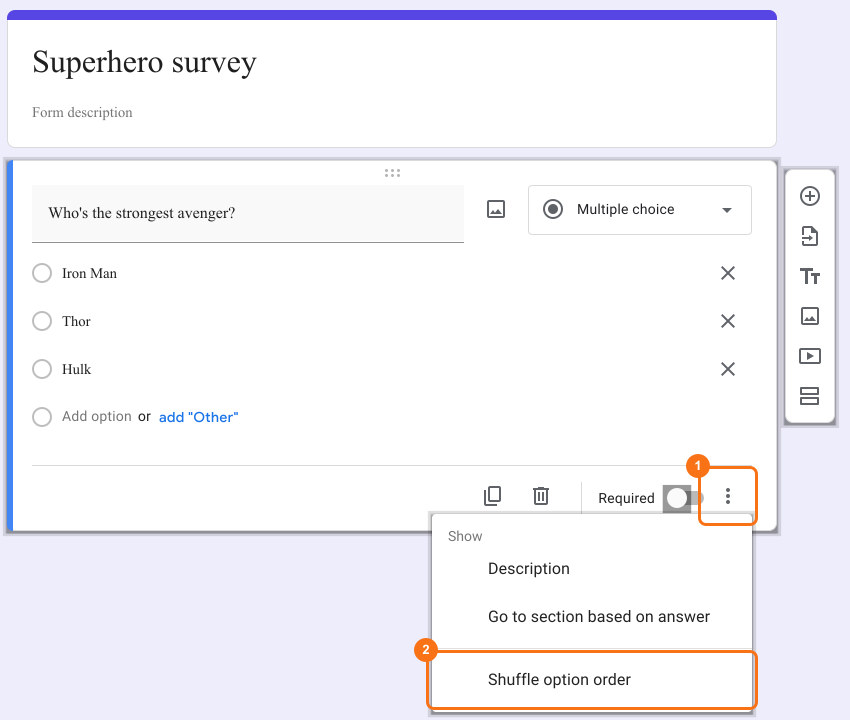
- Select a multiple choice, dropdown or checkboxes question in Google Forms. If your form has none, change a question's type in the list at its top right first.
- Click on ⋮ More icon
- Select Shuffle option order as shown below
Your change will reach your form when you go back to Formfacade and open the "Edit" tab again. If it is already open, reload the page. If you do not see the change, wait a few seconds and reload it again. Formfacade reads your Google Form again each time you open it there.
Summary
If everyone sees the answer choices in the same order, your survey results can be biased. With Formfacade, you open your form in Google Forms with Launch, select a question, click on ⋮ More icon and select Shuffle option order and the choices no longer appear in the same order for everyone. Create your form and complete the steps above. If you have any questions, write to support.
Last updated: