如何從 Google Forms 救回已刪除的回應?
"不小心刪除了 Google Forms 表單的問題,要怎麼復原它和回應?"- Google Docs Editors Community
這是很常見的問題,Google 論壇上已有 101 人在刪除問題、連帶失去答案後問過。Google Docs 和 Sheets 都有版本記錄,所以很自然會想在 Google Forms 找一個,但它沒有。您在 Google Forms 刪除的回應會永久消失,而刪除一個問題也會把它的答案從 Responses 分頁拿掉。唯一安全的副本,是在事情發生前就做好的那一份:連結到表單的 Google Sheets 試算表,在表單的回應被刪除時仍會保留它的資料列。如果您的表單透過 Formfacade 放在網站上,請從 Formfacade 的 Responses 分頁連結該試算表。
請依照下列步驟,在任何資料被刪除前先在 Google Sheets 保留一份副本。如果您在 Formfacade 還沒有表單,請先匯入您的 Google Forms 表單。
如何將回應同步到 Google Sheets?
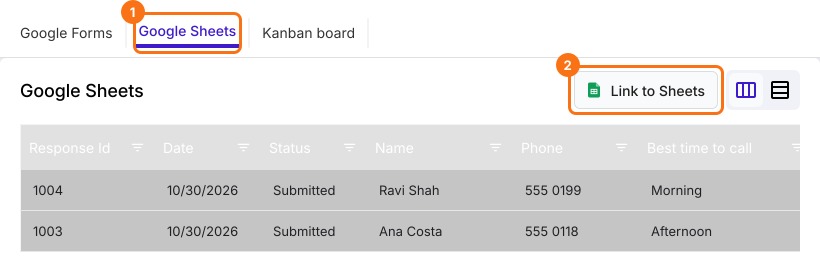
- 在 Formfacade 中開啟您的表單,點選Responses 分頁

- 點選 Google Sheets
- 點選 Link to Sheets
- 在「Sync all responses to sheets」上點選 Proceed
- 回應同步完成後,點選 View sheets 開啟您的 Google Sheets 試算表
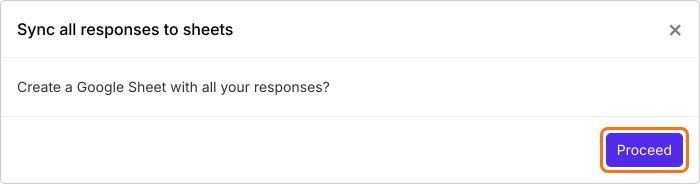
在 Google Forms 刪除回應,不會影響已同步到 Google Sheets 的回應。
若要讓新回應自動送到試算表,請在 Google Forms 中連結它。請參閱如何將 Google Forms 回應同步到 Google Sheets?
摘要
如果您在 Google Forms 刪除回應,之後就無法復原。使用 Formfacade,您先從 Responses 分頁將回應連結到 Google Sheets 試算表,之後在 Google Forms 刪除回應時,試算表中已有的資料列仍會保留。匯入您的 Google Forms 表單並完成上述步驟。如有任何問題,請寫信給支援團隊。