How to sync google forms responses to google sheets?

"Are new responses added if the linked sheet is open?"- Google Docs Editors Community

This is a common question from Google Workspace users who work from their responses sheet. For example, you call people back from a Google Sheet, so each new answer has to reach it while you work. Google Forms lets you link a spreadsheet to your form from its Responses tab, but your customers still fill a form with Google's look. Downloading the responses gives you a copy that is out of date by the next answer. With Formfacade, you can link a Google Sheet from the Responses tab and click Sync to Sheets to bring in the new responses. Each question gets its own column, so you can sort by a column such as Best time to call. Even better, the form will have your own branding instead of Google's.

Let's start. Create your form and follow the steps below.

Sync responses to Google Sheets from Formfacade

  • On the page that opens, name your form, click Embed form and click Proceed. It can take about a minute.
  • You will land on the form's "Share" tab, on Embed. The top bar may say "Blank Formfacade form" until you reload the page.

The tabs Edit, Preview, Share and Responses, with Share marked
  • Click Link, then click Open to open your form
  • Fill the form and submit it, so that you have a response to sync
  • Click on "Responses" tab
The tabs Edit, Preview, Share and Responses, with Responses marked
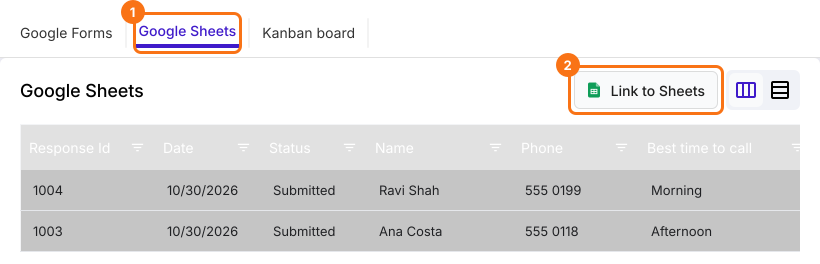
  • Click Google Sheets
  • Click Link to Sheets
The Google Sheets tab under Responses with Response Id, Date, Status, Name, Phone and Best time to call columns and two responses, with the Google Sheets tab and the Link to Sheets button marked
  • "Sync all responses to sheets" popup will be displayed. Click Proceed
  • When your responses have synced, click View sheets to open your Google Sheet
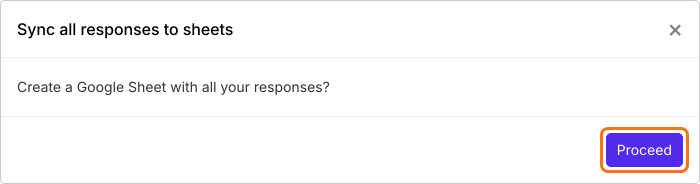
The Sync all responses to sheets popup asking Create a Google Sheet with all your responses?, with Proceed marked
This always creates a new Google Sheet, named after your form's title. To use your existing spreadsheet, link it in Google Forms as shown below.
The button will now say Sync to Sheets. This Sheet is not updated by itself: a new response reaches it only when you click Sync to Sheets.
The Google Sheets tab under Responses, with the Sync to Sheets button marked

Sync responses automatically from Google Forms

You can create a new spreadsheet for responses in Google Sheets or choose from your existing spreadsheet in Google Sheets to store responses. Once you link your google form with a spreadsheet, the new responses will automatically be synced.
  • Click Google Forms under Responses
  • Click Submit to Google Forms and click Proceed, so that responses reach Google Forms
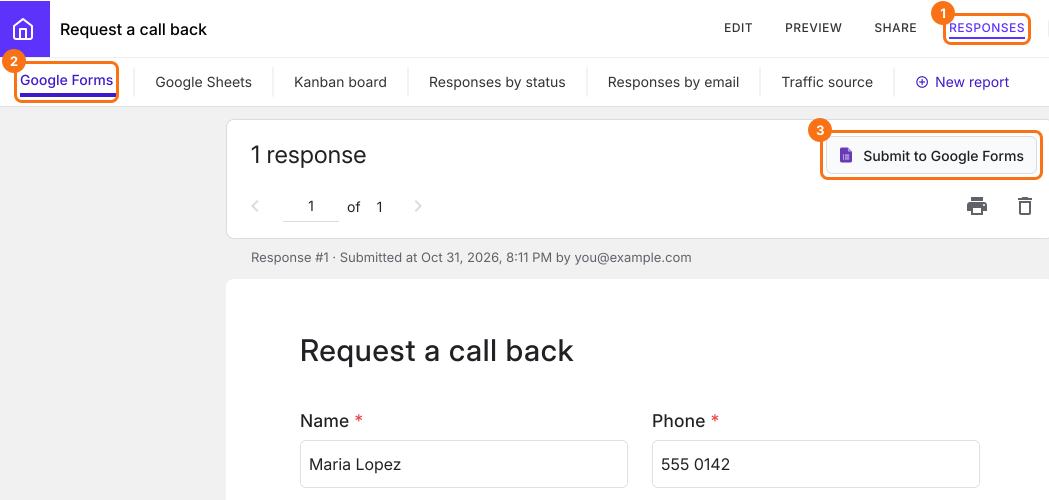
Formfacade's Responses screen showing a response from Maria Lopez, with Responses, Google Forms and the Submit to Google Forms button marked
  • Click View in Google Forms. Your form's responses will open in Google Forms

Formfacade's Responses screen for a Request a call back form, with Responses, Google Forms and the View in Google Forms button marked
If you imported your form, this is Formfacade's copy of it, a file named "Blank Formfacade form" in Google Drive. Your original form stays empty, so link the spreadsheet here.
  • Click Link to Sheets
  • Select destination for responses screen will be displayed
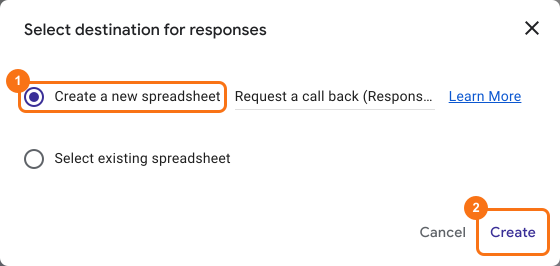
  • Select Create a new spreadsheet
  • Click Create
A Google Form's Responses tab with 4 responses, with Responses and the Link to Sheets button marked Google's Select destination for responses box with Create a new spreadsheet chosen, named Request a call back (Responses) and the Create button marked
To use your existing spreadsheet:
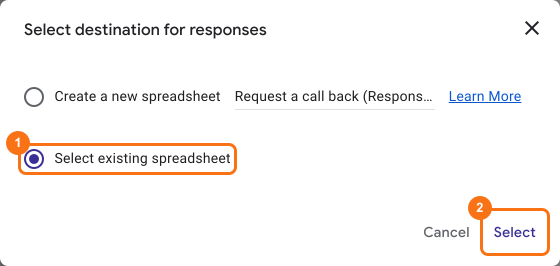
  • Click on "Select existing spreadsheet"
  • Click Select
  • Choose a spreadsheet screen will be displayed
  • Click on an existing spreadsheet where you want to sync responses
  • Click Select
Google's Select destination for responses box with Select existing spreadsheet chosen, with that choice and the Select button marked

See your responses in Google Sheets

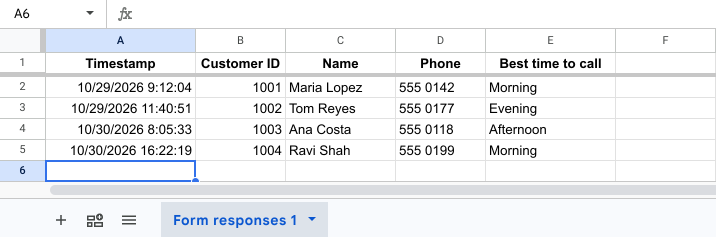
Each question has its own column in the spreadsheet, including any you prefilled, so you can sort by a column such as Best time to call. If you prefilled a question such as Customer ID, its column shows who sent each response. The new responses will be added as new rows, even while the spreadsheet is open.
A Google Sheet with Timestamp, Customer ID, Name, Phone and Best time to call columns and four responses

Summary

If you work from a Google Sheet, each new response has to reach it while you work and downloads and copying by hand fall behind. With Formfacade, you link the spreadsheet from the Responses tab and click Sync to Sheets for new responses or you link it in Google Forms and the new responses will automatically be synced. Create your form and complete the steps above. If you have any questions, write to support.

Last updated: