How to add signature in Google Forms?

"How do I add an electronic signature in a google form"- Google Docs Editors Community
This is a common question from Google Forms users collecting signed forms and 608 people on Google's forum have asked about it. For example, your athletes have to sign the code of ethics before the season starts and you cannot wait for paper to come back. Google Forms does not have a built-in signature field. A checkbox or a typed name is not suitable for high-stakes agreements and a signature image upload requires each respondent to login using their Google account. You can connect a signature platform such as DocuSign instead, but that takes a script or Zapier. With Formesign, you can add a signature field to your form and respondents sign when they fill out the form, with a signed PDF for your records. Even better, they can sign on any phone or computer with no Google account.
Let's start. Import your Google Form and follow the steps below.
What Makes a Signature Legally Binding?
Clear notice for informed consent
Affirmative action to indicate intent to sign / accept terms
Securely store and maintain record of agreements
Comply with local jurisdictions of the electronic signature laws
5 Ways to Add a Signature in Google Forms
Method 1: Checkboxes for consent
- Add a checkbox question with a clear title and "I accept" or "I have read and agree to the terms" as the answer choice
- Add the terms in the description or add a link to the webpage with the terms and clearly state that checking the answer choice indicates consent to the terms
- Mark this question as required in Google Forms
Pros
- Easy to set up and use
- Widely used and legally binding if the checkboxes are set up properly
- Cost effective as there are no additional costs
Cons
- Anyone can tick the box without reading the terms
- Not suitable for high-stakes agreements or situations where a recognisable signature is required
Method 2: Short answer questions for initials or full name
- Add a short answer question with "Initials" or "Full name" as the title
- Add a description that clearly defines the purpose of this field. For example, "By entering your name below, you confirm that you have read and agree to the terms stated in this form"
- Mark this question as required in Google Forms
Pros
- Easy to set up and use for basic compliance
- Cost effective as there are no additional costs
Cons
- Legal validity depends on the jurisdiction and this option is not suitable for high-stakes agreements
Method 3: File upload question for uploading signatures
- Add a file upload question with the title "Upload signature"
- Update the settings for the file upload question to allow only png or jpg files
- Include a description that clearly indicates the purpose of the signature image
- Mark this question as required in Google Forms
Pros
- Native Google Forms feature that is easier to set up
- No external costs that are associated with specialized signature platforms and Google Workspace addons
Cons
- Google Forms file upload requires respondents to login and hence will not work for users who don't have a google account
- File upload option to collect signatures may not meet the legal requirements for electronic signatures in certain jurisdictions
Method 4: Integrate signature platforms such as DocuSign, HelloSign
- Create a form in Google Forms to collect the necessary details
- Customize the confirmation message to inform the user that the agreement will be emailed to them for signatures
- Link your Google Forms with Google Sheets to automatically sync responses whenever a user submits the form
- Use Apps Script or integration tools such as Zapier to automatically generate a document using DocuSign or HelloSign and send it to the respondent for signatures.
Pros
- Legally binding and compliant with electronic signature laws
- Signature platforms support advanced approval workflow and automated routing
- Suitable for complex and high-stakes agreements
Cons
- Poor user experience as the users have to submit the form and then access the document via email to sign it
- Requires expertise to integrate Google Forms and signature platforms such as DocuSign
- Specialized signature platforms are expensive
Method 5: Collect signatures using Google Forms addon
- Simple signature: Add a signature field anywhere in the form. Respondents draw their signature to sign. No Google account required.
- Verified signature: Collect the respondent's name, email and signature with identity verification. Requires the respondent to log in, similar to how Google Forms' verified email option works.
- Create your form in Google Forms to collect the necessary details
- Ensure that you have included the relevant terms in the form
- Install the Formesign Signature addon and configure your form to add signatures
- Share the Formesign link with the respondents to collect signatures in the form
- Responses and signatures are automatically recorded in Google Forms and a signed PDF is generated for your records
- Go to Formesign website and click on Try it free
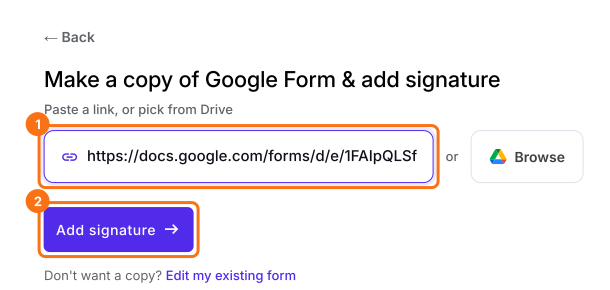
- Copy the URL of your existing Google Form and paste it in the import option and click Add signature
- Formesign creates a copy of your form and does not modify the original
- Share the Formesign link with respondents to collect signatures
- Responses and signatures are recorded in the Responses tab in Formesign and a signed PDF is generated for your records. They reach Google Forms only if you turn on Submit to Google Forms in that tab.
Pros
- Easy to set up signatures in your forms
- Legally binding and compliant with electronic signature laws
- Signed PDF automatically generated and saved to Google Drive
- Provides a streamlined signing experience within the context of form submissions
Cons
- Requires a subscription compared to the free Google Forms option
How to add signature in Google Forms?
- Publish your form in Google Forms, if you have not done this yet. Formesign needs it published.
- Click on Import your Google Form and select Import your Google Forms. The page to make a copy of your Google Form will be displayed.
- Copy the URL of your Google Form, paste it in the box and click Add signature
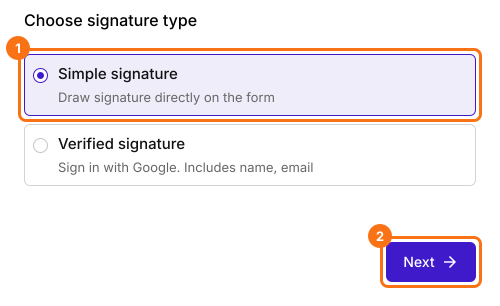
- Setup wizard will be displayed after about 20 seconds. Select Simple signature and click Next
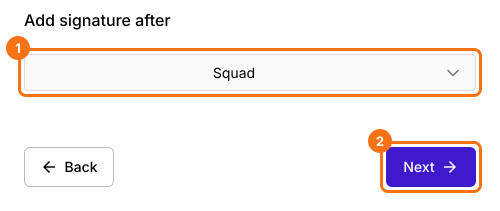
- Select where you want to add the signature field under Add signature after, then click Next.
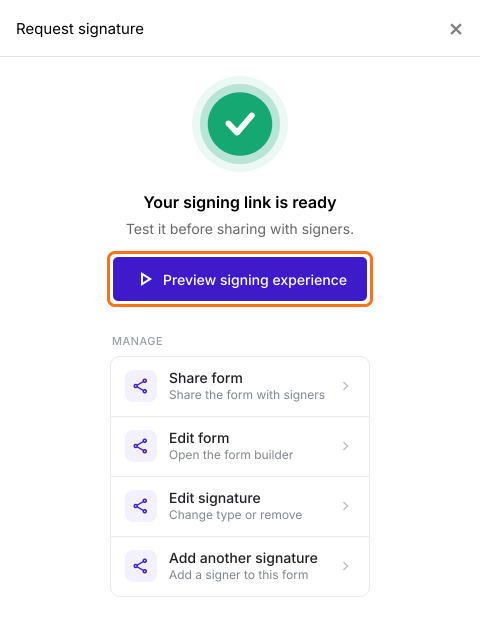
- Your signing link is ready will be displayed. Click Preview signing experience to test the form.
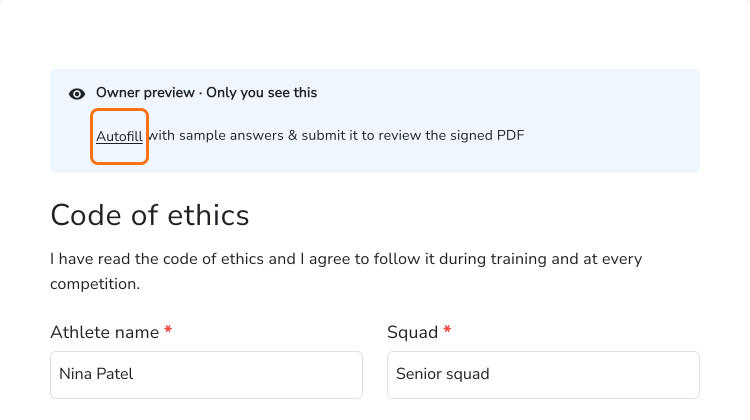
- The preview will open in a new tab. Click Autofill to automatically complete the form. It fills in your own Google name and email. Then, add your signature and submit the response to test the signing experience.
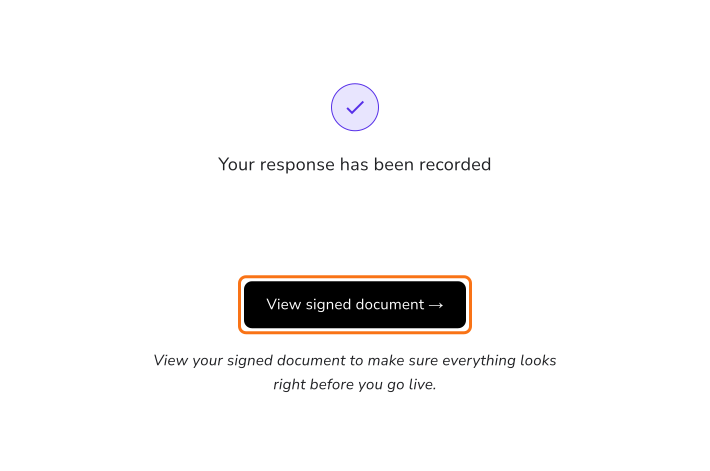
- Click View signed document to open the auto-generated signed PDF. Only you get this button, in your preview. A real signer only sees Your response has been recorded.
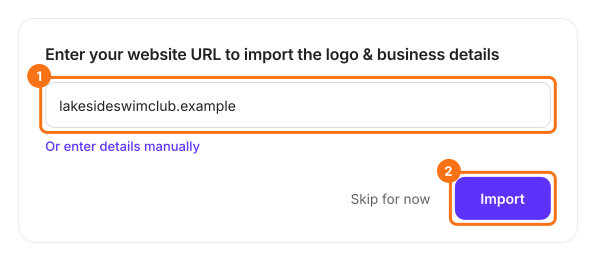
- To customize the letterhead, click the pencil icon, Edit logo and business name, on the signed document.
- Enter your website to automatically import the logo, name & other details and click Import or enter the data manually.
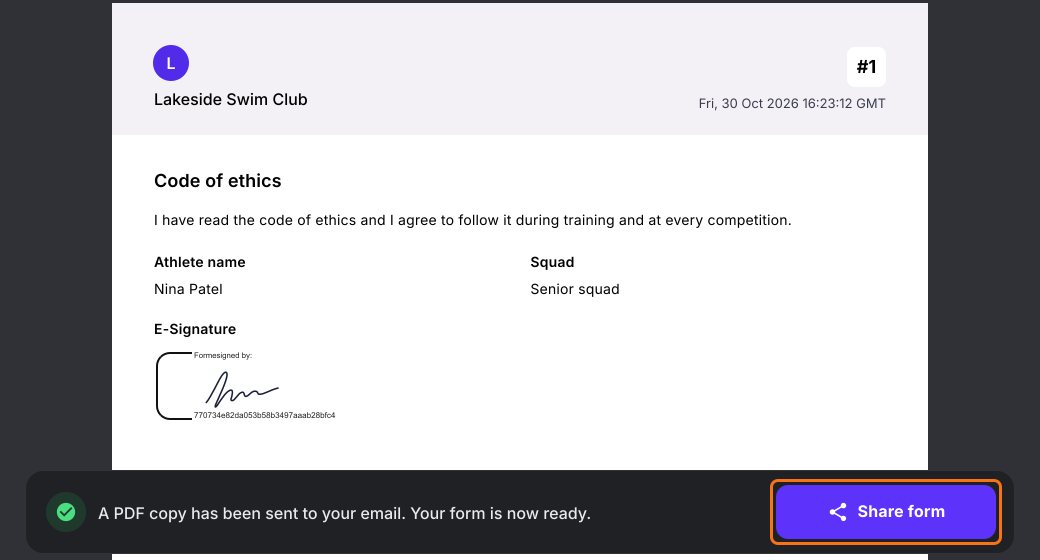
- Review the document carefully to ensure all form data, signatures and formatting are correct, then click Share form
How to put the signer's name on the signed PDF?
- The Share page will be displayed. Click on "Edit" tab

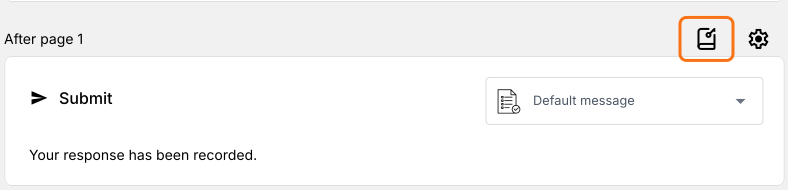
- Scroll to the end of the form. Click on the configure key fields icon, the notebook in the last After page row
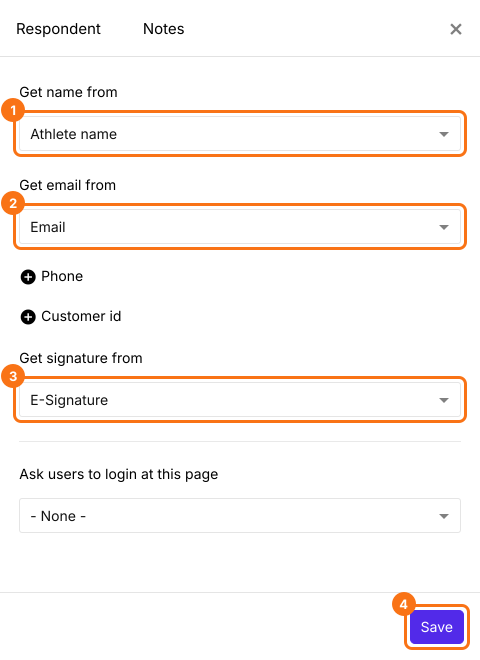
- The Respondent panel will be displayed. Select the name field under Get name from and the E-Signature field under Get signature from. Both start at None. If your form has no name question, add one first.
- Click + Email and select the email field under Get email from
- Click Save
How to share it with your respondents?
- Click on "Share" tab
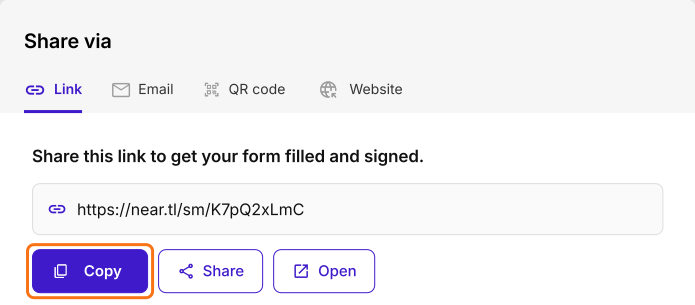
- Copy the form link and share it with your respondents or send it directly via email to start collecting signed responses.
Summary
Last updated: