How to sync signature and signed document to google drive?

"Store the result automatically as a pdf in the google drive"- Google Docs Editors Community
This is a common question from Google Forms users running approvals and 76 people on Google's forum have asked about it. For example, every expense claim needs a manager's signature and a copy on file, so that copy has to be saved the moment it is signed. Google Forms only keeps the answers, so someone downloads each PDF and moves it to a folder by hand and copies get missed. A script can do this, but someone has to write it and keep it working. With Formesign, you can automatically sync the signature, signed document and other uploaded files to your google drive. Even better, you select the folder once and each new claim lands there without anyone touching it.
Let's start. Create your form and follow the steps below.
Save to Google Drive
- Click on Create your form, click Enter your form name, type the name and click Generate
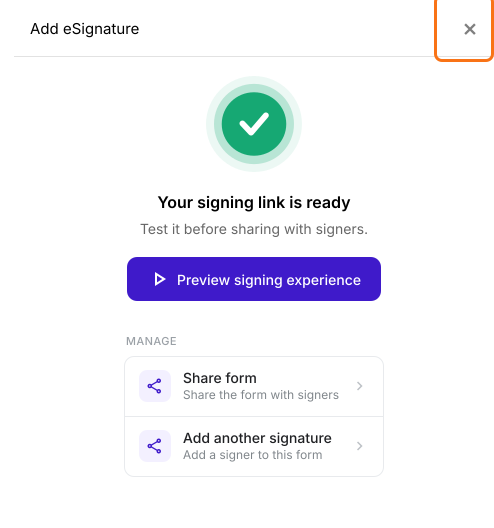
- It takes about a minute. Check the outline and click Proceed. You will land on the form's "Edit" tab, with the "Add eSignature" dialog saying "Your signing link is ready". Close it.
- Click on "Signed PDF" tab. If you do not see that tab, reload the page.

- Click Save to Google Drive

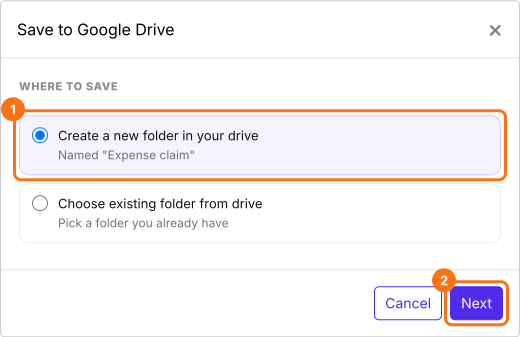
- Save to Google Drive page will be displayed. Select the folder where you would like to store the files and click Next. A new folder takes the name of the form's file in your drive.
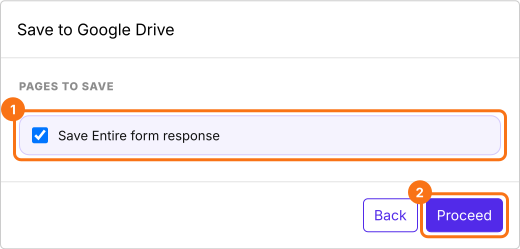
- Keep Save Entire form response ticked, click Proceed and authorize Google Drive access when Google asks. If Could not save to Google Drive is displayed, allow popups in your browser and try again.
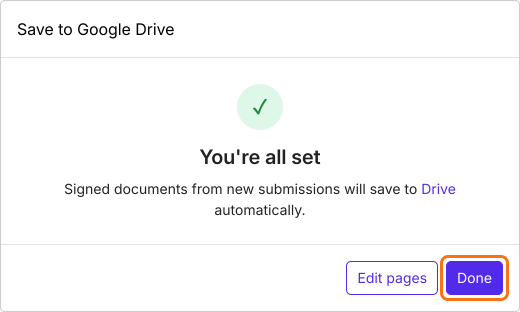
- Click Done, then click Preview to test the sync
- Formesign creates a subfolder named after your form, such as Expense claim - Signed Documents, under the selected folder.
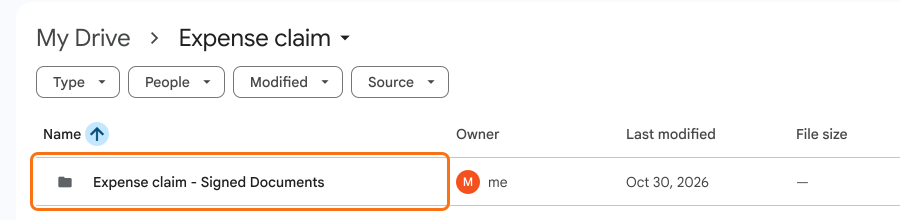
- Whenever a user fills the form and submits it, Formesign automatically generates a pdf document with the e-signatures and syncs it to your google drive.
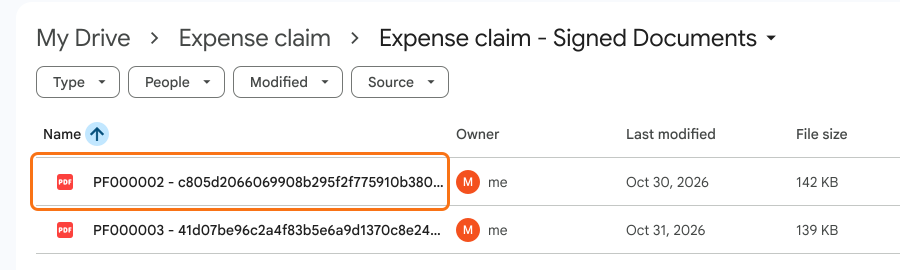
If the form has more than one signer, the pdf document is synced when the last person signs.
In Google Docs, click Extensions > click Formesign - Signature for Google Docs > click Signed documents to Drive. In Google Sheets, click Extensions > click Formesign - Sheet Signature > click Signed documents to Drive.
The default file name includes the unique id generated for each response. You can customize your form to include the name or email in the file name.
Summary
If every expense claim needs a manager's signature and a copy on file, saving each PDF by hand takes time and copies get missed. With Formesign, you select a Google Drive folder once and Formesign automatically generates a pdf document with the e-signatures and syncs it to your google drive. Create your form and complete the steps above. If you have any questions, write to support.
Last updated: