How to view fillable PDF form responses?

This is a common question from people who collect signed forms and need to find each response and its signature quickly. Google Forms shows you the answers one response at a time and the signature only as a link. So checking who has signed means opening each link or going through a long spreadsheet by hand. With Formesign, you can view the form submissions in the Formesign Responses page, Google Forms and Google Sheets. Even better, you click on a response to see the details with the signature and you can print it from there.
Let's start. Upload your form as a PDF and follow the steps below.
View submissions in Google Forms
- Upload your PDF and click Proceed. On "Do you need the signed document to match your original PDF?", select Yes, keep my PDF exactly as it is and click Continue.
- About a minute later, check the fields and click Proceed. On "How do you want the signature?", select Create a reusable link for recurring forms and click Continue. Your form opens in a new tab so that you can try it. Back on this tab, click View signed documents.
- Each signer starts on Google Sign-in. If your users have no Google account, click Form, click the signature field and click Not required beside Verify identity.
- Click on "Share" tab, copy the link and share it with your users. Their responses show up in the "Responses" tab.
- Click on "Responses" tab

- The Google Forms view is displayed first. Click on <, > to navigate between responses
- Click View signed document to see the signature

Note: This view is in Formesign. The form's Google Form says 0 responses until you click Submit to Google Forms and click Proceed. The button then says View in Google Forms. The link to the signature will be recorded as a response for the E-signature field in Google Forms.
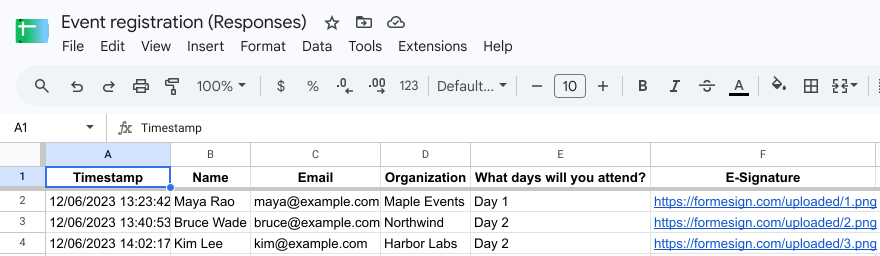
View submissions in Google Sheets
- In the Responses tab, click Google Sheets
- Click Link to Sheets, click Proceed and click View sheets

Note: When the responses are synced to Google Sheets, all the fields in the form are included as columns and each row is a response.
View submissions in Responses page
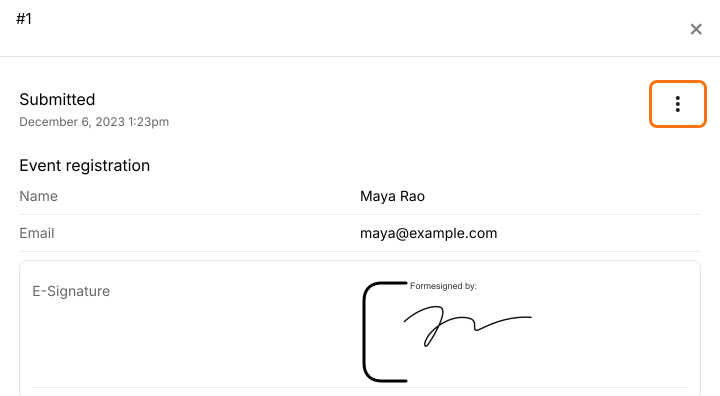
- In the Responses tab, click Kanban board

- Click on response to view the details
Note: You can print individual responses with signatures by clicking on the three dots more icon.
Summary
If you need to find a response and its signature, Google Forms shows it one response at a time and only as a link. With Formesign, you click on a response in the Responses page to view the details with the signature and you can print it. Upload your form as a PDF and complete the steps above. If you have any questions, write to support.
Last updated: