How to edit the message before sending the email?
This is a common question from people who have a list of customers to contact. Sending each of them their own link one at a time takes hours. Google Forms can make only one prefilled link at a time and it cannot email them, so you need a spreadsheet formula and a mail merge tool. With Formfacade, you can select the list of customers, edit the message and then send bulk emails to them with the prefilled link. Each customer will get your words with their name in it and their own link. Even better, the form they open will have your own branding instead of Google's, but the responses will be collected on your Google Forms.
Let's start. Create your form and follow the steps below.
How to add your customers?
- On the page that opens, name your form, click Create form and click Proceed.
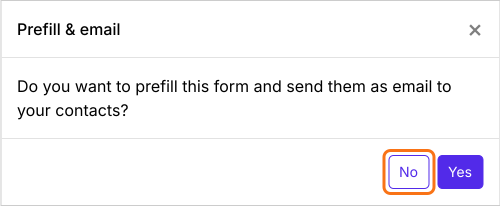
- You will land on the form's "Edit" tab, with the "Prefill & email" dialog open. It asks "Do you want to prefill this form and send them as email to your contacts?". Click No.
- Click on "Share" tab

- Click Add contacts under More options
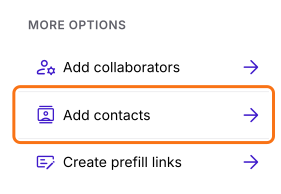
If this is your first day and you do not see Add contacts, it will show up once your form has 2 responses.
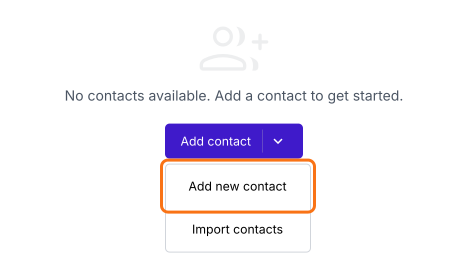
- Contacts page will be displayed with no contacts
- Click Add contact, then click Add new contact
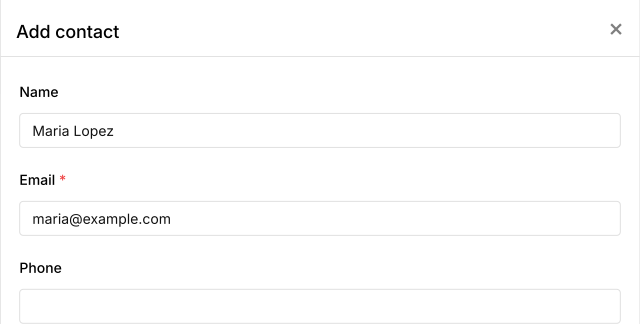
- Enter the name and email of the customer and click Save
- Do this for each customer
How to send bulk emails with prefilled links?
- List of contacts will be displayed
- Click on the checkbox to select all customers or select a specific set of customers
- Click Compose
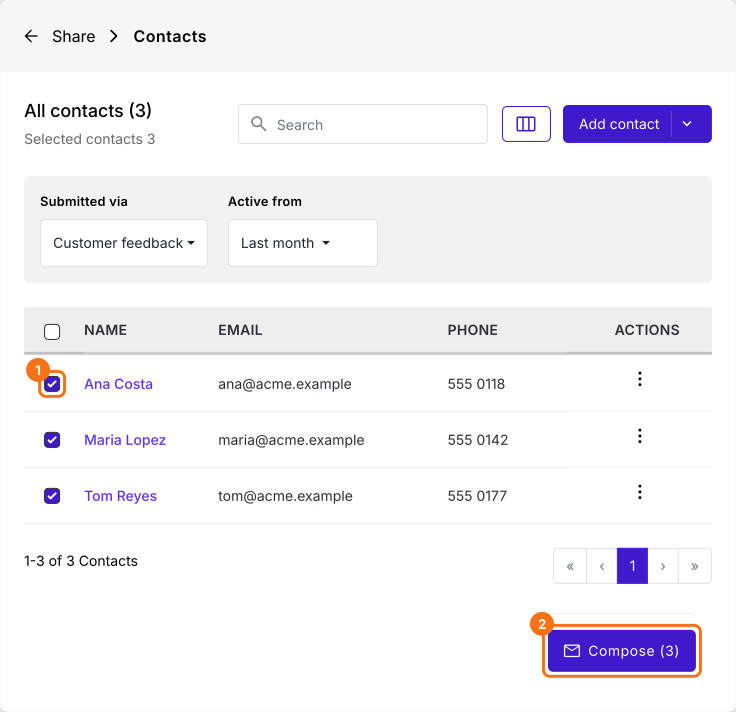
- Email page will be displayed with the selected customers
- Edit the subject and message
- Click Send email to send the emails to the selected customers
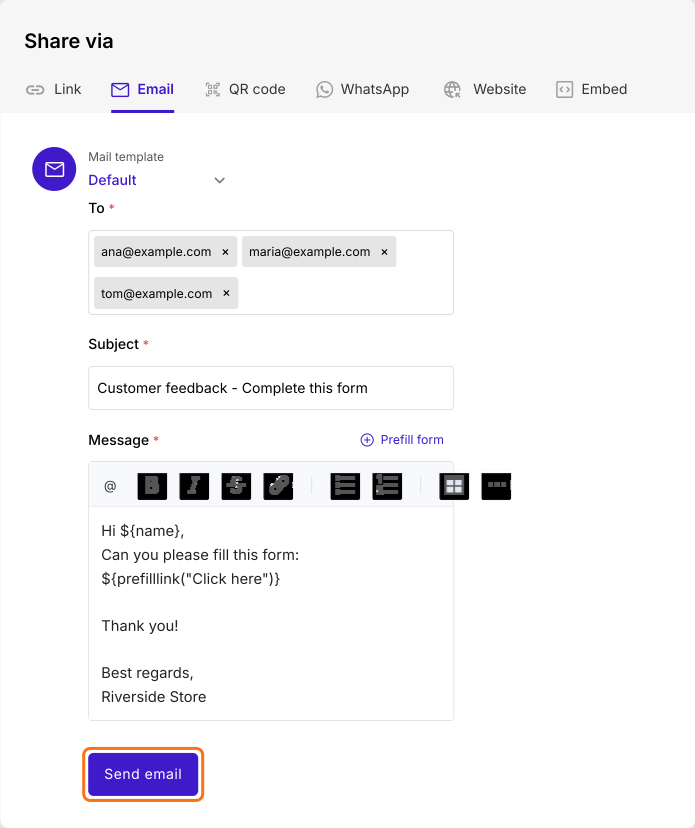
Each customer gets the email with their name in it and their own link. When they click on it, the form opens with their name and email already filled in.
Summary
If you want to send prefilled links to a list of customers, Google Forms cannot email them for you. With Formfacade, you select the customers, edit the message and send them bulk emails with the prefilled link. Create your form and complete the steps above. If you have any questions, write to support.
Last updated: