How to add readonly fields in Google Forms?
"I want to hide pre-filled questions"- Support forum
This is a common question from people who send pre-filled forms. For example, you might fill in a patient's name and insurance ID from your records and those details have to stay correct when the form comes back. In Google Forms, people can change any answer you prefilled and no setting locks or hides a question, so one wrong edit ends up in your records. Google Forms does not support readonly fields, but you can use Formfacade to change the appearance from editable to readonly for any question type. Your patients will see that value as plain text that they cannot change. Even better, its value is recorded with the response, so what you filled in comes back the way you sent it.
Let's start. Create your form and follow the steps below.
How to make a field read-only in Google Forms?
- On the page that opens, name your form, click Create form and click Proceed.
- Once you create the form, you will land on the form's "Edit" tab. If it asks "Do you want to prefill this form and send them as email to your contacts?", click No.

- In the Edit page, click on the field, then click on the gear icon
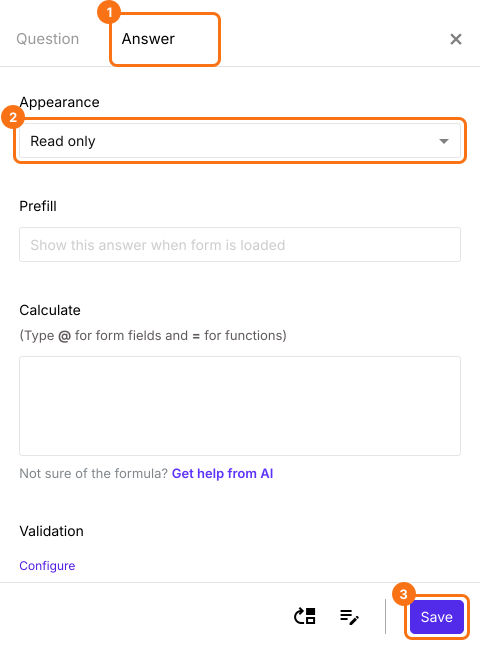
- Field settings page will be displayed
- Click Answer
- Change the Appearance to readonly
- Click Save
Summary
Last updated: