How to set fields as protected health information?
This is a common question from people who collect patient details in Google Forms. Some answers must be treated with extra care. Names and dates of birth should not appear in plain text in emails or links. Google Forms treats every answer the same way, so you have no way of saying which fields are protected health information. Google Forms does not support PHI fields, but with Formfacade, you can mark the fields as protected health information. Your patients fill in the same form and you decide which of their answers need that care. Even better, the form will have your own branding instead of Google's, so patients see your clinic's name.
Let's start. Create your form and follow the steps below.
How to mark fields as protected health information in Google Forms?
- On the page that opens, name your form, click Create form and click Proceed.
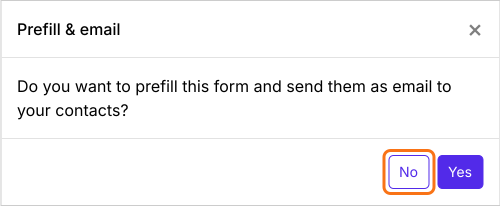
- You will land on the form's "Edit" tab, with the "Prefill & email" dialog open. It asks "Do you want to prefill this form and send them as email to your contacts?". Click No.
- In the Edit page, click on the field, then click on the gear icon
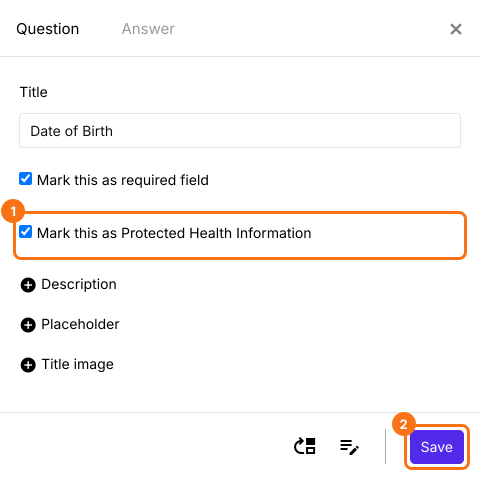
- Field settings page will be displayed. By default, the question tab will be selected.
- Tick Mark this as Protected Health Information
- Click Save
Summary
If your form collects protected health information, Google Forms has no way to mark those fields. With Formfacade, you mark the field as Protected Health Information in the Question tab of the Field settings page. Create your form and complete the steps above.
Last updated: