如何將欄位設為受保護的健康資訊?
診所、治療師和其他醫療團隊會用 Google Forms 收集病患資料,而有些答案,例如姓名或出生日期,需要比其他答案更小心處理。Google Forms 對每個答案一視同仁,所以無法指定哪些欄位含有受保護的健康資訊。使用 Formfacade,您可以在每個含有這類資訊的欄位勾選 Mark this as Protected Health Information。病患填寫的是同一份表單,而由您決定哪些答案屬於 PHI。
現在就開始。匯入您的 Google Forms 表單,然後依照下列步驟操作。
如何在 Google Forms 中將欄位標示為受保護的健康資訊?
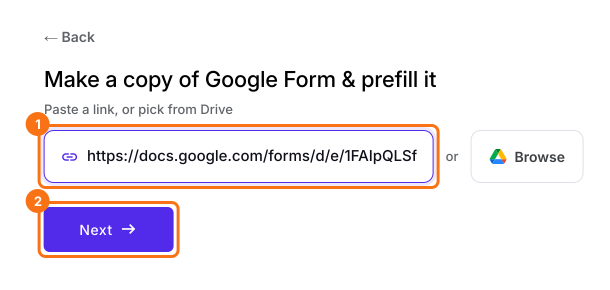
- 在開啟的頁面中,貼上您的 Google Forms 表單連結,或點選 Browse 選取表單,然後點選 Next。表單會在 Edit 分頁開啟。
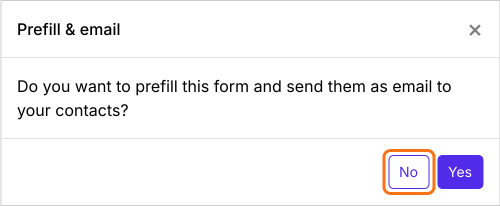
- 在詢問「Do you want to prefill this form and send them as email to your contacts?」的 Prefill & email 對話框中,點選 No。
- 在 Edit 分頁點選欄位,再點選齒輪圖示。Question 分頁會開啟。
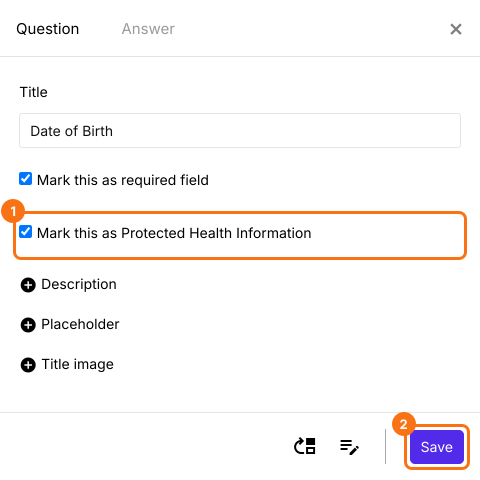
- 勾選 Mark this as Protected Health Information
- 點選 Save
摘要
Google Forms 無法標示哪些答案是受保護的健康資訊。使用 Formfacade,您可以在每個含有這類資訊的欄位的 Question 分頁中,勾選 Mark this as Protected Health Information。匯入您的 Google Forms 表單,並完成上述步驟。