Checkboxes
This is a common question from Google Forms users who ask which options apply. One answer is not enough. A multiple choice question takes only one answer and an open question gives you no control over how many they name. Google Forms has a checkboxes question, but the option to limit the answers is tucked away in a menu, so some users will tick every option and you have to go back to them. With Formfacade, you can add a checkboxes question and limit the number of answers and your users can only select that many. Even better, the responses are collected on your Google Forms, so you still get Google's summary chart for each option.
Let's start. Create your form and follow the steps below.
Checkboxes question allows users to select multiple answers from the available choices. This is similar to a Multiple choice question except that it allows users to select more than 1 answer choice.
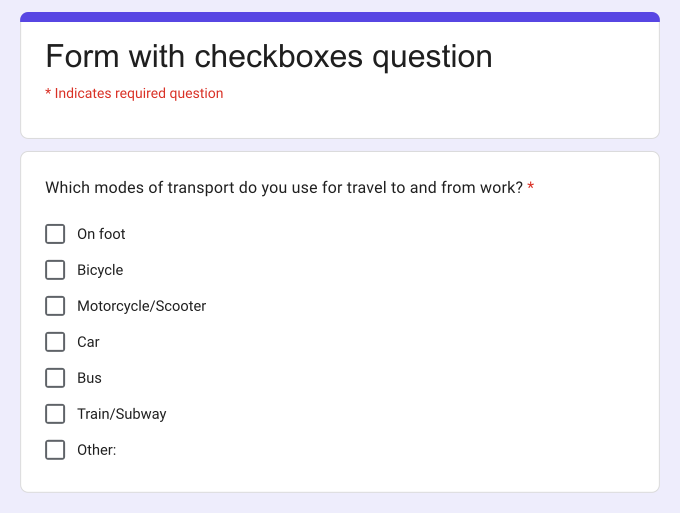
How to create a checkboxes question?
- On the page that opens, name your form, click Build form and click Proceed. It can take about a minute.
- You will land on the form's "Preview" tab.
- Click on "Edit" tab

- Click on the + icon (Add field) in the toolbar on the right and enter your question
- Select Checkboxes in the question type list
- Type the first answer choice in the first box, then click Add Option and type the next one. Do this for each answer choice.
- Enable Required toggle button to make this a mandatory question as shown below
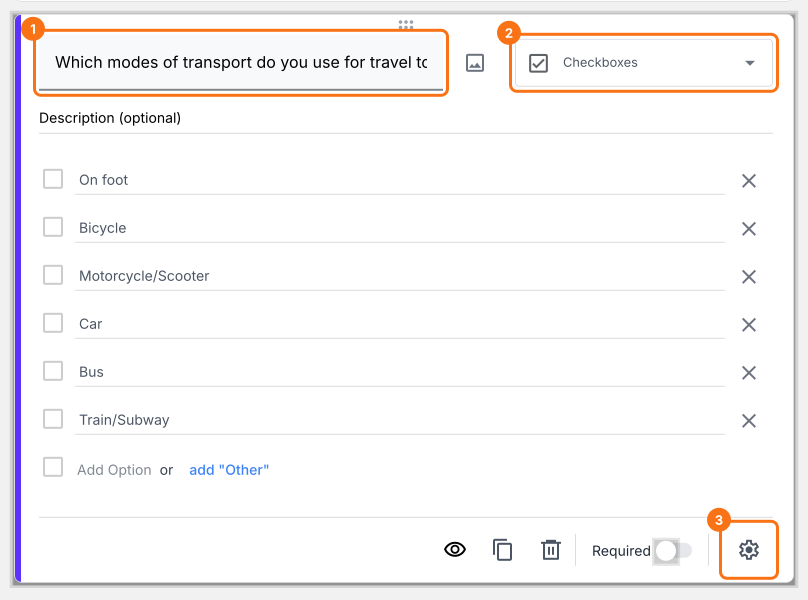
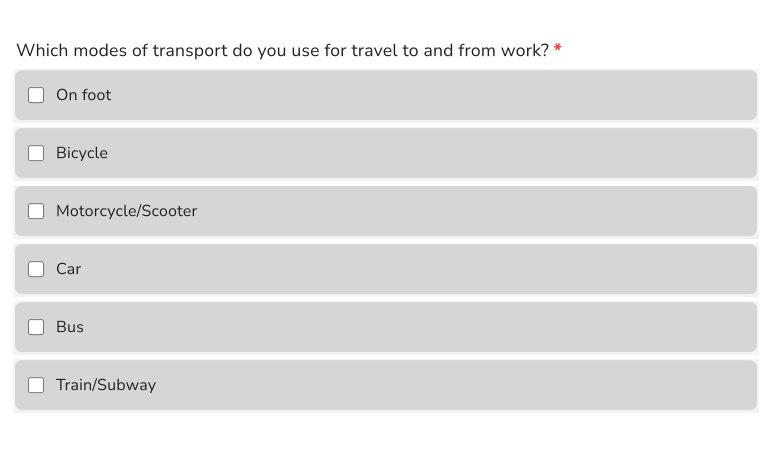
Checkboxes question with predefined answer choices
Here is how this question looks to your users.
How can I include "Other" as an option?
Once you have added the answers to the checkboxes question, click on the add "Other" link (highlighted in the image below). Your users will be able to choose one or more of the existing answer choices and also type their own short answer.
- Click on the + icon (Add field) in the toolbar on the right
- Select Checkboxes in the question type list
- Type the first answer choice in the first box, then click Add Option and type the next one. Do this for each answer choice.
- Click on the add "Other" link as shown below
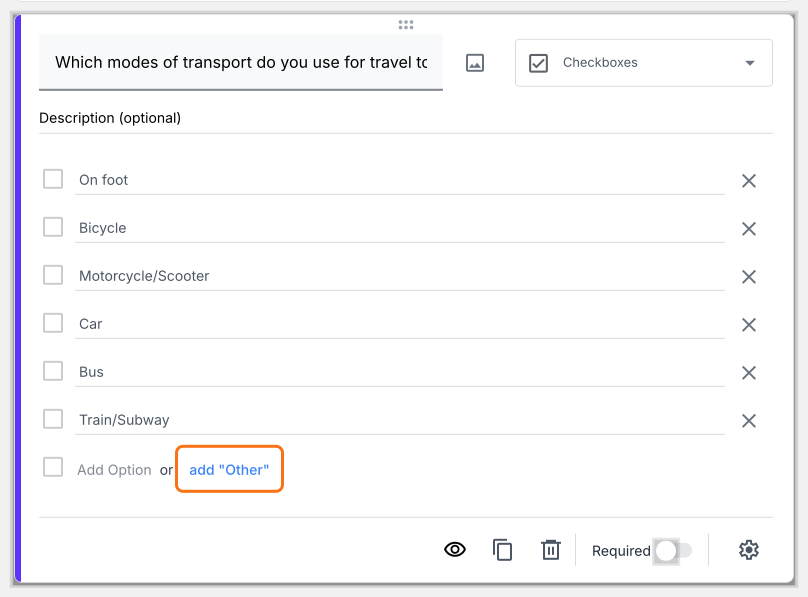
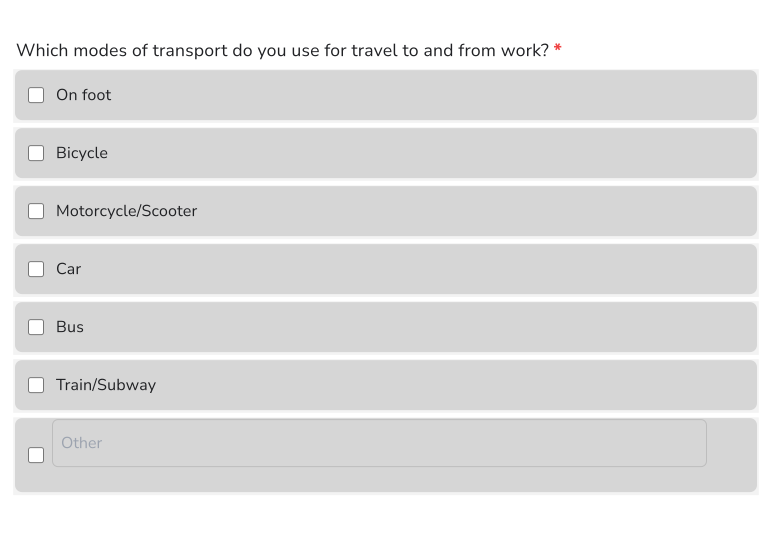
Checkboxes question with "Other" option
Here is how this question looks to your users.
How to limit the number of answer choices that users can select in a checkbox question?
You can add a response validation to limit the number of answer choices that users can select in a checkbox question. You can make users select at least a certain number of answers, exactly select the specified number of answers or select at most a certain number of answers.
Select at least
Let's say you want to create a workout plan for your customer based on their availability and also ensure that your customer trains at least 3 days in a week. You can do this by adding a checkboxes question with days of the week as answer choices and use Select at least response validation to force your users to choose at least 3 days (answer choices) to train.
- Click on the + icon (Add field) in the toolbar on the right
- Select Checkboxes in the question type list
- Type the first answer choice in the first box, then click Add Option and type the next one. Do this for each answer choice.
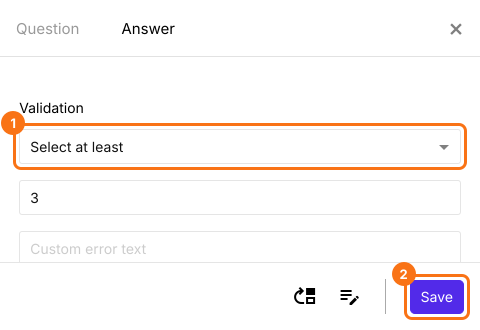
- Click on the ⚙️ icon at the bottom right of the question, select the "Answer" tab and click Configure under Validation
- Select Select at least and enter the minimum number of answers that must be checked
- Click Save
Select at most
Let's say you want to create a pizza order form that gives your users an option to choose up to four extra toppings. You can do this by adding a checkboxes question with different available toppings as answer choices and use Select at most response validation to restrict your users to a max of four toppings (answer choices).
- Click on the + icon (Add field) in the toolbar on the right
- Select Checkboxes in the question type list
- Type the first answer choice in the first box, then click Add Option and type the next one. Do this for each answer choice.
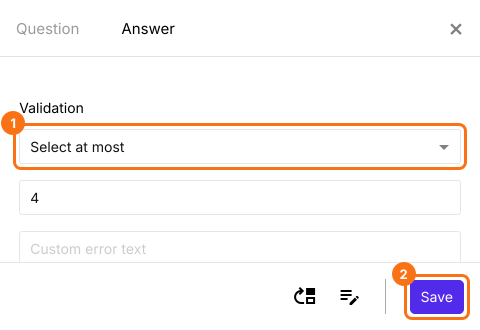
- Click on the ⚙️ icon at the bottom right of the question, select the "Answer" tab and click Configure under Validation
- Select Select at most and enter the maximum number of answers that can be checked
- Click Save
Select exactly
Let's say you want to do a survey to find the top 5 gadgets that everyone uses. You can do this by adding a checkboxes question with different gadgets as answer choices and use Select exactly response validation to make your survey respondents choose their top 5 must-have gadgets.
- Click on the + icon (Add field) in the toolbar on the right
- Select Checkboxes in the question type list
- Type the first answer choice in the first box, then click Add Option and type the next one. Do this for each answer choice.
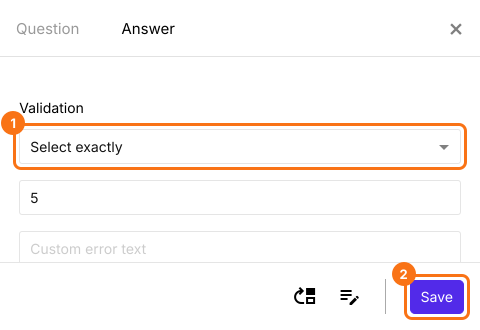
- Click on the ⚙️ icon at the bottom right of the question, select the "Answer" tab and click Configure under Validation
- Select Select exactly and enter the exact number of answers that must be checked
- Click Save
If you are using checkbox to get consent from the users, use Formesign to get legally binding signature for consent.
Summary
If your users need to select more than one answer, a multiple choice question will not allow it. With a checkboxes question in Formfacade, users can select multiple answers and you can use response validation to limit the number of answers they select. Create your form and complete the steps above.
Last updated: