How to collect multiple signatures with a signing order in Google Forms?
"send documents for signing by one person after another"- Google Docs Editors Community
This is a common question from Google Workspace users who need one person to sign after another. For example, you rent out units and each tenant has to sign the rental agreement before you countersign. Google Forms does not support signatures, multiple signatures or a signing order, so people email the response PDF to the second signer and stitch the files together by hand. You can use DocuSign, Dropbox Sign or Adobe Sign instead, but then half the record lives in your form responses and the other half lives in a signing platform. With Formesign, the tenant signs first and only then is the landlord emailed to countersign. Even better, the order is stored on the form and the signed PDF is in one place.
A Google Form collects one response from one person. There is no signature field, so the first signature already needs an addon or a workaround. And there is no handoff: once the tenant submits, nothing invites the landlord to sign next. People work around it by emailing the response PDF to the second signer and stitching the files together by hand. The order is not enforced by anything except your own discipline and with several tenants signing in the same week, it is easy to approve one agreement twice and forget another entirely.
Method 1: DocuSign, Dropbox Sign or Adobe Sign
Dedicated esignature platforms handle signing order well. You upload the agreement, add the tenant and the landlord as recipients and drag them into order. The envelope moves automatically, with reminders and an audit trail.
For the agreement itself, this works well. The problem is everything around it. The tenant's application, references and move-in details probably already arrive through Google Forms, so now half the record lives in your form responses and the other half lives in a signing platform and you match them up by hand.
Pros: Signing order is enforced automatically, with reminders built in. Audit trail with timestamps for every signer. Handles any document, not just forms.
Cons: Your data ends up in two systems if intake already runs on Google Forms. Per-envelope or per-user pricing. One more platform for you and your tenants to learn.
Method 2: The Formesign Signature workflow addon
The Signature workflow addon adds an approval workflow to the form itself, so the order is stored on the form and you do not have to track it. You set the tenant as the first signer and the landlord as the second. The tenant gets the form, fills in their details and signs. Only when they finish is the landlord invited to countersign. If either side sits on it, reminder emails nudge whoever is holding it up. You can see whose turn it is for every unit and the completed agreement lands as a signed PDF in Google Drive, next to the response row in Google Sheets.
Pros: The tenant always signs before the landlord, enforced by the workflow. You see the status of every agreement in one place. Reminder emails do the chasing for you. Signed PDF saved to Google Drive, response data in Sheets.
Cons: Paid beyond the free tier, see the pricing page. Works with Google Forms only. Every signer needs an email address.
The same handoff shows up elsewhere
The rental agreement is not a special case. In many agreements, one person fills in the details and signs first and someone else has to sign after them.
• Offer letters: the candidate signs, then HR, then the director
• Purchase request approvals: the requester submits, the manager signs off, finance signs last
• Equipment rental and catering agreements: the customer signs, the business countersigns
How to collect multiple signatures with Formesign
There are two ways to get started with Formesign:
Option 1: Use the Formesign addon
Create your form in Google Forms to collect the necessary details
Ensure that you have included the relevant terms in the form
Share the Formesign link with the respondents to collect signatures in the form
Responses and signatures are automatically recorded in Google Forms and a signed PDF is generated for your record
Option 2: Import your Google Form (Recommended)
Publish your form in Google Forms, if you have not done this yet.
Click on Import your Google Form and select Import your Google Forms. Paste your Google Form link and click Add workflow. Formesign imports a copy of your form and asks who should sign, in order.
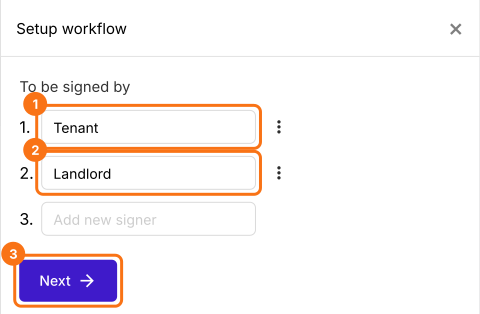
Under To be signed by, box 1 already has a guess, so select it and type Tenant. Type Landlord in box 2 and click Next.
Your signing link is ready will be displayed. Each signer starts on Google Sign-in. If your tenants have no Google account, click Form editor, click each signature field and click Not required beside Verify identity.
Click on "Share" tab, copy the link and send it to your tenants.
The tenant fills in their details, signs, clicks SUBMIT, enters the landlord's email and clicks Proceed. A few minutes later, the landlord gets an email, clicks Review & sign, reads the answers and signs. In the Signed PDF tab, the card says 1 signed | 1 pending until then and Signed and completed after that.
If you sign a high volume of contracts that have nothing to do with forms, a DocuSign class tool earns its price. If the process already runs on Google Forms, the way rental applications and agreements usually do, the Signature workflow addon keeps everything in one place: the signing order is enforced on the form and the signed PDF ends up in Google Drive with the response data in Sheets.
Summary
If a tenant has to sign before the landlord, Google Forms cannot enforce that order and you end up stitching files together by hand. With Formesign, the order is stored on the form and the signed PDF is in one place. Import your Google Form and complete the steps above. If you have any questions, write to support.