How to see who hasn't signed yet?
"User submit check request. User A approve request. User B approve request."- Google Docs Editors Community
Check requests that pass through two approvers can stall without telling you where. 76 people on Google's forum have asked about running this kind of approval in Google Forms, which doesn't show whose turn it is. So you email the first approver, then the second, and ask again the next day. In Formesign, the SIGNED PDF tab has a card for each request that shows who has signed and who it's waiting on, and you resend the request to that one person.
Let's start. Import your Google Form and follow the steps below.
1. Add your approvers
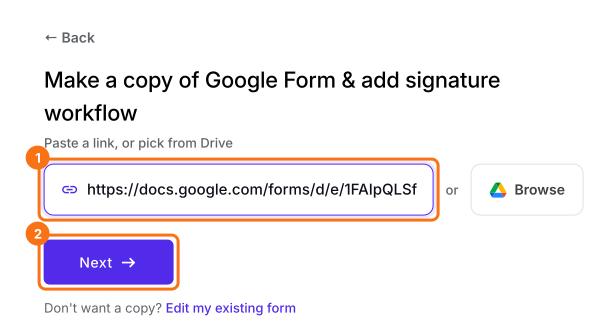
- Click on Import your Google Form. On the page that opens, paste your Google Form's link or click Browse to pick it and click Next.
- Under To be signed by, type over the first signer so that it reads Requester. Click Add new signer and type Manager, then do the same for CEO and click Next.
- When it says Your signing link is ready, click Preview signing experience to try the form, then click Form editor under Manage.
2. Open the SIGNED PDF tab
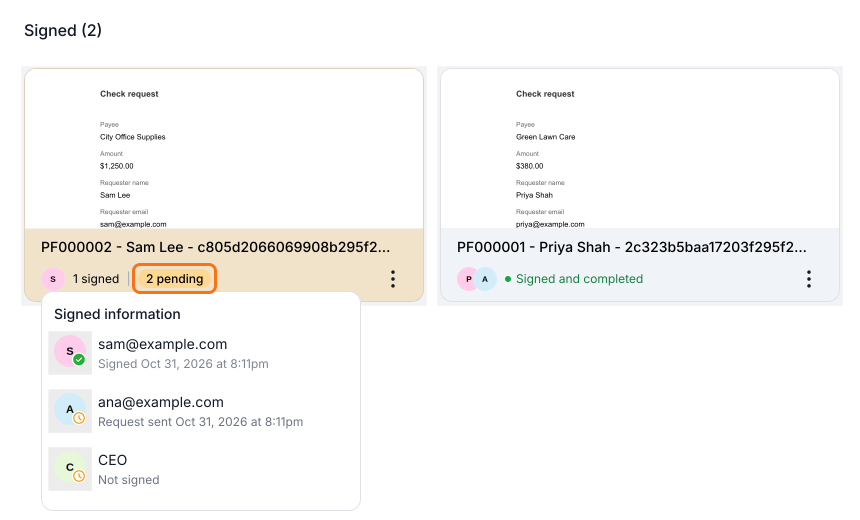
Click SHARE and send the link to your staff. Once a request has been signed, click SIGNED PDF. Each card is one check request and an orange card is still waiting, so point to its 2 pending to see who hasn't signed.
3. Open Activity on the card
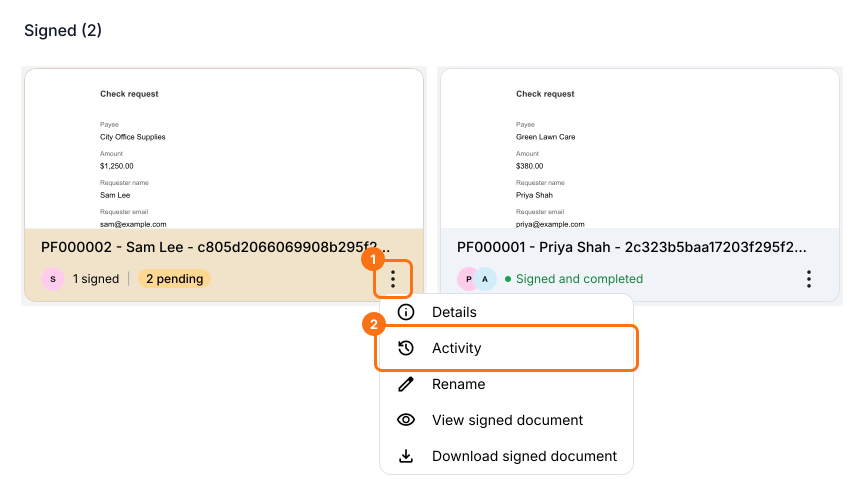
Click the three dots on Sam's card and choose Activity.
4. See whose turn it is
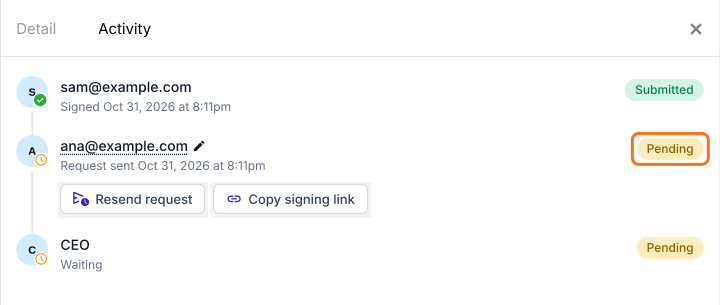
Request sent with Pending means it's that person's turn. Here, Sam's check request is waiting on Ana and the CEO signs after her.
5. Remind that person
Click Resend request to email Ana again or Copy signing link to send it to her another way.

Summary
When a request needs more than one signature, Google Forms can't show which signer is holding it up, so chasing it means asking everyone. With Formesign, the SIGNED PDF tab shows who has signed and who it's waiting on and you can remind only that person. Import your Google Form and complete the steps above.
See who hasn't signed each request on your Google Form.
Import the Google Form that needs approvers. Each request's Activity in SIGNED PDF shows whose turn it is, so you remind only that person.