How to share your form with collaborators?
This is a common question from Google Workspace users working on a form with other people. Passing the questions back and forth by email is slow and you end up with different copies. Google Forms lets you add collaborators from its Share icon, but each of them is an editor who can change your questions. With Formfacade, you can add them as collaborators from the Share tab. They get an email with an invite and everyone works on one form. Even better, you can add some of your team as Viewers, who can view the responses and reports without touching the form.
Let's start. Create your form and follow the steps below.
How to add collaborators?
- On the page that opens, name your form, click Embed form and click Proceed. It can take about a minute.
- You will land on the form's "Share" tab, on Embed. The top bar may say "Blank Formfacade form" until you reload the page.

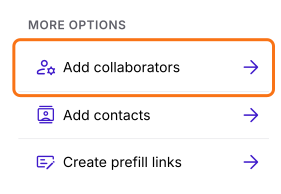
- Click Add collaborators under More options
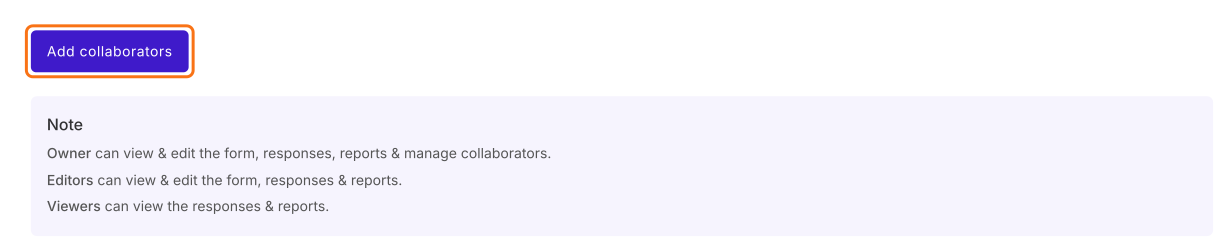
- Collaborators page will be displayed
- Click Add collaborators
- Enter the email addresses of the collaborators
- Set the role to Editor
- You can enter the optional message
- Click on Share
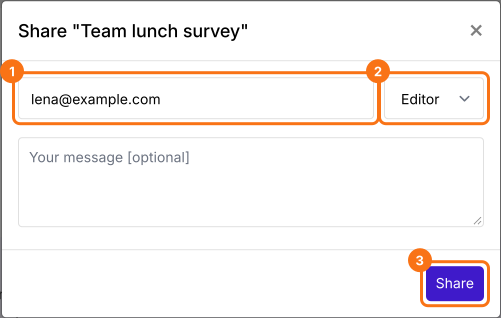
The collaborators get an email with an Accept invite button and they are listed on the Collaborators page. Editors can view & edit the form, responses & reports. Viewers can view the responses & reports.
Summary
If you work on a form with other people, separate copies are hard to keep in step. With Formfacade, you click Add collaborators on the Share tab, enter the email addresses of the collaborators, set the role to Editor and click on Share. Create your form and complete the steps above.
Last updated: