How to show different questions based on answers in Google Forms?
"I am working on a Google Form and need to use Skip Logic"- Google Docs Editors Community
This is a common question from Google Workspace users building surveys. If you ask everyone the same questions, some of them have to read questions that do not apply to them and they may leave the form. For example, you want a happy customer and an unhappy one to see different questions, based on the answer they choose. Google Forms lets you do this with Go to section based on answer, but it only sends people to a whole section and the form keeps Google's look. With Formfacade, you can use the Go to page option for multiple choice question so that users only see certain pages based on their answers. Even better, the form will have your own branding instead of Google's and the responses will be collected on your Google Forms.
Let's start. Create your form and follow the steps below.
Show questions based on answers
- On the page that opens, name your form, click Embed form and click Proceed. It can take about a minute.
- You will land on the form's "Share" tab, on Embed. The top bar may say "Blank Formfacade form" until you reload the page.
- Click on "Edit" tab

- Click on the multiple choice question
- Click on the ⚙️ icon at the bottom of the question
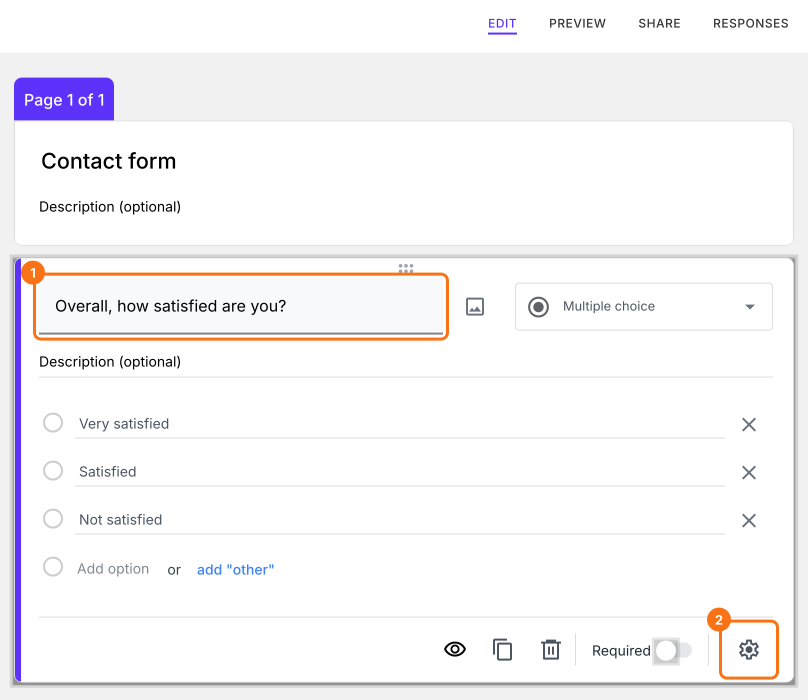
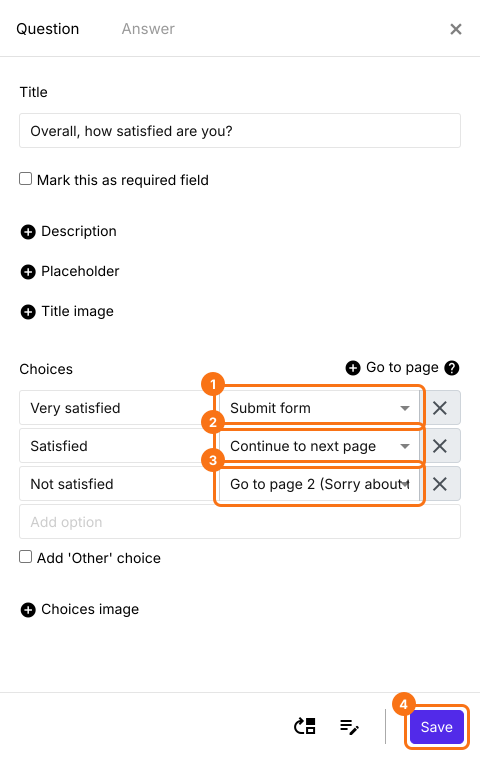
- Click + Go to page on the Question tab
- Select the relevant page for each answer choice: Continue to next page, Go to page 1, Go to page 2 or Submit form
- Click Save
Summary
Last updated: