How to view form submissions with signatures?

"I would like to organize my signatures from my permission form by date"- Google Docs Editors Community
This is a common question from Google Forms users collecting signed forms year after year. For example, a parent calls about this year's field trip and you need their signed permission form right away. A Google Forms response only shows a signature as a link and a Sheet of last year's rows mixed with this year's means scrolling to find the right one. With Formesign, you can view the form submissions in the Formesign Responses page, Google Forms and Google Sheets. Even better, the Responses page shows each form with its signature, so you don't have to open a link to see it.
Let's start. Create your form and follow the steps below.
View submissions in Google Forms
- Click on Create your form, click Enter your form name, type the name and click Generate
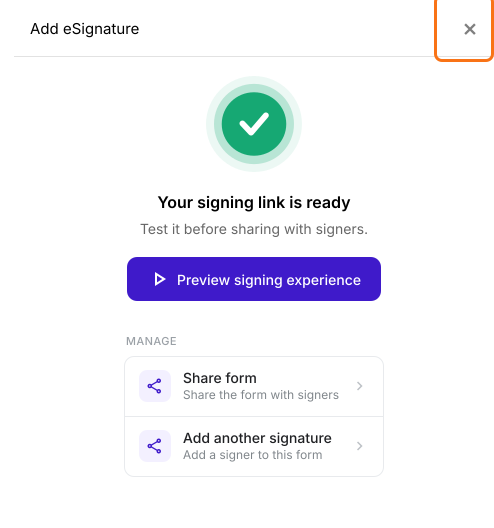
- It takes about a minute. Check the outline and click Proceed. You will land on the form's "Edit" tab, with the "Add eSignature" dialog saying "Your signing link is ready". Close it.
- Click on "Share" tab, copy the link and send it to your signers. Their responses show up in the "Responses" tab, which says Not complete yet until everyone has signed.
- Click on "Responses" tab

- The Google Forms view is displayed first. Click on <, > to navigate between responses
- Click View signed document to see the signature

Note: This view is in Formesign. The form's Google Form says 0 responses until you click Submit to Google Forms and click Proceed. The button then says View in Google Forms. The link to the signature will be recorded as a response for the E-signature field in Google Forms.
View submissions in Google Sheets
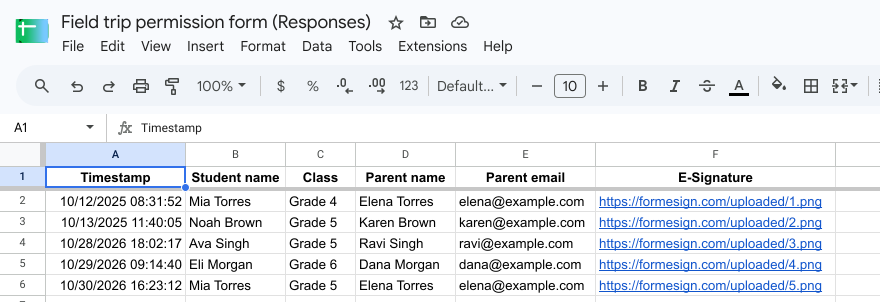
- In the Responses tab, click Google Sheets
- Click Link to Sheets, click Proceed and click View sheets

Note: When the responses are synced to Google Sheets, all the fields in the form are included as columns and each row is a response.
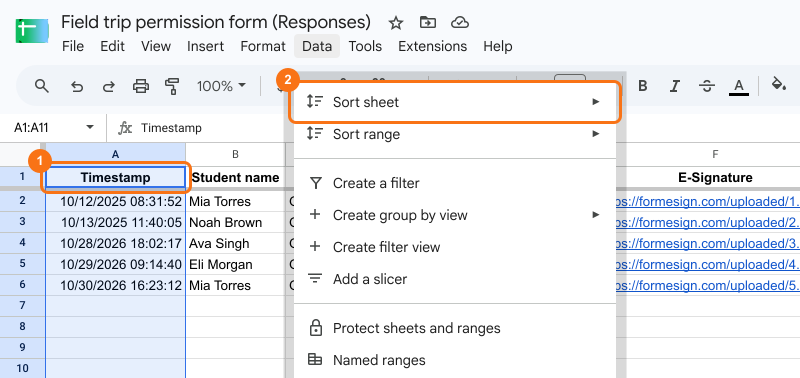
To organize the responses by date, click on the Timestamp column > click Data > click Sort sheet > select Z to A.
View submissions in Responses page
- In the Responses tab, click Kanban board

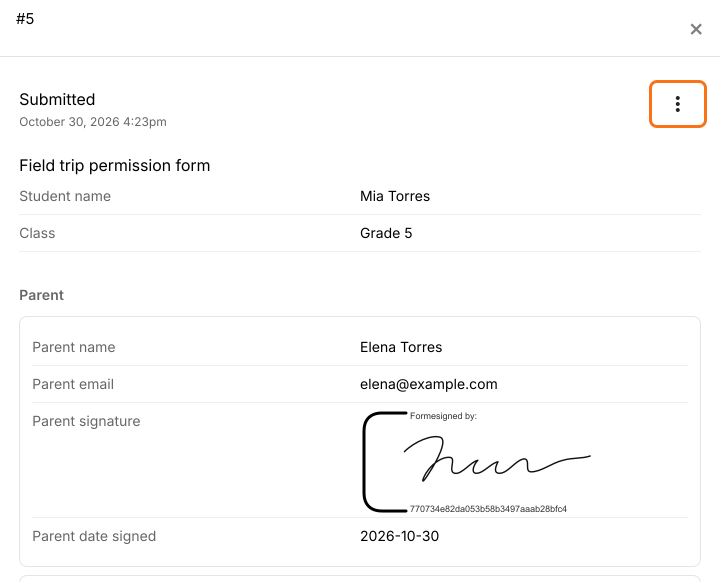
- Click on response to view the details
Note: You can print individual responses with signatures by clicking on the three dots more icon.
Summary
If you collect signed permission forms every year, a list of links and old rows makes this year's form hard to find. With Formesign, you can view each form with its signature in the Responses page and Google Sheets lists them all with a link to each signature, which you can sort by date. Create your form and complete the steps above. If you have any questions, write to support.
Last updated: