How to sign a form on your phone?
"Does it work on mobile phones?"- Google Docs Editors Community
This is a common question from Google Forms users who need a signature away from a desk. For example, you finish jobs at customers' homes and each customer has to sign off before you leave. Google Forms has no signature question and a tick box isn't a signature. Nobody has a printer there and paper sign-off sheets get lost on the way back to the office. With Formesign, you can send a link to the customer's phone and they draw their signature with a finger before you leave. Even better, they don't need a Google account and the signed PDF reaches you with no printer involved.
Let's start. Create your form in Google Forms, then import it and follow the steps below.
1. Import your form
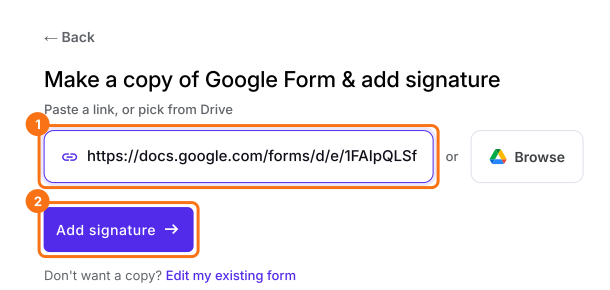
Publish your Google Form first or make one at form.new with a Customer name question and click Publish. Click on Import your Google Form, click Import your Google Forms, paste its link (the form's address in your browser works) and click Add signature. Keep Simple signature, so customers draw without signing in and click Next. Choose the question it goes after and click Next.
2. Put the customer's name on the record
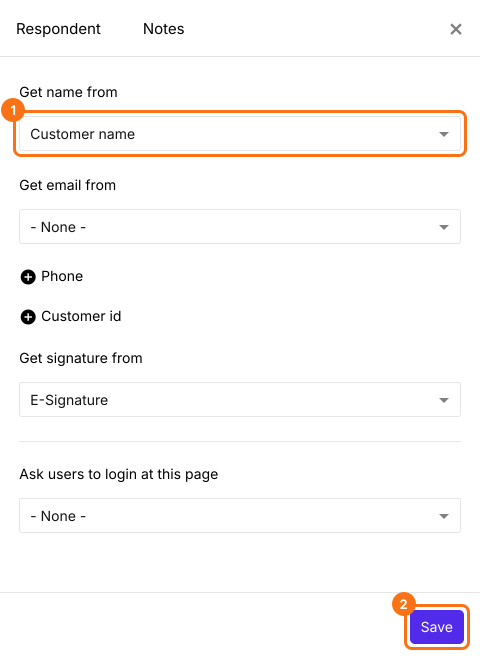
On Your signing link is ready, click Edit form. At the end of the form, click Configure key fields (the notebook icon) in the last After page row. Set Get name from to Customer name (or your own name question) and Get signature from to E-Signature and click Save. Otherwise the signed PDF says Anonymous.
3. Send the link to their phone
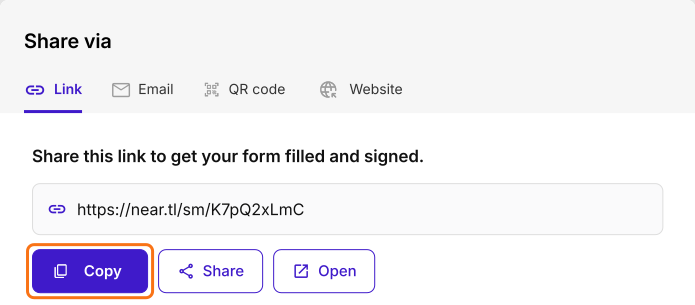
Click SHARE, click Copy on the Link tab and text it to the customer. They can also scan a printed code from the QR code tab.
4. They sign with a finger
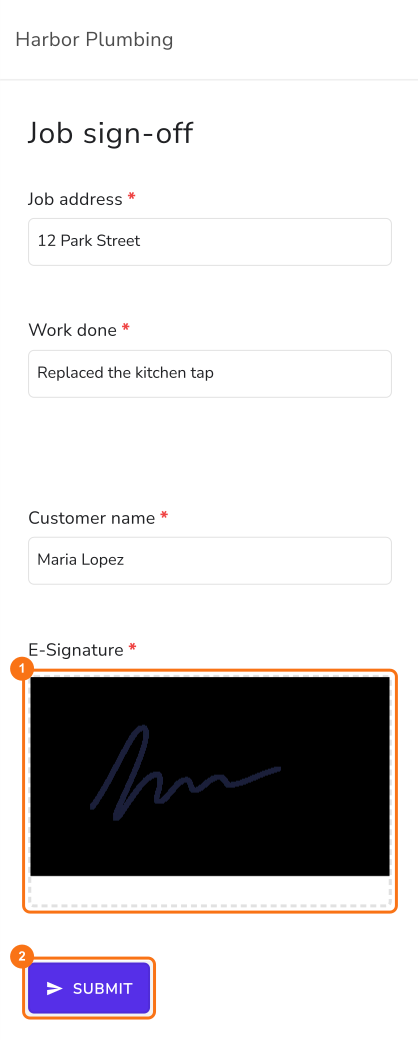
The form fits their screen, with nothing to install. They check the job, draw in the signature box and tap SUBMIT.
5. Get the signed PDF
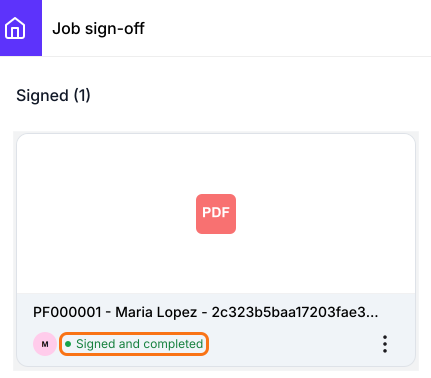
They see Your response has been recorded. The signed PDF is in your SIGNED PDF tab. If you do not see that tab, reload the page.
Summary
If customers have to sign off before you leave their home, paper gets lost and a tick box isn't a signature. With Formesign, you send a link to their phone, they draw their signature with a finger and the signed PDF reaches you with no printer involved. Create your form in Google Forms, then import it and complete the steps above.
Last updated: