How to upload files to Google Forms without a sign in?
"How can my customers upload files to my Google Drive without signing in?"- Quora
This is a common question from people who collect files from customers. For example, you might run a warranty claim form and each customer has to send a copy of their receipt. You can add a file upload question in your Google Form, but this option requires sign in and some customers cannot or will not. Asking them to email the receipt means matching each one to its claim by hand. With Formfacade, your users can upload files without sign in. Each customer adds their receipt and submits the claim in one go. Even better, the form will have your own branding instead of Google's and the link to each file will be collected on your Google Forms.
Let's start. Create your form and follow the steps below.
What is the difference between Google Form's file upload and Formfacade's HTML file upload?
Google Form's file upload question requires your users to be signed in to a Google account to upload their file and submit their response. The files are uploaded to the form creator's Google Drive.
Formfacade converts the Google Drive file upload into an HTML file upload. The users will be able to upload a file using the upload file button and submit the form without having to sign in with a Google account. In the Google form, the file upload question will be converted into a short answer question, where the url location of file uploaded by the user will be displayed.
Watch this video to learn how to add a file upload question without login.
How to add a file upload question to your forms?
- On the page that opens, name your form, click Create form and click Proceed.
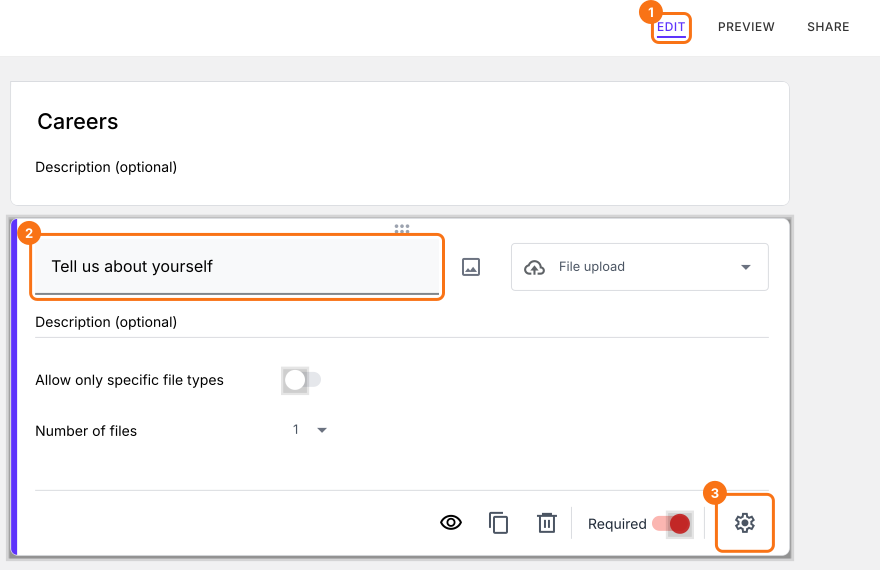
- Once you create the form, you will land on the form's "Edit" tab. If it asks "Do you want to preview this form?", click No.

- Your new form already has a file upload question. Click on it and enter your question. The gear icon at the bottom of its card opens its settings.
How to enable file upload without Google signin?
There is nothing more to enable. The file upload question on this form does not ask for a sign in.
- Click on "Share" tab

- Click Copy and send the link to your users
Using Formfacade form to collect responses
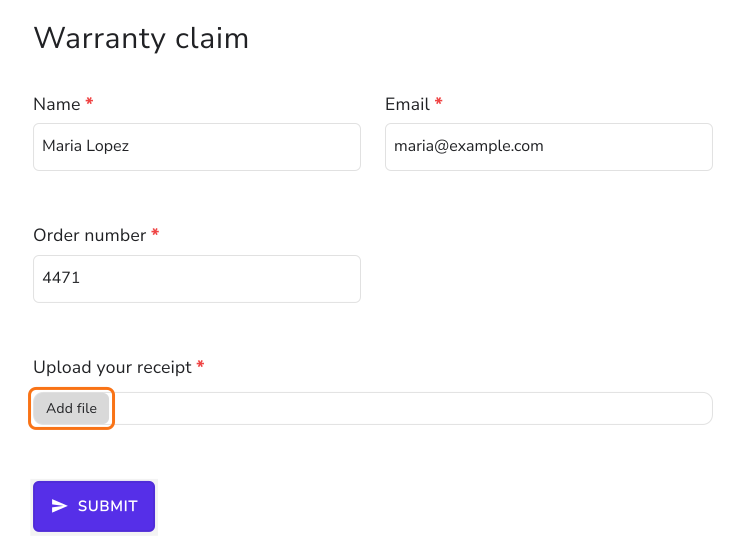
When you share this form using Formfacade, your users will see a file upload button as shown below. Users can upload a file (max size 10MB) using this file upload option. If you want to provide your users with the option to upload multiple files, you can change the max files for that file upload question in the Answer tab of its settings.
If you are using the file upload to collect signature, use Formesign that lets you add signature field in Google Forms.
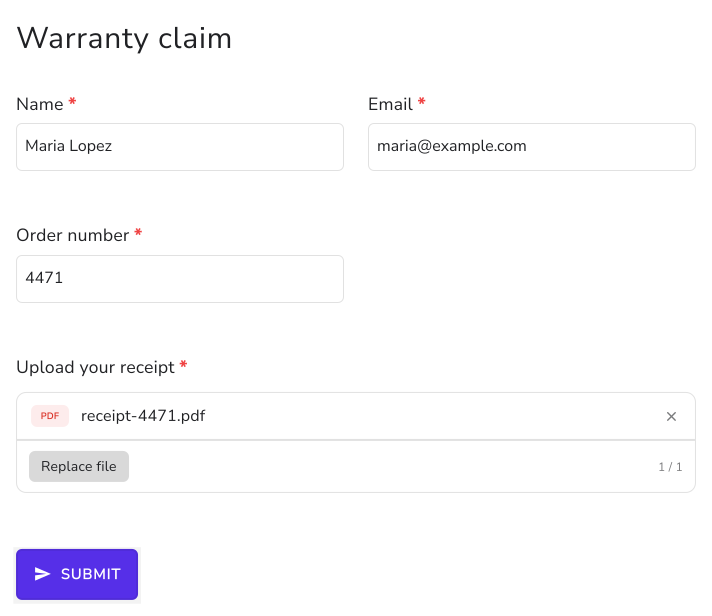
Your users fill the form, add their file and submit it without a sign in.
Viewing form responses with file upload questions
- Click on "Responses" tab

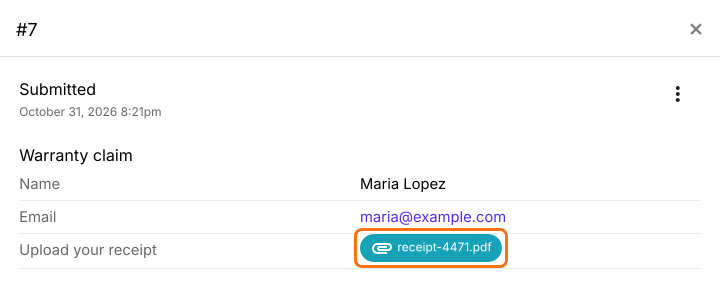
- Select Kanban board and click on the response in Submitted
- URL link of the uploaded file will be shown as a response to that question. You can use this link to view and download the file.
Key points to remember
- Formfacade converts the Google Drive file upload into an html file upload. In Google Forms, you will see a short answer question, but in the Formfacade form, you will see the file upload option.
- To make file upload mandatory, you can check Mark this as required field in the Question tab of that file upload question's settings.
- To accept multiple files, you can change the max files in the Answer tab of that file upload question's settings.
- To restrict the types of files that users can upload, you can add the valid file types in the Answer tab of that file upload question's settings.
- When a user uploads a file and submits a response, the url link of the uploaded file will be shown in RESPONSES.
- The files are uploaded on our servers. You can use the link to view and download the files. We do not upload the files directly to Google Drive as Google Drive does not allow anonymous users to upload files. You can copy them to Google Drive using the Save uploaded files to Google Drive option for that file upload question.
Summary
If your customers have to send you a file, Google's sign in stops the ones who cannot or will not sign in and asking them to email it means matching each file by hand. With Formfacade, your users can upload files without sign in. Create your form and complete the steps above. If you have any questions, write to support.
Last updated: