How to save Google Forms uploads without using your Drive storage?

"The Google Form is no longer accepting responses. Fix file upload setting error."- Google Docs Editors Community

504 people on Google's forum have the same question on one thread: why has my Google Form stopped accepting responses? The answer is its file upload limit. Every file sent through Google Forms lands in the owner's Drive and counts against a limit set on the form, so a busy application form can stop taking resumes one day. Raising the limit or buying storage only moves the wall, and emailing files means matching each to its response. With Formfacade, uploads go to Formfacade's storage instead of your Drive, so your form doesn't depend on your Drive space. You open each file from its response or from the links in your Google Sheet, and people upload with no Google sign-in.

Let's start. Import your Google Form and follow the steps below.

1. Import your Google Form
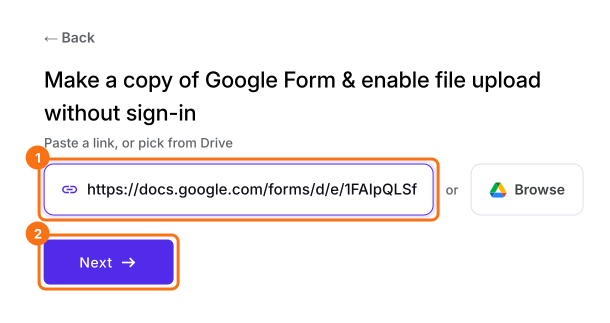
On the page that opens, paste your Google Form's link or click Browse to pick it, then click Next. Your form opens on the Edit tab. If it asks "Do you want to preview this form?", click No. If your form has no file upload question, add one first.
The import page with a Google Form's link pasted in, with the link box and Next marked

2. Check your storage

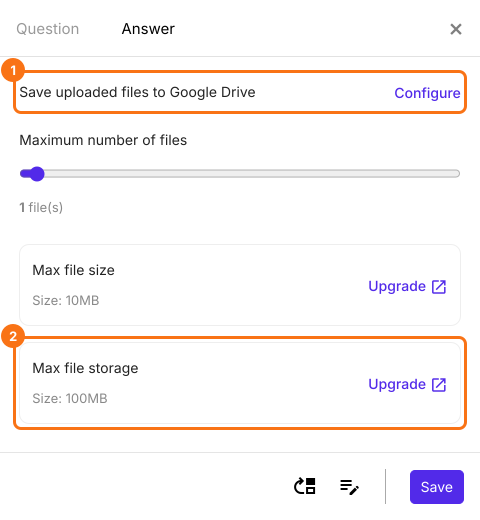
In EDIT, click an upload question, click the gear and open Answer. Max file storage shows your plan's space and files reach Drive only if you click Configure.
The Answer tab of a file upload question, with Save uploaded files to Google Drive and its Configure link marked, Maximum number of files, Max file size and Max file storage marked with an Upgrade link

3. Applicants add their files

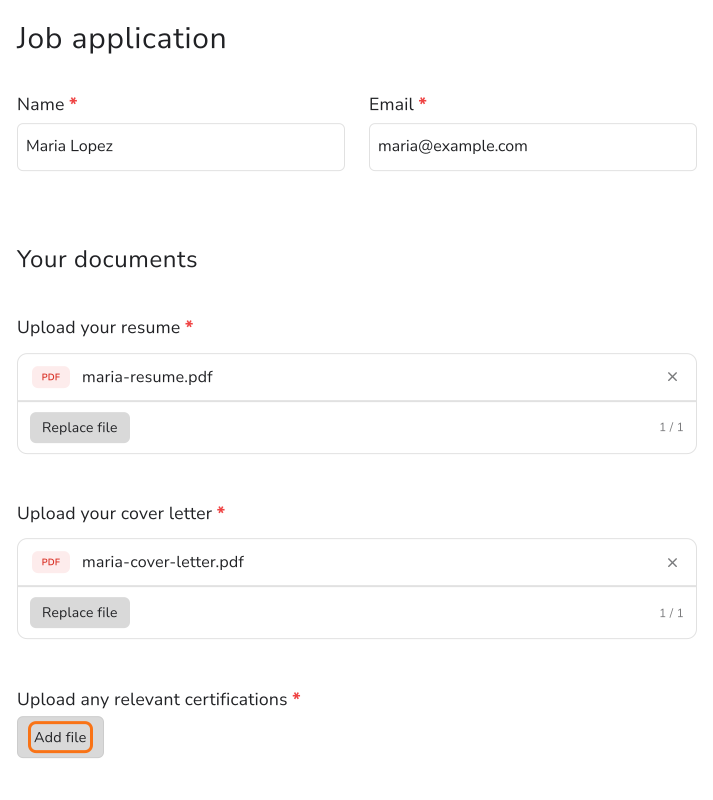
Open SHARE, click Copy and send applicants your form's link. They click Add file and upload with no Google sign-in.
The Job application form filled in by Maria Lopez, with maria-resume.pdf and maria-cover-letter.pdf uploaded and the Add file link marked under Upload any relevant certifications

4. Open each applicant's files

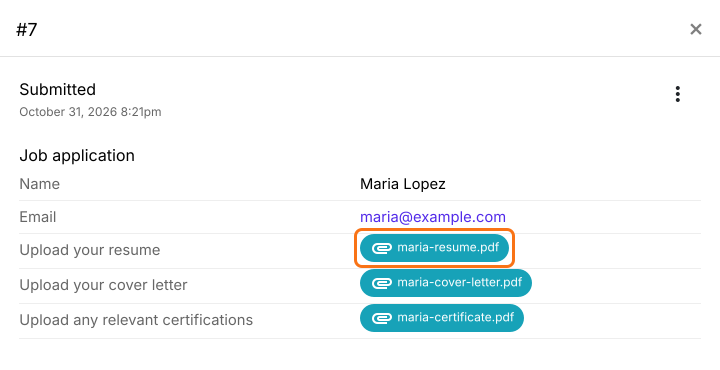
When a response comes in, click on Responses tab, then Kanban board and click a card. Click a file to open it.
Maria Lopez's response with her resume, cover letter and certificate as links you can click and the first one marked

5. Find the links in your Google Sheet
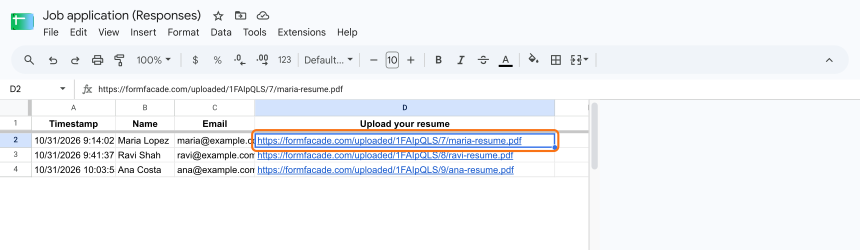
Under Responses, click Google Sheets, Link to Sheets and Proceed. Click View sheets. Each file shows there as a formfacade.com link. The files stay out of your Drive.
The Job application responses in Google Sheets with each resume as a formfacade.com/uploaded link

Summary

When every upload counts against your Drive, a form can stop accepting responses once the limit is hit. With Formfacade, uploaded files go to Formfacade's storage and you open them from the response or from the links in your Google Sheet. Import your Google Form and complete the steps above. If you have any questions, write to support.

Keep your Google Form's uploads out of your Drive.

Import your Google Form and share it. Files go to Formfacade's storage instead of your Drive and you open each one from its response or your Google Sheet.

Last updated: