How to add signature in Google Docs?

"I am trying to add my signature to a doc that I have created"- Google Docs Editors Community
This is a common question from Google Docs users who want an NDA or a policy signed without printing or scanning. Google's eSignature is for Workspace only and an image of a signature proves very little. With the Formesign - Signature for Google Docs addon, people can sign your Doc online. Even better, it works from any Google account, so you can send your Doc today.
Let's start. Open your Google Doc and follow the steps below. If your Doc can't be read, download it as a PDF and upload it here.
Whether you're signing an NDA, formal agreements, contracts, approving internal memos or collecting signatures for policy acknowledgments, Google Docs makes it easy to collect signatures directly within your documents. You can streamline approvals, enhance collaboration and eliminate the need for printing or scanning.
Google Docs offers multiple ways to insert signatures, making it easy to sign or request approvals without leaving the document. Here are the four main options:
- Upload a Signature Image
- Use the Scribble Tool via Insert > Drawing
- Use Google Docs' Built-in eSignature Feature (Workspace Only)
- Use Google Workspace Addons (Formesign - Signature for Google Docs, Docusign etc)
Upload a Signature Image
- Open your Google Doc
- Click where you want to insert the signature.
- Go to Insert > Image > choose your source (Upload from computer, Drive, etc.).
- Select your signature image.
- Resize and position the image as needed.
Use the Scribble Tool via Insert > Drawing
- Open your Google Doc.
- Click where you want to insert the signature.
- Go to Insert > Drawing > + New.
- In the Drawing window, click on the Line tool and select Scribble.
- Use your mouse or trackpad to draw your signature.
- Click Save and Close.
- The signature will be inserted into the document and you can resize or move it as needed.
Use Google Docs' Built-in eSignature Feature (Workspace Only)
Create a new Google Doc or open an existing one, then click Tools > eSignature from the top menu.
You can drag one or more fields such as Signature, Initials, Name, Date Signed, Text field to add to your document. If you have multiple signers, under "Insert fields for", select the specific signer for whom you want to add an eSignature field. You can also use the Manage Signers option to update the list of available signers. Currently, you can add up to 10 signers to a document and assign fields to each.
You can assign signers to each field in the document. To manage a field, click on it to select it and use the Assigned to dropdown to change the signer. Each signer is assigned a unique color, making it easy to identify the fields assigned to them.
Once you have added the relevant fields to the document, you can send it for signatures by clicking on the Request signature option on the right. Enter a title for the PDF file, add the email address for each signer, include a message to be sent with the eSignature request and then click Send Request.
When you send the signature request, a PDF is generated and shared with the signers, who can only update the fields assigned to them and sign the document. Once the document is signed, a PDF copy of the completed file is saved in the same folder as your original document.
✅ Pros
- Secure and legally compliant (ESIGN Act, eIDAS)
- User-friendly and intuitive interface
- Seamless integration with Google Drive
- Supports multiple signers
❌ Cons
- Does not support sequential signature workflows (cannot enforce signing order)
- Cannot specify the Google Drive folder to save signed documents
- Limited reporting and analytics
Use Formesign - Signature for Google Docs Addon
- The first time, install the Formesign - Signature for Google Docs addon
- Open your Google Doc
- Click Extensions, click Formesign - Signature for Google Docs and click Request signature
- The Request signature panel will be displayed on the right. Click Proceed
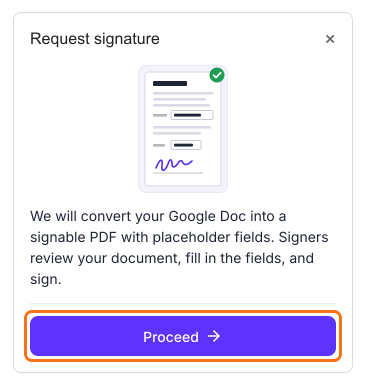
- Your document will open on formesign.com in a new tab. Review the fields on your document and click Proceed
- Under How do you want the signature?, select Create a reusable link for recurring forms and click Continue
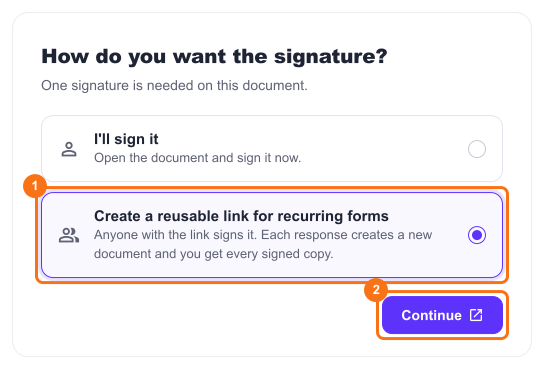
- Your form opens in a new tab so that you can try it. Back on the first tab, click View signed documents
- Each signer starts on Google Sign-in. If your signers have no Google account, click Form, click the signature field and click Not required beside Verify identity.
- Click on "Share" tab, copy the link and send it to your signers
Each signer reads the document, clicks Proceed, fills in the fields and their email, signs and clicks Submit document. Each response creates a new document and you get every signed copy.
Summary
If you need a signature on a Google Doc without printing or scanning, an image or a drawing proves very little and Google's eSignature is for Workspace only. With Formesign, you request the signature from your Doc and share one link to sign it. Open your Google Doc or upload it as a PDF and complete the steps above. If you have any questions, write to support.
Last updated: