How to add signature to a PDF document?

"How can I e-sign a pdf in google docs?"- Google Docs Editors Community
This is a common question from Google Workspace users who have a PDF to sign. Printing, signing and scanning it takes time and the paper can get lost. Google's eSignature can add a signature to a PDF, but only on some Workspace plans. You can also use Adobe Acrobat Reader, but that doesn't get it to the people who still have to sign. With Formesign, you can upload your PDF and share one link for people to fill in and sign. Even better, they can do it on any device and the signed copy goes to your Google Drive.
Let's start. Create your form and follow the steps below.
PDF documents are widely used for contracts, forms, agreements and other official records. You can add esignature to a PDF, eliminating the need to print, sign and scan. PDF signatures streamline workflows, enhance convenience and improve security, ensuring documents remain authentic while helping you stay paperless.
Collecting signatures on PDFs is easier than ever thanks to a variety of free and paid tools. Adobe Acrobat Reader, for example, allows users to add and collect signatures on PDF documents quickly. The software lets you type, draw or upload a signature and place it anywhere in the document. For teams using Google Workspace, the built-in eSignature feature enables users to request and gather signatures directly within Docs or Drive, simplifying signature approval workflows and saving time.
Google Workspace eSignature
You can easily create documents for signatures and send signature requests in Google Docs and Google Drive. To collect signatures in PDF, upload your PDF document to your Google Drive > click on the uploaded PDF document to select it > click on the ⋮ More icon > click Share > click Request eSignature.

You can drag one or more fields such as Signature, Initials, Name, Date Signed, Text field to add to your document. If you have multiple signers, under "Insert fields for", select the specific signer for whom you want to add an eSignature field. You can also use the Manage Signers option to update the list of available signers. Currently, you can add up to 10 signers to a PDF document and assign fields to each.

You can assign signers to each field in the document. To manage a field, click on it to select it and use the Assigned to dropdown to change the signer. Each signer is assigned a unique color, making it easy to identify the fields assigned to them.

Once you have added the relevant fields to the document, you can send it for signatures by clicking on the Request signature option on the right. Enter a title for the PDF file, add the email address for each signer, include a message to be sent with the eSignature request and then click Send Request.

When you send the signature request, a PDF is generated and shared with the signers, who can only update the fields assigned to them and sign the document. Once the document is signed, a PDF copy of the completed file is saved in the same folder as your original document.
✅ Pros
- Secure and legally compliant (ESIGN Act, eIDAS)
- User-friendly and intuitive interface
- Seamless integration with Google Drive
- Supports multiple signers
❌ Cons
- Does not support sequential signature workflows (cannot enforce signing order)
- Cannot specify the Google Drive folder to save signed documents
- Limited reporting and analytics
Upload your PDF to Formesign
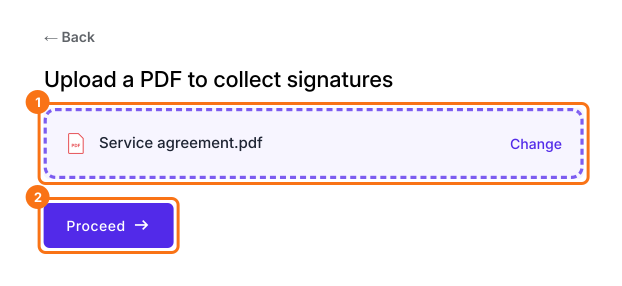
- Click on Create your form, upload your PDF and click Proceed
- Select Yes, keep my PDF exactly as it is and click Continue. Reading your PDF takes about a minute.
- Compare the boxes with your PDF and click Proceed. If it missed one, click + Add, then click where the answer goes or drag to draw its box.
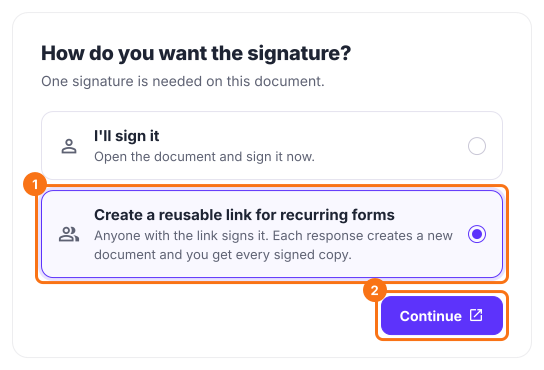
- Under How do you want the signature?, select Create a reusable link for recurring forms and click Continue. I'll sign it is the default, for when you sign it yourself.
- Your form opens in a new tab so that you can try it. Back on the first tab, click View signed documents
- Each signer starts on Google Sign-in. If your signers have no Google account, click Form, click the signature field and click Not required beside Verify identity.
- Click on "Share" tab, copy the link and send it to your signers
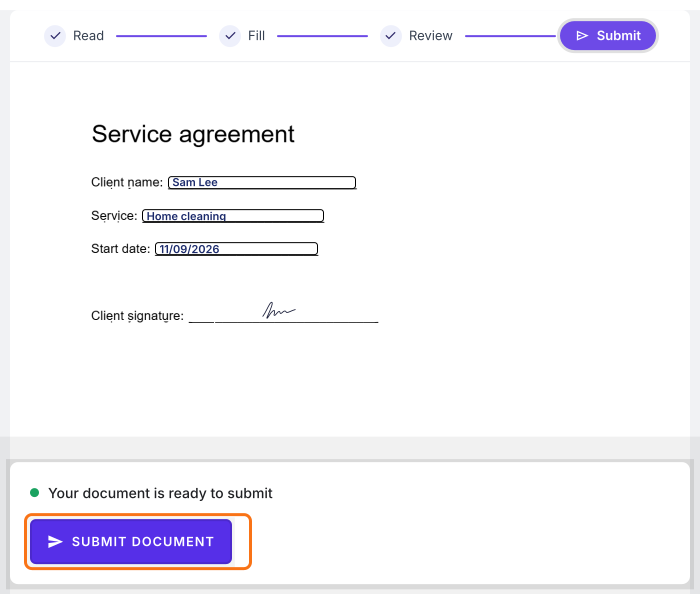
Each signer reads the PDF, clicks Proceed, fills in the fields and their email, signs and clicks Submit document. Each response creates a new document and you get every signed copy.
Summary
If someone has to sign your PDF, printing and scanning takes time. With Formesign, you upload your PDF, share one link and each signer fills it in and signs it on any device. Create your form and complete the steps above. If you have any questions, write to support.
Last updated: