How to add days, months or years to a date?
This is a common question from Google Forms users who track a due date, a renewal or a follow-up. The date you need is a number of days or months after another date. Asking people to work it out leads to mistakes and Google Forms cannot do the calculation for them. With Formfacade, you can use the ADD function to add days, months or years to a date and your users will see the new date as soon as they enter the first one. Even better, the new date is saved with the response, so your list in Google Sheets is ready to sort.
Let's start. Create your form and follow the steps below.
Add days to a date
- On the page that opens, name your form, click Build form and click Proceed. It can take about a minute.
- You will land on the form's "Preview" tab.
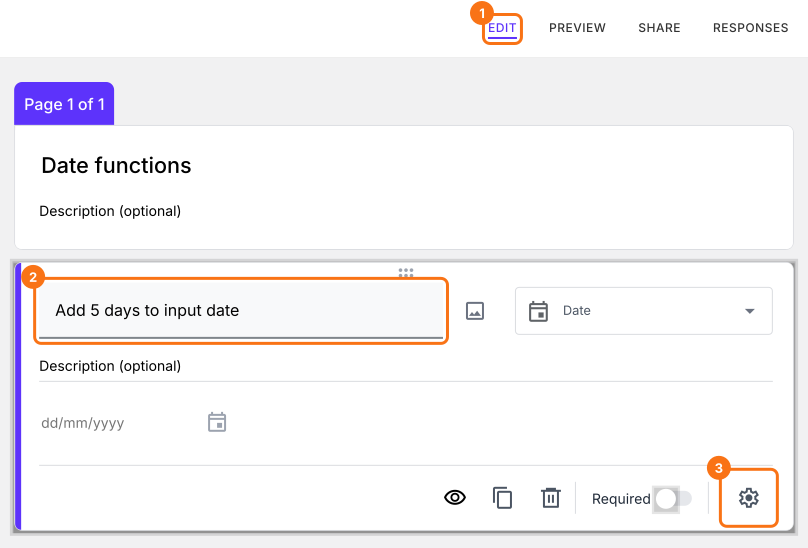
- Click on "Edit" tab

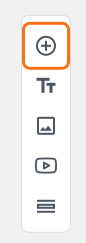
- Click on the + icon (Add field) in the toolbar on the right. A new question will be added.
- Enter "Input date" as the question and select Date in the question type list
- Click on the + icon again
- Enter "Add 5 days to input date" as the question and select Date in the question type list
Click on the ⚙️ icon at the bottom right of the question.
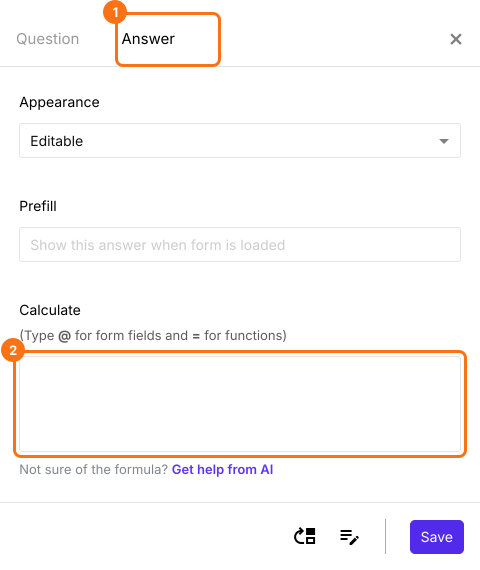
Field settings screen will be displayed. Select the "Answer" tab and write the formula to add days to a date.
ADD function
You can add days to a date by specifying "days" as the term in the ADD function.
Syntax:
add(number_of_days, "days")
Example usage:
TODAY().add(30,"days")
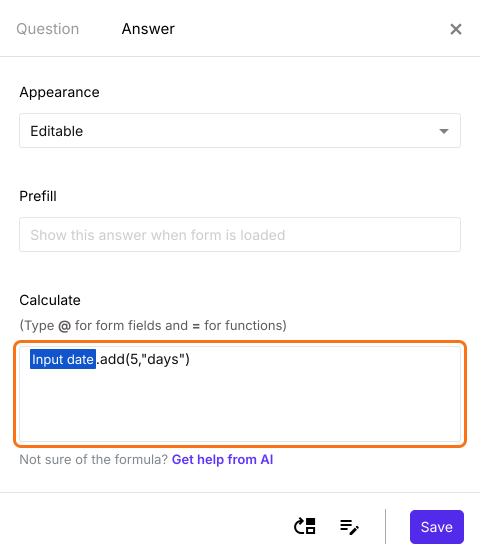
Inputdate.add(5,"days")
Note: To enter Inputdate, type @ in the calculate option and select the Input date question from the list. If no list appears on your form, make your form here instead: name it, click Create form and click Proceed, close the Assign points dialog and add these questions. The @ list opens on a form made there.
Write the formula in the Calculate option as shown below. Click Save.
Add months to a date
You can add months to a date by specifying "months" as the term in the ADD function.
Syntax:
add(number_of_months, "months")
Example usage:
TODAY().add(6,"months")
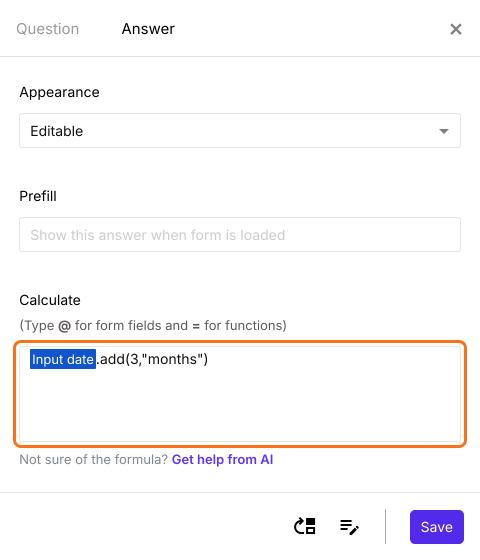
Inputdate.add(3,"months")
Add another date question the same way, click on the ⚙️ icon and write the formula in the Calculate option as shown below. Click Save.
Add years to a date
You can add years to a date by specifying "years" as the term in the ADD function.
Syntax:
add(number_of_years, "years")
Example usage:
TODAY().add(1,"years")
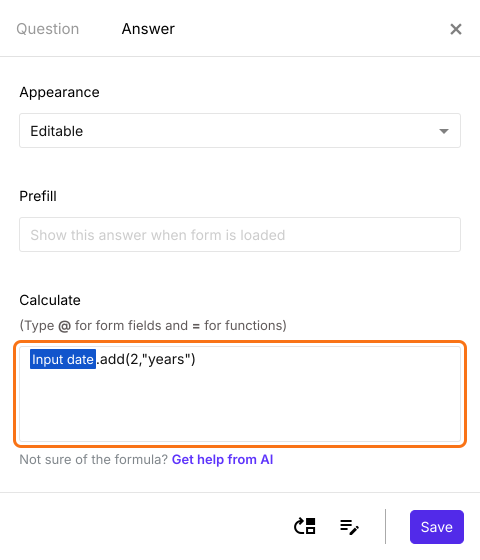
Inputdate.add(2,"years")
Add another date question the same way, click on the ⚙️ icon and write the formula in the Calculate option as shown below. Click Save.
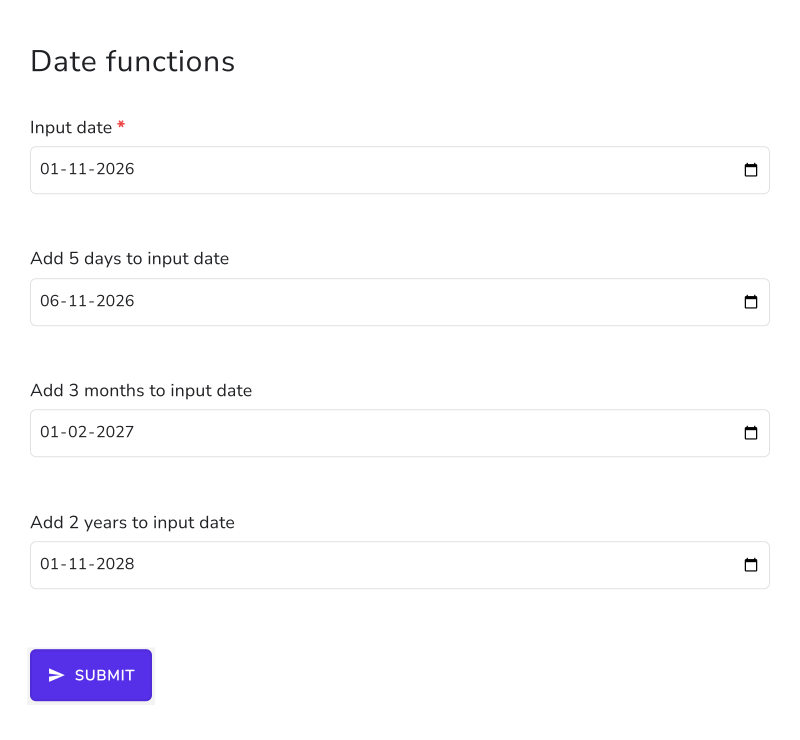
As soon as the user enters the input date, the form shows the new dates. Until then, they show dates around 1970, because an empty date counts from 1970.
Summary
If you need a date that is some days, months or years after another date, Google Forms cannot calculate it. With Formfacade, you can use the ADD function in the Calculate option and the new date will be displayed as soon as the user enters the first date. Create your form and complete the steps above. If you have any questions, write to support.
Last updated: