How to email each person their quiz score?

"Need an option to send only scores for assessments conducted through Google forms."- Google Docs Editors Community

When Google Forms emails a quiz score, the email carries the questions and answers too, and you can't change what it says. That's a problem for an assessment you run again, and it only knows scores from an answer key, not a score worked out from points. A script can send your own email, but it's one more thing to build and look after. With Formfacade, you work out each person's score from their answers and add it to an email you write yourself. It goes out as soon as they submit, so people still have their score after they close the form, and you can tell them what to do next.

Let's start. Import your Google Form and follow the steps below.

1. Say how to work out the score
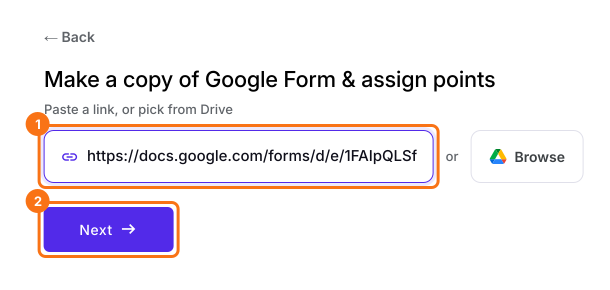
On the page that opens, paste your Google Form's link or click Browse to pick it, then click Next. The box under "Describe how you want to score this form" is already filled in, so change it only if you want to say how the score works. Click Next. Click View points to check the points, then click Next. When it says "You're all set!", click Preview form. Your form opens in a new tab. Back on this page, click Share form under Manage: your form opens on the Share tab.
The import page with a Google Form's link pasted, and the link box and Next marked

2. Turn on the email

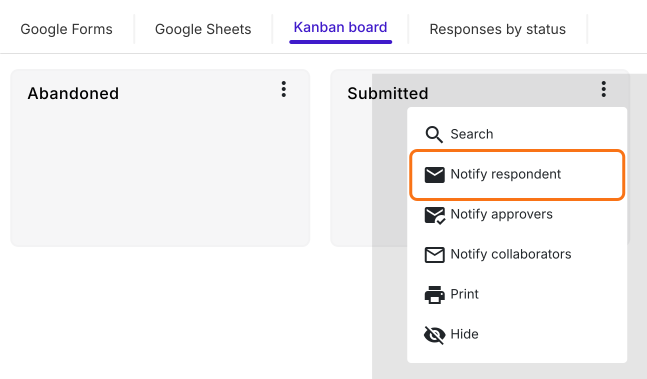
Click on Responses tab, then Kanban board. Click the three dots on Submitted, then Notify respondent. Check that it has picked the question that holds each person's email and click Next. Click Next again to keep the subject.
The Kanban board with the menu of the Submitted column open and Notify respondent marked

3. Add the score to your email

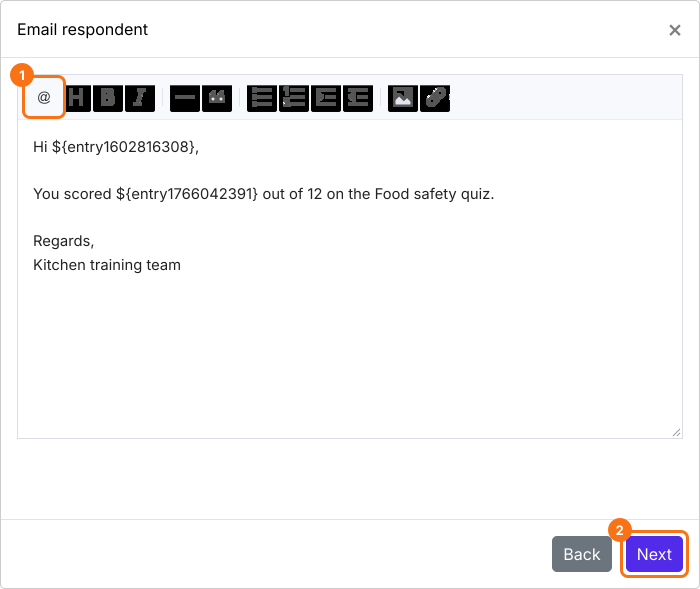
In the message, click @ in the toolbar, pick Score and click Next. The code you see here becomes each person's own number.
The Email respondent box with the message Hi, You scored, the Score code, out of 12 on the Food safety quiz, with the @ button and the Next button marked

4. Each person gets their score

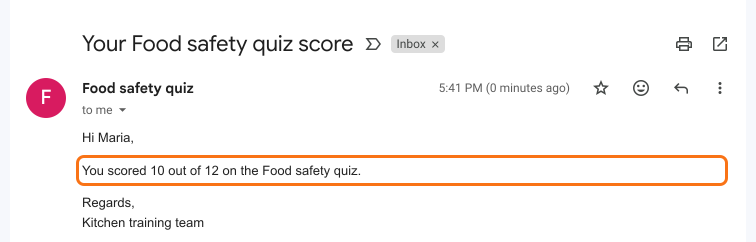
Click Click here, fill in your form and submit it with your own email. Click YES when the email arrives. From now on, each person gets their own score as soon as they submit.
A Gmail message from Food safety quiz that says Hi Maria, You scored 10 out of 12 on the Food safety quiz, with that line marked

Summary

Google's score email can't be written by you and only knows its own answer key, and a script is one more thing to look after. With Formfacade, you say how to work out the score, add it to your own email and each person gets their score as soon as they submit. Import your Google Form and complete the steps above. If you have any questions, write to support.

Email each person their score from your quiz.

Import your quiz, choose Notify respondent on Submitted and add Score to the message with @. Each person gets their score by email as soon as they submit.

Last updated: