How to let patients upload ID and insurance cards?
"How to get around file upload in public google form without a google account?"- Google Docs Editors Community
Patients often need to send a photo of their insurance card or ID before a visit, but a file upload question in Google Forms makes every respondent sign in to Google first. Not every patient has an account and copying cards at the front desk takes time. With Formesign, patients add the photo from their phone without signing in to Google, and you open it from their response before they arrive.
Let's start. Import your Google Form and follow the steps below.
1. Import your patient form
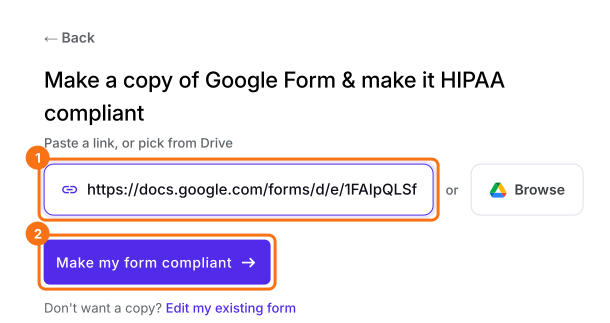
Click on Import your Google Form. On the page that opens, paste your Google Form's link or click Browse to pick it and click Make my form compliant. When it says Verify your Google Forms setup meets HIPAA requirements with Formesign, click Proceed and go through the PHI and Sign BAA steps.
2. Add a question for the card
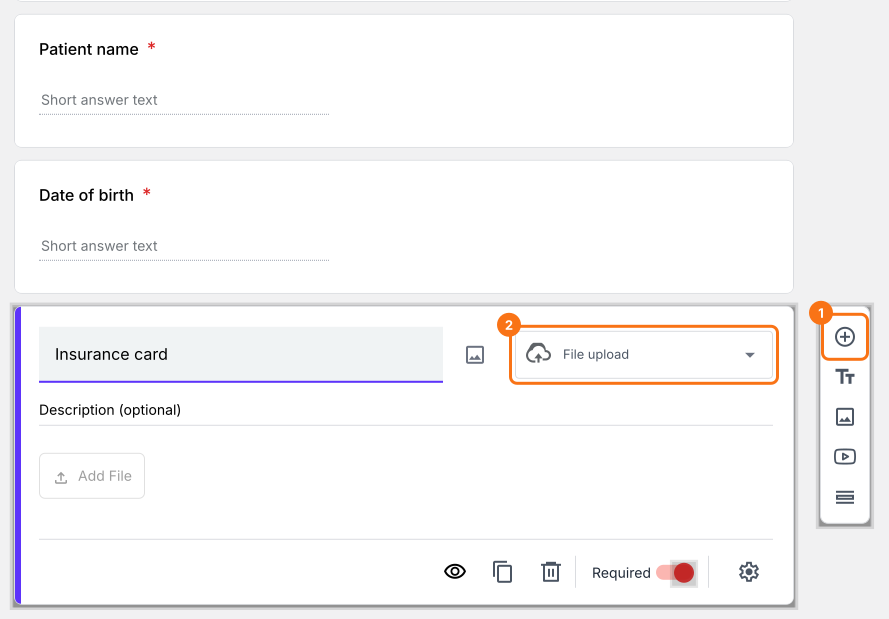
In the EDIT tab, click ⊕ on the toolbar and name the question Insurance card. Choose File upload as its type.
3. Mark it as private
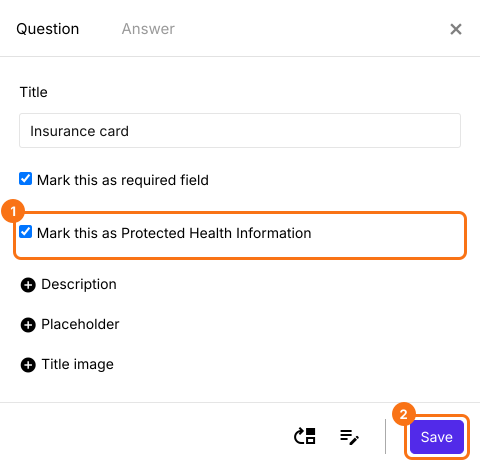
Click the question, then its gear, tick Mark this as Protected Health Information and click Save. If your form has signature fields, click each one and click Not required beside Verify identity, so patients sign without a Google account.
4. Patients add the card on their phone
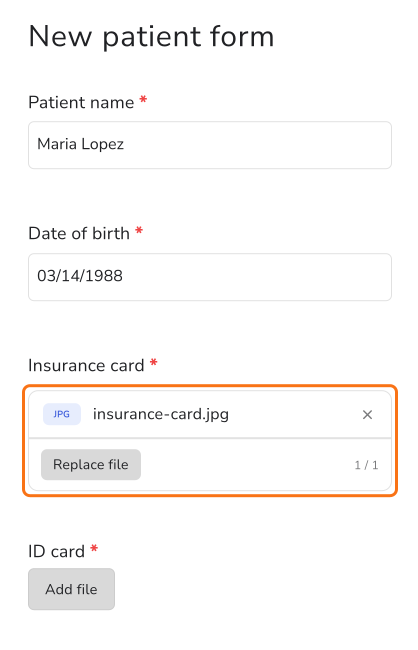
Click SHARE, click Copy and send the link to your patients. Patients tap Add file, take a photo of the card or pick one and tap SUBMIT. They don't sign in to Google.
5. Open the card before the visit
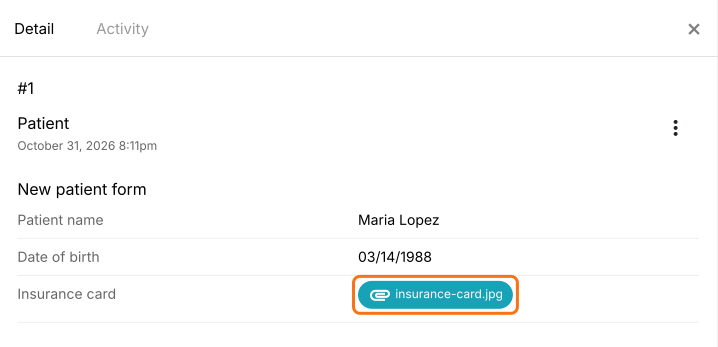
Click RESPONSES, then Kanban board and click the patient's card. Click the file to open it.
Summary
When a form needs a file from people who may not have a Google account, Google Forms' sign-in requirement stops them. With Formesign, people upload the file from their phone without signing in and you open it with their response. Import your Google Form and complete the steps above.
Let patients upload ID and insurance cards to your form.
Import your Google Form, click Make my form compliant and add a File upload question. Patients add a photo from their phone without a Google sign-in.